
Your webshop shows a different price than you expect: the base price instead of the variant price, the public price instead of a customer's pricelist price, or an amount with tax when you wanted it without (or the other way around). In almost every case it is not a bug. The shop price is the sum of three things Odoo decides separately: the variant's own sales price, the pricelist that applies to this visitor, and the tax display setting on the website. Get those three right and the displayed price is correct. The rest of this post covers each one and how to set it.
You set the red shirt at 25 and the blue at 20, but the shop grid shows 20 for both, or it shows 20 and the price only jumps when a visitor picks red on the product page. You gave a logged-in B2B customer a 10 percent pricelist, but the shop still shows the public price. Or your prices look right in Sales but online they show 21 percent higher (or lower) than the number you typed.
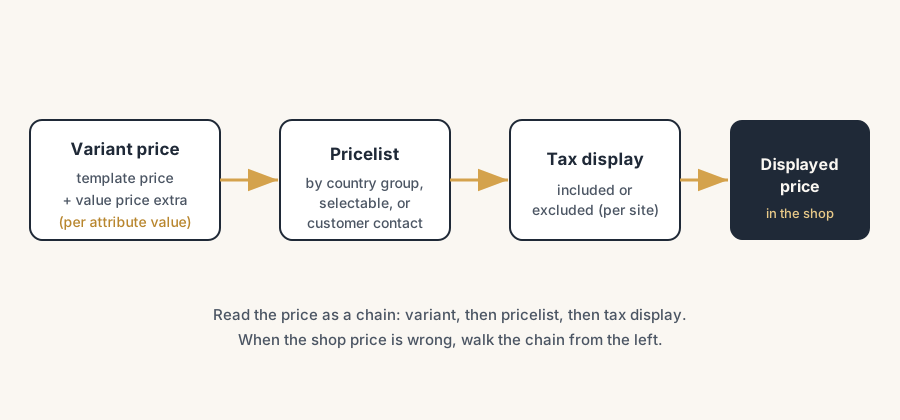
These feel like three different problems. They are really one question with three inputs. Odoo builds the shop price from the variant price, then the pricelist rule that applies to this visitor, then it displays that with or without tax depending on the website setting. When the shown price is wrong, one of those three is pointing somewhere you did not intend.
Why it happens
The shop grid shows the product template, the product page shows the variant. A product template (for example "T-shirt") groups variants (red, blue, size M, size L). The catalog grid shows one card per template, priced at the template's sales price. The variant price only comes into play on the product page once the visitor selects attribute values. So a grid that shows the base price for every colour is working as designed: the variant difference is added through the attribute, not stored as a separate template.
A variant price is the template price plus an extra per attribute value. You do not set 25 on the red variant directly in the simple case. You set the template at 20 and add 5 as the Value Price Extra on the "red" attribute value. Odoo then computes red as 25. If you expected to type the final price on the variant and it keeps showing the template price, you are looking for a field that the attribute extra is meant to fill.
The website uses a pricelist, but maybe not the one you think. Online, Odoo applies a pricelist to every visitor, anonymous or logged in. Which one depends on the visitor's country group, whether a pricelist is marked Selectable, and (for a logged-in customer) the pricelist on their contact. If your discount pricelist is not assigned to the website, not selectable, or loses to another pricelist that also matches, the shop falls back to the public price.
Tax display is a website setting, not a product setting. The shop shows prices tax included or tax excluded based on one setting per website, under the eCommerce section. Your product prices in the backend are stored one way (usually tax excluded), and the website converts for display. If the online number is consistently higher or lower than your backend number by exactly the VAT rate, this setting is the cause, not the price.
The fix, in numbered steps
Set the variant difference with Value Price Extra, not a separate price.
Open the product template, go to Attributes & Variants, open the attribute value (for example "red"), and set Value Price Extra to the amount you want added (for example 5 on a 20 template gives 25). This flows to the variant and to the product page. Use this for "this colour costs more" pricing. A warning from our own projects before you go all-in on variants: every price change now runs through attribute extras instead of a simple price field, which makes bulk updates and pricelist maintenance noticeably harder. We only use variant products when they clearly earn it, such as one shirt in eight sizes and five colours. For two or three versions of a product, separate products are easier to price, easier to update and easier to keep correct.
Check what the grid is supposed to show.
Accept that the catalog grid shows the template price by design. If every variant must show its own price as a separate card in the grid, that is not native behaviour for a single template with attributes; it means either splitting them into separate products or a third-party module. Decide which before you promise a layout.
Turn on Pricelists and pick the website's price selection.
Go to Website > Configuration > Settings, eCommerce section. Enable Pricelists if you want anything other than the public price online. Decide whether visitors can pick a pricelist (Selectable) or whether the pricelist is assigned automatically by country group and customer.
Assign the discount pricelist to the website and the customer.
Open the pricelist (Website > eCommerce > Pricelists, or Sales > Pricelists). To let a visitor choose it, enable Selectable. To apply it automatically to a logged-in B2B customer, set the pricelist on that customer's contact under Sales & Purchase. A pricelist marked Selectable but not tied to a specific website is selectable on all your websites; tie it to one website if it should only apply there.
Set the tax display per website.
In Website > Configuration > Settings, eCommerce section, set Display Product Prices to Tax Excluded or Tax Included. This decides whether the shop shows the price with or without VAT. It is per website, so a B2C shop can show tax included and a B2B shop tax excluded.
Check the customer's fiscal position for the actual tax charged.
The display setting decides how the number looks; the fiscal position on the customer (or their country) decides which tax is actually applied at checkout. A foreign B2B buyer with a reverse-charge fiscal position can see a different total than a domestic visitor, and that is correct.
The part that trips people up
A few things catch almost everyone
One website can only cleanly show one tax mode at a time. If you want the same website to show tax included to consumers and tax excluded to business buyers, that is not a single toggle. Odoo handles it through two technical user groups (Tax display B2B and Tax display B2C) that you assign per user in developer mode. Most companies are better off with a clear B2C shop showing tax included, and either a separate path or a login-gated section for B2B tax-excluded prices. Decide your model before you start fighting the toggle.
Selectable pricelists can collide. If several pricelists are marked Selectable and match the same visitor, the visitor may see a selector, or Odoo may apply the first match by country group. A discount that "does not apply" is often a pricelist that is not selectable, not assigned to this website, or sitting below another matching pricelist. Check assignment and order before assuming the rule is broken.
The variant extra is added on top of the template, every time. Value Price Extra is additive, not a replacement. If you set the template to 20 and the red extra to 25 thinking 25 is the final price, red becomes 45. The extra is the difference, not the total.
Backend price versus displayed price. A price that looks wrong online is frequently right in the backend and only displayed differently. Before you edit product prices, confirm whether the gap is exactly the VAT rate (a display setting) or a real pricelist difference (a rule). Editing the stored price to "fix" a display issue creates a worse problem later.
Anonymous visitors still get a pricelist. There is no "no pricelist" state online. Anonymous visitors get the public pricelist or the one matched to their detected country group. If anonymous prices look odd, check which pricelist the public is landing on, not just the logged-in ones.
Quick checklist
- Variant price differences set with Value Price Extra on the attribute value, not a separate price field.
- You accept the catalog grid shows the template price; variant price shows on the product page after selection.
- Pricelists enabled in Website > Configuration > Settings.
- The right pricelist is assigned to the website and, for B2B, to the customer's contact.
- Selectable pricelists do not collide; assignment and order checked.
- Tax display (included or excluded) set correctly per website.
- The customer's fiscal position is right for the tax actually charged at checkout.
- You confirmed whether a wrong online price is a display setting or a real rule before editing stored prices.
How Odoo decides the displayed price
Read the price online as a chain. Start with the variant: the template sales price plus any Value Price Extra from the selected attribute values. Apply the pricelist that matches this visitor: their country group, a selectable choice, or the pricelist on their contact if they are logged in. Then display that result with or without tax based on the website's tax display setting. Three inputs, in that order. When the shown price is wrong, walk the chain from the top and you will find which input is off, instead of editing the product price and hoping.
This stays manageable as long as you keep close to standard. The more you stack selectable pricelists, country groups, mixed tax modes and per-variant overrides, the harder the displayed price is to predict, and the more likely it breaks on the next upgrade.
FAQ
Why does my Odoo webshop show the template price instead of the variant price?
Because the catalog grid shows one card per product template, priced at the template's sales price. The variant price appears on the product page once the visitor selects attribute values. Set the variant difference with Value Price Extra on the attribute value, and it will show on the product page when that value is selected.
Why is my pricelist not applied on the Odoo website?
Usually because the pricelist is not enabled, not assigned to the website, not marked Selectable, or another matching pricelist takes priority. Enable Pricelists in Website settings, assign the pricelist to the website, mark it Selectable if visitors should choose it, and set it on the customer's contact for automatic application to a logged-in buyer.
How do I make my Odoo webshop show prices including VAT (or excluding)?
Go to Website > Configuration > Settings, eCommerce section, and set Display Product Prices to Tax Included or Tax Excluded. This is per website, so one website can show tax included for consumers and another tax excluded for business buyers.
How do I add an extra price for a product variant in Odoo?
Open the product template, go to Attributes & Variants, open the attribute value, and set Value Price Extra. This amount is added on top of the template sales price for that variant. It is additive, so an extra of 5 on a 20 template makes that variant 25.
Can one Odoo website show tax-included and tax-excluded prices to different visitors?
Not with a single setting. You enable developer mode and assign users to the Tax display B2B or Tax display B2C technical groups. For most companies it is cleaner to show tax included on a B2C shop and use a login-gated section or a separate path for B2B tax-excluded prices.