
You migrate into Odoo without losing history by importing master data and open transactions, bringing opening balances instead of old journals, and keeping the closed history readable outside Odoo.
You are leaving an old system and going live on Odoo. Someone exports everything to spreadsheets, you start importing, and the trouble begins. Products import fine, but the sales orders fail because the customers are not in yet. You re-run a file to fix a typo and now there are two of every contact. Then the accountant asks where the customer balances went, and you realise nobody decided what "history" even means here.
This is not an Odoo problem. It is a planning problem. A migration goes wrong when people treat it as one big copy job instead of a sequence with dependencies. Decide up front what you actually need on day one, import it in the right order with stable links, and bring balances instead of years of raw ledger. Do that and go-live is calm. Skip it and you spend the first month cleaning up.
Why it happens
Most failed migrations share the same root cause: no decision about scope and order before the first file goes in.
Two things drive it. First, records in Odoo depend on each other. An order needs a customer and a product to exist first. A product needs its category first. Import in the wrong order and the links have nothing to point at. Second, "migrate the data" sounds like one task but it is really three different jobs with different rules: master data you keep forever, open items you still have to act on, and history you may only need to look back at. Treat them the same and you either drown in old data or lose the numbers your accountant needs.
The fix is a plan that answers three questions before anyone touches a CSV: what to migrate, in what order, and how records stay linked across re-imports.
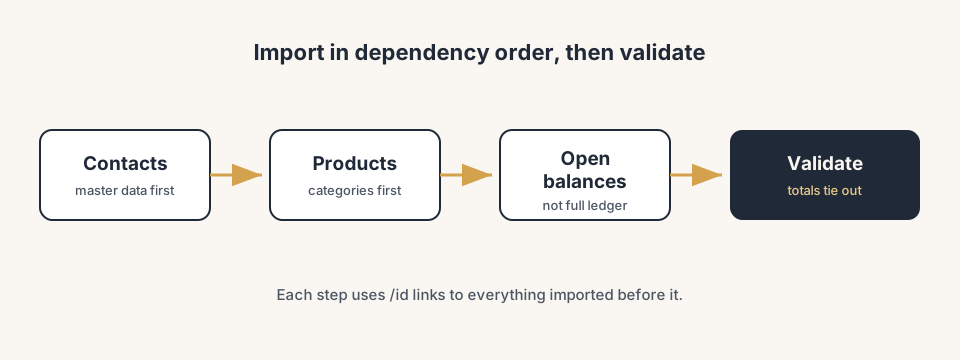
The fix, in numbered steps
Split your data into three buckets
Before exporting anything, sort what you have into three groups, because each is handled differently.
- Master data. The things you reuse every day: contacts, products, product categories, chart of accounts, tax codes, payment terms, units of measure. You keep this forever, so it must be clean and complete.
- Open transactions. Work that is still live on go-live day: unpaid customer invoices, unpaid vendor bills, sales orders not yet delivered, purchase orders not yet received, stock you physically hold. You need to act on these in Odoo, so they come across as real documents or balances.
- History. Everything already closed: paid invoices from three years ago, delivered orders, old journal entries. You rarely act on this. You only look it up. So you usually do not import it at all (more on that in Step 4).
Write the buckets down and decide per type whether it comes in. The default for closed history is "leave it in the old system, keep that read-only for a few years".
Give every record a stable External ID
In each import file, add a leftmost column named id and put a unique, space-free label in it for every row, for example partner_acme_nl or prod_chair_oak. This is the record's External ID, the stable text handle Odoo stores alongside the record.
This one column does two jobs. It lets other files point at this record (a sales order can reference partner_acme_nl as its customer), and it makes the import safe to repeat. Re-import the same file and Odoo matches on the External ID and updates the existing record instead of creating a second one. Without it, every re-run duplicates.
Import in dependency order, parents first
Sort your files so anything referenced is imported before the file that references it. For most companies the order is:
- Chart of accounts, taxes, payment terms (often already set up by the accounting localisation, so check before importing)
- Product categories, then products
- Contacts and companies
- Open sales orders and purchase orders
- Open invoices and vendor bills
- Opening balances (see Step 4)
- Opening stock quantities
To fill a link, name the column with a /id suffix and put the parent's External ID as the value. A contact in the Netherlands gets a country_id/id column with base.nl. A sales order gets partner_id/id with partner_acme_nl. The /id tells Odoo to match the External ID exactly rather than guessing by name. Import top to bottom and the "no matching record" errors do not appear, because every parent already exists.
Bring opening balances, not the full ledger
This is the decision that saves the most time and confuses the most people. You do not need to re-import years of paid invoices to have correct accounting in Odoo. You need the opening balances: where each account stood at the cut-over date.
Create one opening entry in a Miscellaneous journal dated to your start date. Each general ledger account gets a line for its closing balance from the old system. For receivables and payables, do not lump them: post one line per open customer invoice and per open vendor bill, each with the partner on it, so Odoo can reconcile the payment against it later when the money comes in. A balancing account (often called Opening Balance Equity, or a retained-earnings account) absorbs the difference so total debit equals total credit.
The result is correct balances on every account, every open invoice live and reconcilable, and not a single closed historical document cluttering the database. The trade-off is honest: detailed history stays in the old system, so keep that accessible read-only for a few years. In many countries a standard audit export covers the legal side of that history. In the Netherlands we hand over an XAF audit file per closed year; tax authorities and accountants read those directly, which makes the export a far cheaper answer than migrating the ledger ever is. For almost every mid-market migration this is the right call. Copying full ledger history is slow, error-prone, and rarely worth it.
Validate before you trust it
An import that runs without errors is not the same as a correct import. After each major step, check counts and totals, not vibes.
- Master data: row count in equals record count in Odoo. Spot-check ten records for correct links (category, country, tax).
- Open invoices: total open receivable in Odoo equals the old system's aged receivable on the cut-over date. Same for payables.
- Opening balances: the trial balance in Odoo on the start date equals the closing trial balance from the old system. If it does not balance, find the difference before you go live.
- Stock: on-hand quantity per product matches the physical count or the old system's stock report.
Only sign off when the totals tie out. That single reconciliation is what lets the accountant trust Odoo from day one.
The part that trips people up
A few things catch almost everyone
Reference built-in records, do not import them. Countries, currencies, the company, and often the chart of accounts and taxes ship with the Odoo localisation. They already have External IDs like base.nl. You point at them with /id, you do not load them again. Turn on developer mode and look them up under Settings > Technical > External Identifiers.
A half-finished parent import creates orphans. If a contacts file errors at row 300 of 1000, the first 299 exist and the rest do not. The orders file that references the missing 701 then fails. Always confirm a parent import finished cleanly before starting the child.
Opening invoices are balances, not new sales. When you import open customer invoices for the balance, they should not re-trigger delivery, re-deduct stock, or fire automatic emails. Bring them as accounting documents at the cut-over date, or as opening-entry lines per partner. Decide this with your accountant before importing, because undoing a thousand accidental delivery orders is no fun.
Dates and the fiscal year lock. Opening entries belong on the cut-over date inside an open period. If you have already locked the prior year in Odoo, you cannot post into it. Set your lock dates after the opening entry is in and reconciled, not before.
Clean the data before, not after. A migration is the one moment you get to drop dead contacts and obsolete products for free. Cleaning in the spreadsheet before import is ten times faster than cleaning live records afterwards. Do not carry junk across.
Quick checklist
- Data sorted into three buckets: master data, open transactions, history.
- A decision per type on what comes in; closed history stays read-only in the old system.
- Every file has a leftmost
idcolumn with a unique, space-free External ID per row. - Links use the
/idsuffix and point at a parent's External ID; built-in records are referenced, not imported. - Files imported parents first: accounts and taxes, categories, products, contacts, open orders, open invoices, opening balances, stock.
- Opening balances posted as one Miscellaneous entry, one line per open invoice with the partner, balanced by an opening/retained-earnings account.
- Totals reconciled after each step: trial balance, aged receivable and payable, stock on hand.
FAQ
What data should I migrate when moving to Odoo?
Sort it into three buckets. Migrate master data (contacts, products, categories, chart of accounts, taxes) because you use it every day. Migrate open transactions (unpaid invoices, undelivered orders, current stock) because you still act on them. Usually do not migrate closed history (paid invoices, old journal entries); keep the old system read-only to look it up instead.
Do I need to import all my historical invoices into Odoo?
No. For correct accounting you only need opening balances at the cut-over date and the open (unpaid) invoices. Closed, paid invoices are history. Importing them adds risk and clutter for little benefit. Keep the old system accessible read-only for a few years if you need to look up detail.
In what order should I import data into Odoo?
Parents before children. Chart of accounts and taxes first, then product categories and products, then contacts, then open orders, then open invoices, then opening balances, then opening stock. Any record referenced by a /id column must exist before the file that references it runs.
How do I import opening balances into Odoo?
Create one entry in a Miscellaneous journal dated to your start date. Add a line per general ledger account for its closing balance, and for receivables and payables a line per open invoice with the partner set so it can be reconciled later. Balance the entry with an Opening Balance Equity or retained-earnings account so total debit equals total credit.
How do I avoid duplicate records when I re-import a file in Odoo?
Include a leftmost id column with a unique External ID for every row. On a second import Odoo matches on that External ID and updates the existing record instead of creating a new one. Without the id column, every re-run creates duplicates.
How do I check my Odoo migration was correct?
Reconcile totals, not vibes. The trial balance in Odoo on the start date should equal the old system's closing trial balance. Open receivable and payable totals should match the old aged reports. Stock on hand per product should match the physical count. Sign off only when the totals tie out.