
Shipping in Odoo works when three pieces are set up in order: a delivery method, a rate calculation that matches what you actually charge, and (only if you need live labels and tracking) a carrier connector with complete product data behind it.
A customer pays for shipping at checkout and the amount is wrong. Either the webshop charged a flat fee that does not cover a heavy order, or the carrier quote came back far higher than what you actually pay. The warehouse cannot print a label, so someone copies the address into the carrier portal by hand. The tracking number never makes it back to the customer.
Shipping in Odoo is built from a few simple pieces: a delivery method, a way to calculate the rate, and (optionally) a live carrier connector that prints the label and returns the tracking. Most shipping pain comes from mixing these up or skipping the boring setup. Here is how the pieces fit and how to get rates, labels and tracking working.
Why shipping goes wrong
Three things get confused, and each one breaks a different part.
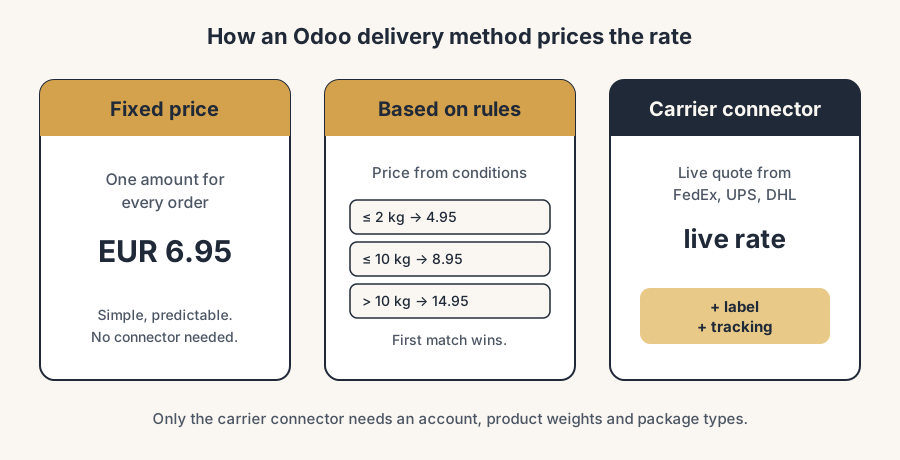
The first is the rate. A delivery method can price shipping in three ways: a fixed price, a price based on your own rules, or a live quote from the carrier. People pick the wrong one for their case. A flat fee is simple but loses money on heavy orders. A live carrier quote is accurate but needs an account and correct weights, or it returns nothing.
The second is the connector. A delivery method and a carrier connector are not the same thing. A delivery method is the choice the customer sees at checkout and the rule that prices it. A connector is the live link to FedEx, UPS, DHL and the rest that fetches rates, prints labels and returns tracking. You can run delivery methods with no connector at all. You only need a connector when you want the carrier to do the label and the tracking for you.
The third is the data the connector needs: product weights, a package type, and a complete sender address. Carriers price on weight and size. If your products have no weight, a live quote comes back as zero or fails, and the label will not generate. This is the boring part everyone skips, and it is the part that breaks live carriers.
The fix, step by step
Create the delivery method.
Go to Inventory > Configuration > Delivery Methods and click New. Give it a name the customer will recognise at checkout. The key field is the Provider, which decides how the rate is calculated. The next steps cover the three options.
Pick how the rate is calculated.
Set the Provider to one of three:
- Fixed Price. One amount for every order. Simple and predictable. Tick "Free if order amount is above" to offer free shipping over a threshold. Use this for a flat national rate.
- Based on Rules. Open the Pricing tab and add lines with conditions on weight, price or quantity, each with its own delivery cost. Odoo picks the first rule that matches. Use this when shipping scales with the order, for example a higher fee above 10 kg.
- A carrier (FedEx, UPS, DHL, and others). The rate comes live from the carrier. This needs a connector, covered below. Use this when you want the real carrier price, the label and the tracking.
Set availability conditions so the right method shows up.
On the delivery method, use the Availability tab to limit where it appears: by country, by maximum weight or volume, or by product tag. This is how you stop a domestic flat rate from showing on an international order, or a parcel method from showing on a pallet order.
Install the carrier connector (only if you use a live carrier).
Go to Inventory > Configuration > Settings, find the Shipping Connectors section, tick the carrier you need (you can tick several), and Save. Then open the delivery method, enter your carrier account credentials, and choose the Integration Level: "Get Rate" only fetches a price, while "Get Rate and Create Shipment" also generates the label and returns the tracking. Leave the method in test mode until it works, then switch the Environment to production.
Add the data the carrier needs.
On every product you ship, set a weight on the Inventory tab. Set up package types under Inventory > Configuration > Package Types with real dimensions and weights. Make sure your warehouse and company addresses are complete, including phone. Without these, a live carrier returns no rate and no label.
The part that trips people up
A few things catch almost everyone
This is where the day goes.
Products with no weight. A live carrier prices on weight. A product left at zero weight makes the quote come back empty or wrong, and the label fails. Set weights on everything you ship before you go live.
Test mode versus production. Connectors ship with a test or developer environment switched on. In test mode you get fake rates and labels that are not valid for real shipments. Nothing reaches the carrier until you switch the method to production and the credentials are the live ones, not the sandbox ones.
The rate at checkout is only as good as the inputs. "Based on Rules" picks the first rule that matches, top to bottom. If your rules are in the wrong order, or a catch-all rule sits at the top, every order gets the same price. Order the rules from most specific to least, and add a final fallback rule so nothing slips through unpriced.
Package type changes the price. Carriers charge on dimensional weight, not just actual weight. A light but bulky parcel can cost more than a small heavy one. If your package types are missing or wrong, the quote and the label will be off even when the product weights are right.
One label per package, not per order. If an order ships in several boxes, you need multi-package handling, not one label for the whole order. Set this up deliberately, or the warehouse ends up with one label for a three-box shipment.
Free shipping still needs a method. "Free" is a delivery method with a fixed price of zero or a threshold rule, not the absence of one. If no method matches the order, the customer cannot check out at all.
Simplify the rate rules before you build them. Shipping costs are always more complex than the first meeting suggests, and your contract prices rarely match what the connector quotes, because carriers return list rates, not your negotiated ones. The commercial answer usually beats the technical one: free shipping above a threshold settles most of it. And when someone asks for a complex rule, look for the simple version first. A client wanted to block orders under 100 euros entirely; instead of custom code we priced shipping below 100 euros high enough that nobody orders under it. A pricing decision did what a module would have, with nothing to maintain at the next upgrade.
Quick checklist
- One delivery method per option the customer should see at checkout.
- Provider set correctly: Fixed Price, Based on Rules, or a carrier.
- Availability conditions stop the wrong method showing on the wrong order.
- Connector installed and credentials entered, only if you use a live carrier.
- Integration Level set to "Get Rate and Create Shipment" if you want labels and tracking.
- Weights on every product, real package types, complete sender address.
- Switched from test to production before the first real shipment.
- A fallback rule so no order is ever left unpriced.
FAQ
What is the difference between a delivery method and a carrier connector in Odoo?
A delivery method is the shipping option the customer sees at checkout and the rule that prices it. A carrier connector is the live link to a carrier like FedEx, UPS or DHL that fetches rates, prints labels and returns tracking. You can use delivery methods without any connector. You only need a connector when you want the carrier to handle the label and the tracking.
How does Odoo calculate shipping costs?
Through the Provider field on the delivery method. There are three options: Fixed Price (one flat amount), Based on Rules (a price from conditions on weight, price or quantity), or a carrier (a live quote from FedEx, UPS, DHL and others). Pick the one that matches how your shipping actually costs.
How do I print shipping labels and get tracking numbers in Odoo?
Install the carrier connector under Inventory > Configuration > Settings, enter your carrier credentials on the delivery method, and set the Integration Level to "Get Rate and Create Shipment". When you validate the delivery, Odoo generates the label and returns a tracking reference. This only works in production mode, not test mode.
Why does my live carrier rate come back as zero or fail?
Almost always missing data. Carriers price on weight and package size, so a product with no weight, a missing package type, or an incomplete sender address makes the quote come back empty or fail. Set weights on every product, define real package types, and complete your warehouse and company address before going live.
Can I charge a flat shipping fee but still print a carrier label?
Yes, but it takes two parts. Use a Fixed Price or Based on Rules method for what the customer pays, and a carrier connector to generate the label and tracking in the warehouse. The price the customer sees and the carrier label are configured separately, so they do not have to match.