
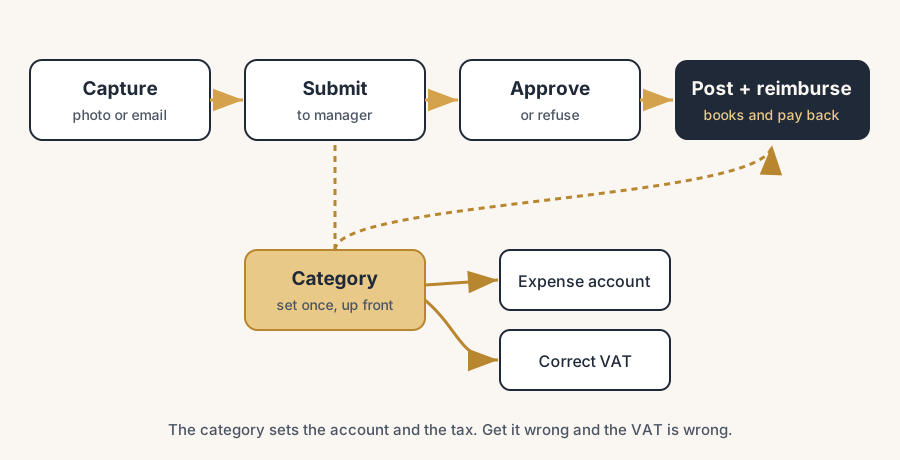
An expense in Odoo travels from a phone photo to reimbursement in seven steps, and most of them run themselves once the categories are set up. The employee snaps and submits, the approver checks, accounting posts, and the payment closes the loop.
Your team buys things. A tank of fuel, a client lunch, a train ticket, a box of cables from the hardware store. The receipts pile up in wallets, glove boxes and email inboxes. At month end someone collects them, types them into a spreadsheet, and finance pays a round number that nobody can trace back to a line. Half the receipts are missing. The VAT is guessed. The same expense gets claimed twice.
You bought Odoo partly to stop this, but the Expenses app sits there unused because nobody is sure how the flow actually works. Who submits what, who approves, where it lands in the books, and how the employee gets their money back. Here is the whole path, from the photo on a phone to the payment in someone's bank account, plus the two places people get the categories and taxes wrong.
Why it happens
An employee expense in Odoo is a small record with four facts: what was bought (the category), how much, who paid for it, and the receipt as proof. Once that record exists, it walks through four stations: the employee submits it, a manager approves it, finance posts it to a journal entry, and finance pays the employee back.
The reason teams stall is that they treat Expenses as a typing job instead of a capture job. The point of the app is that the person who spent the money captures it once, in the moment, with a photo, and the record carries itself through the rest. Skip the capture and you are back to the spreadsheet. Get the category wrong and the expense books to the wrong account with the wrong tax, which is the part that quietly costs you on the VAT return.
The fix, in steps
Set up expense categories first (this is the foundation)
Before anyone submits anything, configure your categories. In Odoo an expense category is a special kind of product. Go to Expenses > Configuration > Expense Categories and create one per type of cost: Mileage, Meals, Travel, Hotel, Office supplies, and so on.
For each category set three things that decide everything downstream:
- The expense account. This is the general ledger account the cost books to. Get this right and your P&L splits cleanly by cost type.
- The taxes. Set the purchase tax that applies to that cost, for example 21% or 9% VAT in the Netherlands, so Odoo can split the receipt total into net and recoverable VAT.
- The cost method. Either a fixed price per unit (handy for mileage, a set rate per kilometre) or the actual amount from the receipt.
Do this once, properly. Every expense an employee logs picks a category, and the category carries the account and the tax. Bad categories mean bad bookkeeping for every claim after.
Capture the expense (the phone photo)
This is the moment that matters. The employee captures the cost the second they spend it, while the receipt is in their hand.
There are four ways to create an expense in Odoo:
1. Snap a photo in the mobile app. Open Expenses, take a picture of the receipt. Odoo digitizes it and reads the amount and date for you. 2. Email it in. Forward the receipt to your company's expense email alias (more on this in Step 3). 3. Drag and drop a receipt onto the Expenses dashboard on desktop. 4. Enter it by hand if there is no receipt.
For each expense the employee picks the category, checks the total and date that Odoo read, sets who the expense is "paid by" (the employee, or the company card), and confirms. The receipt stays attached as the proof. No receipt, no proof, so push the photo habit hard. Since Odoo 19 there is a way to skip even the typing: the Odoo expense card, a physical or virtual Mastercard issued through Stripe. Pay with the card and the expense record appears in Odoo on its own, with the amount and merchant already filled; the employee only adds the photo of the receipt. Cards can be limited per merchant category, country and spending cap, which quietly replaces most of the approval discussion with configuration.
Submit by email (set the alias once)
The fastest capture for a busy team is email. An employee photographs a receipt, emails it to a fixed address, and the expense appears in Odoo ready to submit.
To make this work, set the email alias under Expenses > Configuration > Settings (the incoming email field, something like expenses@yourcompany.odoo.com). Then the employee sends a mail where:
- The subject is the expense. Put the category reference code (if the category has one) and the amount in the subject, for example "Train 42.50".
- The receipt is the attachment.
Odoo reads the subject for the amount and the category, attaches the receipt, and creates a draft expense under that employee's name. They open the app, check it, and submit. One mail per receipt, from the road, no typing.
Submit the report for approval
Logging an expense is not the same as submitting it. The employee selects their logged expenses and clicks Submit to Manager, which bundles them into an expense report. The report moves from "To Submit" to "Submitted", and the manager gets it in their approvals queue.
Bundling matters. One report can hold a week or a month of receipts, so the manager approves once instead of clicking through twenty separate lines.
Approve (or refuse) the report
The approver opens Expenses > My Team's Expenses (or the approvals list) and reviews each report. They can Approve the whole report, or Refuse it with a reason that goes back to the employee. Odoo supports a manager approval step, and you can add a second approver for amounts over a threshold if your policy needs it.
The approver is checking the real things: is the receipt attached, is the category right, is the amount sane, is this actually a company cost. This is the control that the spreadsheet never had.
Post to accounting
Once approved, finance clicks Post Journal Entries. Odoo creates the accounting entry: the cost hits the expense account from the category, the VAT hits the tax account, and the credit side goes to a payable. If the expense was "paid by the employee", the credit is a payable to that employee, which is the amount you owe them back. If it was "paid by the company" (a company card), there is nothing to reimburse, it just books the cost.
The report state moves to "Posted". The numbers are now in your books, traceable to a person, a category, and a receipt.
Reimburse the employee
Last station. For expenses the employee paid out of pocket, you pay them back. Two routes:
- Register a payment from the posted report (a bank transfer), the same way you pay a vendor bill. The report moves to "Done".
- Add it to the next payslip if you run Odoo Payroll, so the reimbursement rides along with their salary.
The report is now fully closed: captured, submitted, approved, posted, paid. Every step is logged, so an audit trail exists without anyone building one.
The part that trips people up
A few things catch almost everyone
The category drives the tax, and a wrong category quietly breaks your VAT. This is the number one mistake. If a meal books under a category with the wrong tax (or no tax), the recoverable VAT is wrong and your VAT return is wrong. Worse, some costs are only partly deductible (in many countries meals and entertainment are capped). If you set 21% recoverable on a category that should be partly or non-deductible, you over-claim VAT. Set the tax on each category to match the real fiscal rule, and check it with your accountant for meals, fuel and gifts specifically.
Tax included vs tax excluded on the amount. A receipt total is tax included. If your category or tax is configured as tax excluded, Odoo adds tax on top of a gross number and the booked amount is too high. Make sure the expense tax is set to compute from a tax-inclusive total, so 121.00 splits into 100.00 net and 21.00 VAT, not 121.00 plus 25.41.
"Paid by" decides whether there is anything to reimburse. If an employee paid with the company card but the expense is logged as "paid by employee", Odoo will think you owe them money you do not. Set "paid by" correctly per expense. Company card expenses still need logging for the cost and the VAT, they just do not create a payable to the person.
Email submission needs the amount in the subject. The email gateway reads the subject line for the amount (and the category code if you use one). A blank or vague subject creates an expense with a zero or missing amount that someone has to fix by hand. Train the team: subject is amount, attachment is receipt.
Logged is not submitted, and submitted is not posted. Three different states people confuse. An employee who "added" an expense but never clicked Submit to Manager has done nothing the manager can see. A manager who approved a report has not put it in the books; finance still has to Post. Know which state a report is in before you chase it.
Quick checklist
- Expense categories created, each with the correct expense account and purchase tax.
- Tax on each category matches the real deductibility (meals, fuel, gifts checked with the accountant).
- Taxes set to compute from a tax-inclusive total (receipt totals are gross).
- Incoming email alias for expenses configured and shared with the team.
- Team trained: photo the receipt, subject is the amount, attach the receipt.
- "Paid by" set correctly (employee vs company card) on every expense.
- Approval step assigned to the right manager, with a second approver over a threshold if policy needs it.
- Finance posts approved reports, then reimburses by bank transfer or payslip.
FAQ
How do employees submit expenses in Odoo?
Employees capture an expense in the Odoo Expenses app, most often by photographing the receipt with the mobile app, then select their logged expenses and click Submit to Manager to bundle them into a report. They can also email a receipt to the company expense alias, drag and drop a receipt on the desktop dashboard, or enter it by hand.
Can you submit an expense by email in Odoo?
Yes. Configure an incoming email alias under Expenses > Configuration > Settings, then email the receipt to that address with the amount (and category code if you use one) in the subject line and the receipt as the attachment. Odoo creates a draft expense for that employee, ready to submit.
How does an approved expense get into the accounting in Odoo?
After a manager approves the expense report, finance clicks Post Journal Entries. Odoo books the cost to the category's expense account, the VAT to the tax account, and a payable to the employee for any amount they paid out of pocket. The report state moves to Posted.
How are employees reimbursed in Odoo?
Reimburse a posted expense report in two ways: register a payment from the report as a bank transfer, the same as paying a vendor bill, or add the amount to the employee's next payslip if you use Odoo Payroll. The report then moves to Done.
Why is the VAT wrong on my Odoo expenses?
Almost always because the expense category has the wrong tax. The category drives the tax that splits a receipt total into net and recoverable VAT, so a category with no tax, the wrong rate, or a fully deductible rate on a partly deductible cost (like meals) produces a wrong VAT figure. Set the tax on each category to match the real fiscal rule.