
Multi-currency stays clean in Odoo when the setup comes first: gain/loss accounts in place, the right currencies active with automatic rates, invoices in the customer's currency, and the exchange differences then post themselves at reconciliation.
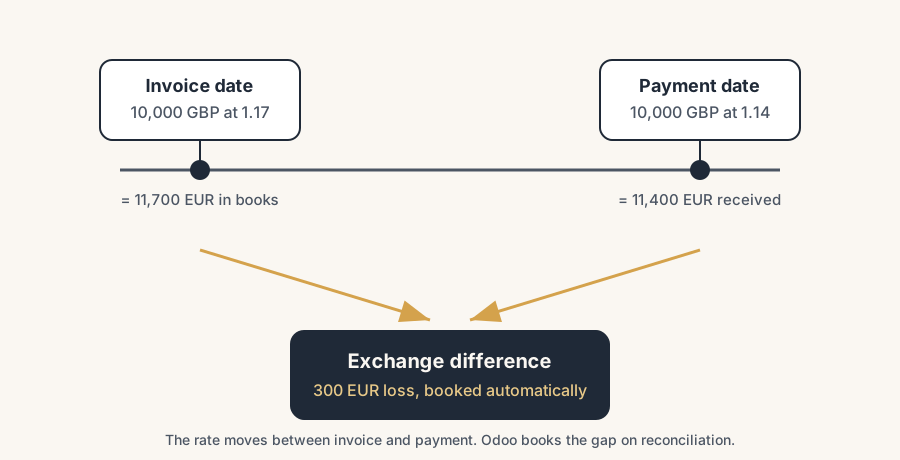
You send an invoice to a UK customer for 10,000 GBP. A month later they pay, and the amount that lands in your bank does not match the euro figure in your books. Now your accountant is asking why the customer ledger does not close to zero, and you are staring at a difference of a few hundred euros that nobody booked anywhere.
This is the moment most people discover that foreign-currency invoicing has rules. Odoo handles it well once it is set up, but the setup is where it goes wrong. Get the journal and the gain/loss accounts in place first, and the exchange differences post themselves. Skip that, and you spend month-end chasing rounding noise.
Why it happens
Your company keeps its books in one currency. For a Dutch company that is the euro. When you invoice in GBP or USD, Odoo records two numbers on every line: the amount in the foreign currency (what the customer owes) and the amount in your company currency (what it is worth to you, at the rate on the invoice date).
The rate moves between the invoice date and the payment date. So the euro value of the invoice and the euro value of the payment are not the same number, even though the GBP amount matched perfectly. That gap is a real gain or loss, and it has to land in an account. Odoo can book it automatically, but only if you have told it which journal and which accounts to use, and only once the invoice and the payment are reconciled.
The fix, in steps
Turn on multi-currency and set the exchange-difference accounts
Go to Accounting > Configuration > Settings, find the Currencies section, and tick Multi-Currencies. A block appears for "Post Exchange difference entries in". Set a Journal (Odoo creates an "Exchange Difference" journal by default), a Gain Account, and a Loss Account. Save.
Do this before you raise a single foreign-currency invoice. These three fields are what let Odoo book the difference on its own later. Without them it cannot, and the reconciliation gets stuck.
Activate the currencies you actually use
Open Accounting > Configuration > Currencies (or click "Activate Other Currencies" from the settings). Activate only the currencies you invoice or get paid in. Leave the rest off so your dropdowns stay short and your rate table stays clean.
Turn on automatic rate updates
Back in Accounting > Configuration > Settings > Currencies, tick Automatic Currency Rates. Pick a Service (Odoo uses the European Central Bank by default, with other providers available) and an Interval (daily or weekly). Odoo now pulls fresh rates on that schedule, so you are not typing them in by hand.
Daily is the safe default if you invoice abroad often. Weekly is fine if foreign invoices are occasional. You can still override a single rate manually when you need to match a specific contract rate.
Invoice in the customer's currency
On a customer invoice, set the currency on the invoice (it follows the customer's setting if you put one there). Enter the amounts in that currency. Odoo shows the foreign amount and converts to your company currency in the background using the rate for the invoice date. Your customer sees GBP; your books carry the euro equivalent.
Register the payment, then reconcile
When the payment comes in, register it against the invoice. The payment is recorded at the rate on the payment date, not the invoice date. Match the payment to the invoice in the bank reconciliation.
The moment the invoice and the payment are fully reconciled, Odoo posts the difference between the two euro values to your Exchange Difference journal: a gain or a loss. You do nothing extra. The customer ledger now closes to zero.
The part that trips people up
A few things catch almost everyone
Realised vs unrealised is the thing to understand. A *realised* difference is locked in: the invoice is paid and reconciled, the money has moved, and Odoo books it automatically (step 5). An *unrealised* difference is on paper only: the invoice is still open at period-end, and the rate has moved since you raised it, so its euro value today differs from the value in your books. That one is not booked automatically.
For unrealised differences, use the report. Go to Reporting > Unrealized Currency Gains/Losses. It lists every open foreign-currency balance and what it would be worth at today's rate. From there you can post an adjusting entry so your balance sheet shows the current value at period-end. Most setups reverse that entry on the first day of the next period, because it is a snapshot, not a settled gain.
The rate must exist for the date. If no rate is loaded for an invoice or payment date, Odoo falls back to the nearest earlier rate it has. With automatic updates on, this is rarely an issue. With manual rates and a gap in the table, you can get a wrong conversion and not notice. Check that your rate history has no holes around month-end.
Every transaction posts in company currency. On the journal entry you will see the company-currency amount plus a secondary-currency column showing the foreign amount. That is normal. Your reports, taxes, and statements all run in your company currency; the foreign amount rides along for reference.
The webshop adds a twist the books do not expect. You show the customer a price in their currency, but the payment provider behind the checkout settles in your base currency, and now two exchange rates are in play: the one Odoo used when the order was placed and the one the PSP used at settlement. They never quite agree, so the amount that lands does not match the invoice and the reconciliation stalls on small differences. We solve that upfront, not per payment: a write-off account for payment differences with a sensible tolerance, and a check on which rate your PSP actually applies. The mismatch is structural, so build the routine for it instead of treating every cent as a mystery.
Quick checklist
- Multi-Currencies ticked, with Journal + Gain account + Loss account set
- Only the currencies you use are activated
- Automatic Currency Rates on, with a sensible interval
- Invoices raised in the customer's currency
- Payments reconciled so realised differences post by themselves
- Unrealized Currency Gains/Losses report checked at each period-end
FAQ
Does Odoo update exchange rates automatically?
Yes. In Accounting > Configuration > Settings > Currencies, turn on Automatic Currency Rates, pick a service (the European Central Bank is the default) and an interval (daily or weekly). Odoo then fetches rates on that schedule. You can still set a rate by hand when you need a specific one.
How does Odoo handle the gain or loss when a foreign invoice is paid?
When the invoice and the payment are fully reconciled, Odoo posts the difference between the invoice-date value and the payment-date value to the Exchange Difference journal, using the gain or loss account you configured. This happens automatically; you do not book it yourself.
What is the difference between realised and unrealised exchange differences?
A realised difference comes from a paid and reconciled invoice. The money has moved and Odoo books it automatically. An unrealised difference is on an invoice still open at period-end, where the rate has changed but no payment has happened. You post unrealised differences manually from the Unrealized Currency Gains/Losses report, usually reversing the entry next period.
Can I invoice a customer in a different currency than my company currency?
Yes. Set the currency on the invoice (or on the customer). The customer sees the foreign amount; Odoo records the company-currency equivalent in the background at the invoice-date rate. All your reporting stays in your company currency.
Do I need Odoo Enterprise for multi-currency?
Multi-currency is available in both Community and Enterprise. The automatic rate update and the Unrealized Currency Gains/Losses report sit in the Accounting app, which is the Enterprise accounting module; Community uses the Invoicing app, where some of the advanced accounting reports are not present.