
An OCR bill will not match a purchase order because OCR only reads the document; it never links a PO. The fix is linking the PO on the draft bill (or letting the bill start from the PO), with Bill Control on received quantities so the three-way check is real.
You turned on vendor bill OCR to save your finance team the typing. A supplier invoice lands in the mailbox, Odoo reads it, and a draft bill appears with the vendor, the amount and the lines filled in. Lovely. Then you tick three-way matching as well, because you want Odoo to confirm you only pay for what was ordered and received.
And nothing lines up. The OCR bill sits there with no purchase order behind it. The "Should Be Paid" status does not turn green. Your team is back to hunting for the matching PO by hand, opening the bill, opening the purchase order, comparing line by line. The two features you switched on to save time are now creating more work, not less.
This is one of the most common finance surprises in Odoo. OCR and three-way matching both work. They just do not talk to each other the way people assume. Here is how matching actually works, why an OCR bill arrives with no PO link, and how to set up the flow so the two stop fighting.
Why it happens
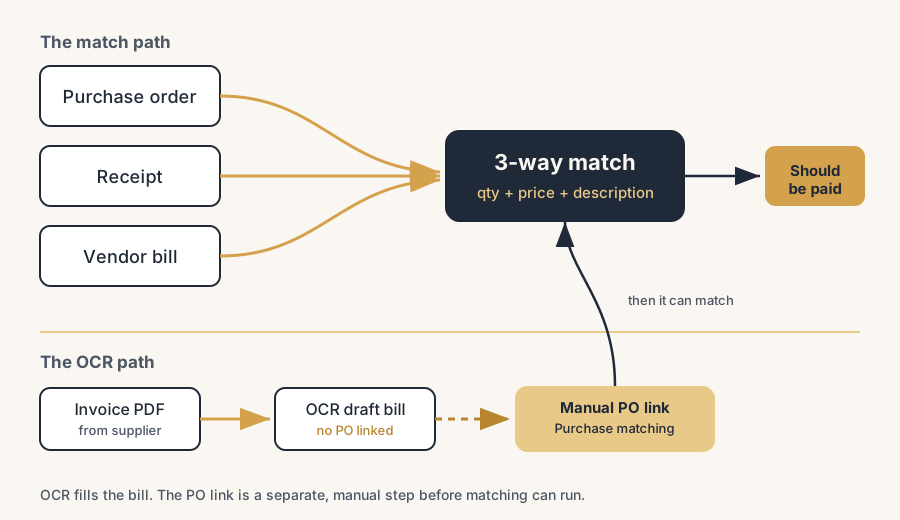
Three-way matching compares three documents: the purchase order (what you ordered), the receipt (what the warehouse logged as received), and the vendor bill (what the supplier billed). Odoo checks that the quantity, the description and the price agree across all three before it is comfortable telling you the bill should be paid. If they disagree, it flags an exception. The point is to stop you paying for goods you never ordered or never received.
For that check to run, the bill has to be linked to a purchase order. That link is the whole basis of the comparison. No PO on the bill, no three documents to match, no matching.
Here is the catch. OCR does not create that link. OCR reads the PDF the supplier sent and fills in a draft bill from the text on the page: vendor, date, amounts, sometimes line descriptions. It does not search your purchase orders and attach the right one. So an OCR bill is born as a standalone document. Three-way matching then has nothing to chew on, because from its point of view the bill is not connected to any order at all.
The confusion is understandable. Both features live in the same area, both touch vendor bills, and the marketing makes them sound like one smooth pipeline. They are two separate steps. OCR gets the data off the page. Matching needs a PO link that you still have to make.
The fix, in steps
Turn on three-way matching the right way
Go to Purchase > Configuration > Settings, scroll to the Invoicing section, and tick 3-way matching. Save.
One condition matters here and it is easy to miss. Three-way matching only does its job when the Bill Control policy is set to Received quantities, not Ordered quantities. You set this per product (or as a default on the product category). With Ordered quantities, Odoo bills against what you ordered and the receipt never enters the comparison, so the "three-way" part is hollow. Set Bill Control to Received quantities for the products where the check has to count.
This single setting matters because it is the difference between a real three-way check (order, receipt, bill) and a two-way one (order, bill). If receipts do not feed the check, you can still overpay for goods that never arrived.
Understand the "Should Be Paid" status
Once matching is on, every confirmed vendor bill carries a Should Be Paid status. Three values:
- Yes: the ordered, received and billed quantities agree. Safe to pay.
- Exception: something does not match. A quantity is off, a price differs, or there is no receipt for what is billed.
- No: nothing has been received yet, so the bill should not be paid.
Note that Odoo does not block the payment on an exception. It flags it and leaves the decision to you, because there are legitimate reasons to pay anyway (a partial delivery you agreed to, a known price change). The status is a control signal, not a hard lock. Treat "Exception" as "look before you pay", not "system error".
Run the OCR step, and know what it does not do
Vendor bill OCR (document digitization) is an In-App Purchase service. It costs prepaid credits, one credit per document, so it is not free and you top it up like any IAP balance. You feed it a bill by emailing it to the vendor bills alias, uploading the PDF, or dropping it through the Documents app.
Odoo reads the file and creates a draft vendor bill with the fields it could extract. Check those fields. OCR is good, not perfect, and a misread amount or VAT line that you post without looking is a problem you created, not one Odoo created.
There is one thing this step does not do: it does not attach a purchase order. The draft bill has no PO link yet. That is the gap, and the next step closes it.
Link the purchase order to the OCR bill
This is the step everyone misses. On the draft bill, you make the PO link yourself. Two routes, depending on what exists.
If a purchase order for this vendor already exists, use the Purchase matching smart button on the bill. It opens a list of open purchase order lines for that vendor. Select the lines that belong to this invoice, select the draft bill, and click Match. Odoo now connects the bill to the PO (and through it, the receipts), and three-way matching finally has its three documents.
You can also use Auto-complete: on the bill, pick the related purchase order in the Auto-complete field, and Odoo pulls the expected lines from the PO straight onto the bill. This populates from the order and receipt data, which is often a cleaner source than the OCR text.
If no purchase order exists at all (a supplier billed you without one), you can create a PO directly from the bill lines, then the matching has something to point at. But ask why there was no PO first; a bill with no order behind it is exactly the kind of thing three-way matching is meant to catch.
Decide your real intake flow and stop mixing the two
Step back and pick the flow per situation, because OCR and Auto-complete solve different problems.
- You order through Odoo first (PO exists). The purchase order and receipt already define what the bill should be. Use Auto-complete from the PO as your primary route. The PO and received quantities are the stronger source of truth. OCR is optional here and often just noise.
- The invoice is the first document you see (no PO, or POs you do not control). Here OCR earns its keep: the bill is the intake document, so read it with OCR, then either match it to a PO if one turns up or create one.
The mistake is running OCR on bills that came from your own purchase orders and then wondering why nothing matches. If you raised the PO, drive the bill from the PO, not from the PDF.
The part that trips people up
A few things catch almost everyone
OCR never links a PO. You do. This is the core misunderstanding. OCR fills the bill from the page; it does not search your purchase orders. The PO link is a separate manual action (Purchase matching or Auto-complete). Until you make it, three-way matching has nothing to compare and the status will not say Yes.
Bill Control set to Ordered quantities quietly kills the three-way check. If Bill Control is Ordered, the receipt is not part of the comparison and you effectively have two-way matching. Set Received quantities on the products that need a real three-way control.
An exception does not stop payment. Odoo flags "Should Be Paid: Exception" but still lets you register the payment. If your control depends on the system blocking the payment, it will not. Build the human check: nobody pays a bill in Exception without a reason noted.
OCR costs credits and can misread. Digitization is an IAP service billed per document. Budget for it, and always review the extracted amounts, taxes and dates before you post. A wrong number that sails through unchecked is worse than no OCR at all.
Matching is per line, not per bill. A bill can cover lines from more than one PO, or only part of a PO. The Purchase matching screen works at line level for that reason. A partial match leaves the rest of the PO open for the next bill, which is correct, but it surprises people expecting one bill to close one whole order.
Quick checklist
- 3-way matching ticked under Purchase > Configuration > Settings.
- Bill Control set to Received quantities on the relevant products or categories.
- Team knows the three "Should Be Paid" states and treats Exception as "check first".
- OCR credits topped up; extracted fields reviewed before posting.
- Every OCR bill gets its PO link via Purchase matching or Auto-complete.
- Bills from your own POs are driven by Auto-complete, not OCR.
- A rule exists: no payment on an Exception bill without a noted reason.
FAQ
Why does my OCR vendor bill not match a purchase order in Odoo?
Because OCR does not create the PO link. OCR reads the invoice PDF and fills in a draft bill, but it does not search your purchase orders or attach one. Three-way matching needs that link to run, so the bill stays unmatched until you connect it yourself using the Purchase matching smart button or the Auto-complete field on the bill.
What is three-way matching in Odoo?
Three-way matching compares the purchase order, the receipt and the vendor bill, checking that quantity, description and price agree across all three before the bill is paid. It guards against paying for goods you did not order or did not receive. Turn it on under Purchase > Configuration > Settings, in the Invoicing section.
Does three-way matching block payment of a mismatched bill?
No. Odoo sets the "Should Be Paid" status to "Exception" when the documents disagree, but it does not stop you registering the payment. There can be valid reasons to pay anyway, so the status is a warning, not a hard lock. You need a human rule to enforce a real control.
Do I need OCR to use three-way matching?
No. OCR and three-way matching are separate. If you raised the purchase order in Odoo, the cleaner route is Auto-complete: pick the PO on the bill and Odoo pulls the expected lines from the order and receipt. OCR is for when the invoice itself is the first document you have, with no PO behind it.
How much does vendor bill OCR cost in Odoo?
Vendor bill OCR (document digitization) is an In-App Purchase service billed per document, one credit per bill, paid from a prepaid IAP balance. You top it up like any other IAP credit. Review the extracted fields before posting, because OCR can misread amounts, dates or taxes.