
You cannot delete a posted invoice in Odoo because posting writes a journal entry into a sequential ledger, and erasing that would break your books. The clean fix is a credit note, with reset to draft and cancel as the narrow exceptions.
You posted a customer invoice, then spotted a mistake. Wrong amount, wrong line, wrong customer, wrong date. You open the invoice, look for the delete button, and it is gone. The trash icon does nothing useful, and the only thing you can find is a credit note. So you wonder if Odoo is broken, or if you are missing a setting.
You are not missing a setting. Odoo will not let you delete a posted invoice, and in most cases it will not even let you reset it to draft. That is on purpose. The frustrating part is that nobody told you which of the three buttons (reset to draft, cancel, credit note) you are actually allowed to use, and what each one does to your books. Pick the wrong one and you either get a refusal you do not understand, or you quietly break your audit trail.
Why it happens
A posted invoice is not just a document. The moment you post it, Odoo writes a journal entry into your general ledger: a debit and a credit that move real numbers in your accounts and your VAT return. Deleting the invoice would mean deleting that journal entry, which would leave a hole in a numbered, sequential ledger. Tax authorities in most countries do not allow that. An accounting system that lets you silently erase a posted entry is not a trustworthy accounting system.
So Odoo locks posted entries by design. Many localisations go further and add a hash chain: each posted entry gets a cryptographic hash that depends on the one before it, so any later tampering is detectable. This is the "Secure Posted Entries with Hash" setting on the journal, under the Advanced Settings tab (in Odoo 17 and earlier it was called "Lock Posted Entries with Hash"). In some countries this is not a preference but a legal requirement: tax authorities demand proof that posted entries are unaltered, France being the known example. If you operate under such rules, switch the hash on per journal and treat it as compliance, not as an option. Once that is on, or once the invoice has been paid or reconciled, the option to undo it is removed entirely. The correct way to fix a posted invoice is not to delete it, it is to record a counter-entry that everyone can see. That counter-entry is a credit note.
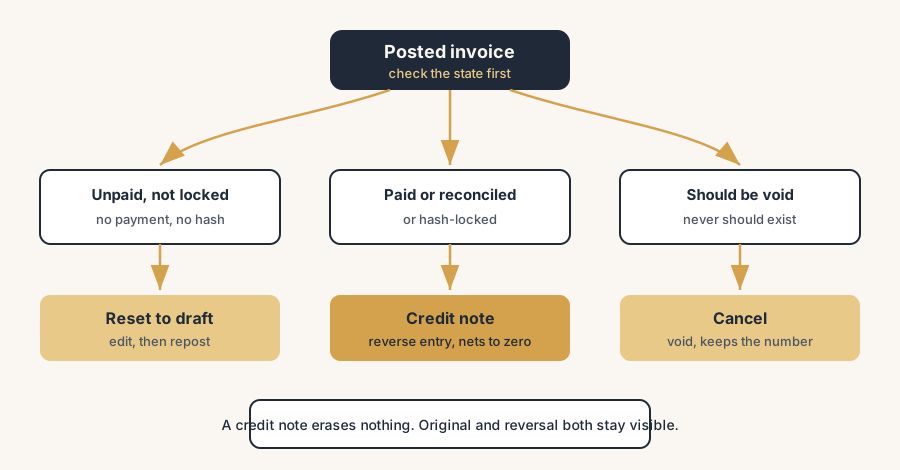
The fix, in steps
You have three tools. They are not interchangeable. Use the lightest one the situation allows.
Decide which state your invoice is in
Before you touch anything, check two things on the invoice: is it still in Draft, and has any payment been registered or reconciled against it.
- Still in draft: you have not committed anything to the ledger yet. Just edit it, or delete it outright. Draft invoices can be deleted.
- Posted, nothing paid, no hash lock: you may be able to reset it to draft (Step 2).
- Posted and paid, reconciled, or hash-locked: reset to draft is off the table. Go to the credit note (Step 4).
This one check tells you which of the next steps even applies, and saves you from clicking a button Odoo will refuse.
Reset to draft, only for a fresh mistake
If the invoice is posted but untouched (no payment, no reconciliation, no hash lock on the journal), you will see a Reset to Draft button. Use it for a mistake you caught immediately, before anyone outside finance has seen the document and before the period closed.
Reset to draft pulls the invoice back to editable, which removes the journal entry it created. You fix the line, then post again. Clean and simple, but only because nothing downstream depended on the original yet.
The button is sometimes missing for a reason: Odoo hides Reset to Draft when the journal has "Secure Posted Entries with Hash" enabled, when the invoice is paid or partially paid, when its entry is reconciled, or in some cases when stock valuation (FIFO or AVCO) created correction entries on confirmation. If you cannot see the button, that is Odoo telling you the entry is already protected. Do not go hunting for a module to force it; treat the absence as the answer and use a credit note instead.
Cancel, when you want it on record as void
Cancelling sits between reset to draft and a credit note. A Cancel button is available on the invoice (you may need to enable cancellation on the journal first, via "Allow Cancelling Entries"). Cancelling moves the invoice to a Cancelled state and reverses its journal entry, but it keeps the document in the system with its number, marked as void.
Use cancel when the invoice should never have existed and you want a visible, numbered record that it was voided, rather than a credit note that nets it out. Behaviour and availability vary by version and localisation, so if cancel is not offered or your accountant prefers a paper trail of offsetting entries, fall back to the credit note. In strict-audit localisations, the credit note is the safer default.
Issue a credit note, the universal fix
When reset to draft is gone and cancel does not fit, the credit note is the answer that always works and always keeps the books clean. On the posted invoice, click Add Credit Note (labelled Credit Note or Reverse depending on version). Odoo opens a wizard with three options:
- Full Refund. Odoo creates the credit note, posts it automatically, and reconciles it against the original invoice. The two net to zero. This is what you want to fully cancel a posted invoice.
- Partial Refund. Odoo creates a draft credit note prefilled from the original, so you can change the amount or lines before posting. Use this when only part of the invoice was wrong, or when you need to edit the credit note itself.
- Full Refund and New Draft Invoice. Odoo creates and posts the full credit note, reconciles it with the original, and then opens a fresh draft invoice copied from the original. Use this when you want to cancel and immediately re-issue a corrected invoice.
The mechanism underneath all three is the same: a credit note is a reverse entry. It books the exact opposite of the original journal entry, so the net effect on your ledger is zero, but both the original and the reversal stay visible. Nothing is erased. That is exactly what an auditor wants to see.
Reconcile and re-issue cleanly
After a full refund, check that the credit note is reconciled against the original invoice so both show as settled and your customer balance is correct. If you used Partial Refund, post the credit note once the amount is right. If you are re-issuing, finish the new draft invoice with the correct details and post that. The customer then receives the credit note and, where relevant, the corrected invoice, which is the honest paper trail: here is the wrong one, here is the reversal, here is the right one.
The part that trips people up
A few things catch almost everyone
No delete button is not a bug. The single most common confusion. Posted invoices cannot be deleted because that would erase a ledger entry. Stop looking for the trash icon and use a credit note.
The Reset to Draft button disappears the moment money moves. As soon as a payment is registered or the entry is reconciled, reset to draft is removed. Same once "Secure Posted Entries with Hash" is on. People assume the button vanished because of a bug; it vanished because the entry is now protected.
Full Refund auto-posts, Partial Refund does not. If you pick Full Refund expecting to tweak the credit note first, you cannot: it is already posted and reconciled. Choose Partial Refund whenever you need to edit anything before it hits the ledger.
A credit note still needs a reason and the right date. The reversal lands in an accounting period. Post it in the wrong period and you move numbers into the wrong month or VAT return. Set the credit note date deliberately, especially near a period or year close.
Cancel is not available everywhere. Cancelling entries has to be allowed on the journal, and some strict-audit localisations discourage or block it. If cancel is missing, that is by design too. Use a credit note.
Do not install a "force delete" module to get around this. Modules exist that re-enable deleting or resetting posted entries. On a real set of books they are a liability: they break the audit trail and the hash chain, and they can fail an audit. The lock is the feature, not the obstacle.
Quick checklist
- Check the invoice state first: draft, posted-unpaid, or posted-paid/reconciled/locked.
- Draft invoice: just edit or delete it.
- Posted, untouched, no hash lock: Reset to Draft, fix, repost.
- Reset to Draft missing: that is intentional; use a credit note.
- Whole invoice wrong, settle it out: credit note with Full Refund (auto-posts and reconciles).
- Only part wrong, or need to edit: credit note with Partial Refund (stays draft).
- Cancel and re-issue: Full Refund and New Draft Invoice.
- Set the credit note date in the correct accounting period.
- Never install a module that force-deletes posted entries.
FAQ
Why can't I delete a posted invoice in Odoo?
Because posting an invoice writes a journal entry into your general ledger, and deleting it would erase that entry from a sequential, numbered set of books. Most tax authorities forbid this, so Odoo locks posted entries by design. To undo a posted invoice you issue a credit note, which records a visible reversal instead of erasing anything.
How do I correct a posted invoice in Odoo?
If the invoice is posted but unpaid, unreconciled, and the journal is not hash-locked, use Reset to Draft, fix it, and repost. If it is paid, reconciled, or locked, that button is gone, so click Add Credit Note and choose Full Refund to cancel it or Partial Refund to correct part of it. Then re-issue a corrected invoice if needed.
What is the difference between reset to draft, cancel, and a credit note?
Reset to draft pulls a posted invoice back to editable and removes its journal entry, allowed only when nothing has been paid, reconciled, or hash-locked. Cancel marks the invoice void, keeps its number, and reverses the entry. A credit note leaves the original in place and posts an opposite entry that nets to zero, which is the audit-safe correction that always works.
Why is the Reset to Draft button missing on my invoice?
Odoo removes Reset to Draft once the entry is protected: when the invoice is paid or partially paid, when its journal entry is reconciled, when the journal has "Secure Posted Entries with Hash" enabled, or when stock valuation created correction entries on confirmation. The missing button is intentional. Use a credit note instead of trying to force the entry open.
Does a credit note in Odoo delete the original invoice?
No. A credit note is a reverse entry that books the exact opposite of the original, so the net effect on your ledger is zero, but both the original invoice and the credit note stay visible. Nothing is erased, which is exactly what keeps your books auditable.