
When Odoo puts the wrong VAT on an invoice, the customer's fiscal position is almost always the reason. It is missing, set wrong, or mapped incompletely, and the product's default tax is only the starting point it rewrites.
You send an invoice to a business customer in Germany. Your Odoo charges 21% Dutch VAT on it. It should have been 0% with a reverse charge note, because it is an intra-EU B2B sale. The customer's accountant emails back, the invoice gets credited, and you reissue it by hand. Multiply that by every export and every EU client and you have a recurring mess.
It also goes wrong in the other direction. A sale to a customer outside the EU shows VAT that should not be there, or a domestic invoice suddenly shows 0% because someone picked the wrong setting once and it stuck. The numbers in your VAT return stop matching reality. Here is how the mechanism works and how to get it right.
Why it happens
Every product in Odoo carries a default sales tax. For a Dutch company that is usually 21% VAT. If nothing changes that default, every invoice line uses 21%, no matter who the customer is or where they sit.
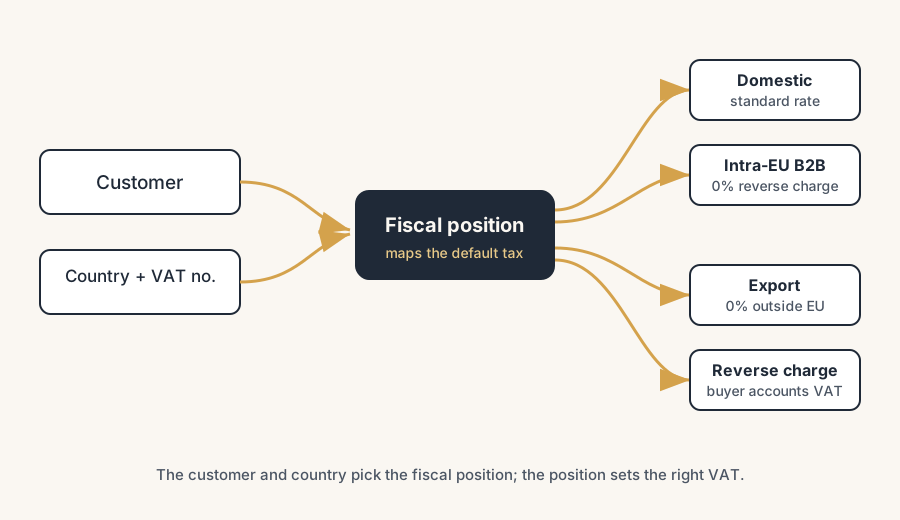
A fiscal position is the rule that changes the default. It does not invent a tax. It maps one tax to another for a given customer. "When this customer is invoiced, replace 21% VAT with 0% intra-EU." The same mechanism can also remap the general ledger account, so EU sales land on a different revenue account than domestic sales. Taxes and accounts, both mapped by the same rule.
So a wrong VAT comes down to one of three things. Either no fiscal position is set on the customer, so the product default (your domestic rate) is used everywhere. Or the wrong fiscal position is set, so an export customer gets the intra-EU mapping or vice versa. Or the fiscal position exists but its mapping is incomplete, so it changes some taxes and misses others. Detection that is not automatic makes the first two far more likely, because it leaves the choice to whoever creates the customer.
The fix, in steps
Confirm the product default tax is correct
Open one product and check the Customer Taxes field on the Accounting tab. This is the starting point every fiscal position works from. For a Dutch seller it should be your standard 21% rate (or the correct reduced rate for that product). If the default itself is wrong, no fiscal position will save you, because the mapping rewrites a tax that was already wrong.
The mapping only ever rewrites the default. Get the default right first, then map.
Open your fiscal positions and read the mapping
Go to Accounting > Configuration > Fiscal Positions. A Dutch localisation usually ships a few ready to use, with names like "Intra-EU B2B", "Outside the EU", or "Domestic". Open one.
Inside you see a Tax Mapping table: a left column "Tax on Product" and a right column "Tax to Apply". An intra-EU B2B position maps your 21% to a 0% intra-EU tax that carries the reverse-charge label. An export position maps 21% to a 0% export tax. A domestic position usually has no mapping at all, because the product default is already the domestic rate.
Below it sits an Account Mapping table that does the same for ledger accounts. Use it when EU or export sales must post to their own revenue account.
The four positions most Dutch sellers need:
- Domestic. No mapping, or an explicit map to your standard rate. The default already does the work.
- Intra-EU B2B. Maps your VAT to 0% intra-EU with reverse charge. For business customers in another EU country who have a valid VAT number.
- Export (outside the EU). Maps your VAT to 0% export. For customers outside the EU.
- Reverse charge. Maps your VAT to a 0% reverse-charge tax where the buyer accounts for the VAT. Intra-EU B2B is the common case; some domestic situations also use reverse charge.
Make detection automatic instead of manual
This is the step that stops the errors. By default a fiscal position is only applied if someone sets it on the customer by hand. Leave it manual and you depend on whoever creates the contact remembering the rule.
Open a fiscal position and tick Detect Automatically. Two conditions appear:
- VAT required. The position only applies if the customer's contact has a VAT number filled in. Use this for intra-EU B2B: no VAT number, no reverse charge.
- Country / Country Group. The position only applies to the selected country or group. Set the EU country group for intra-EU, and the rest of the world for export.
Now Odoo picks the position from the customer's country and VAT number on its own. On a webshop order the tax updates the moment the customer fills in their billing details or logs in. You stop relying on memory.
Set the sequence so the right one wins
If more than one automatic position could match a customer, Odoo applies the one that comes first in the sequence (the order in the list). So put the specific positions above the broad ones. An intra-EU B2B position with a VAT requirement should sit above a generic "any EU country" position, or the broad one will grab the customer first.
Drag the rows into order on the fiscal positions list. The first match wins.
Match tax-included against tax-included
Watch the price scope. Each tax in Odoo is either tax-included (the price already contains VAT) or tax-excluded (VAT is added on top). A fiscal position maps one tax to another, and it does not convert between the two scopes.
If your product default is a tax-included 21% and you map it to a tax-excluded 0%, the line total can shift in a way you did not expect. Keep the mapping consistent: map a tax-included tax to a tax-included tax, and a tax-excluded tax to a tax-excluded one. A B2C webshop usually runs tax-included; a B2B flow usually runs tax-excluded. Decide which the customer uses and keep the whole chain on the same scope.
Set the position on existing customers too
Detection applies the position on new orders. It does not reach back and stamp it on the contact record of every existing customer. For your current base, set the fiscal position on the customer once, on the Sales & Purchase tab of the contact. New invoices for that customer then start from the right mapping.
The part that trips people up
A few things catch almost everyone
The mapping only works with active taxes. If the 0% intra-EU tax you map to is archived or inactive, the mapping silently does nothing and the invoice keeps the default rate. Check under Accounting > Configuration > Taxes that every tax you map to is active.
Detection only fires once the details are filled in. On a webshop, the tax is the domestic default until the customer enters their country and VAT number. A logged-out visitor sees the domestic rate. That is correct behaviour, not a bug, but it surprises people who test as a guest.
A missing VAT number breaks intra-EU. Your intra-EU B2B position requires a VAT number. A business customer who never filled theirs in will not get the 0% reverse charge, they get domestic VAT. The fix is the customer's data, not the position. Odoo does not validate the VAT number against VIES on its own; that is a separate check.
Manual beats automatic. A fiscal position set by hand on the customer overrides automatic detection for that customer. If one customer keeps getting the wrong tax while others are fine, look at the fiscal position field on that contact first.
Sequence is silent. When two positions match and the wrong one wins, nothing warns you. The invoice just shows a tax you did not expect. Check the order of your positions before you blame the mapping.
The default tax is the real source. A fiscal position only rewrites the product default. If invoices are wrong across the board, the default tax on the products is the more likely culprit than the position.
There is a ceiling to this mechanism. We hit it in practice the moment product types carry different VAT categories per country. Food, books or children's items can be reduced-rate in one EU country and standard-rate in the next, so two products that share your domestic tax suddenly need different taxes abroad, and a fiscal position cannot split them: it maps tax to tax, not product to tax. At that point standard Odoo stops being enough and you need a deliberate setup with separate taxes per product group and country. That is work to design once, carefully, with someone who has done it before, not to patch invoice by invoice.
How to test it
Make one test invoice for each case and read the tax on the line and the account it posts to. A domestic customer should show your standard rate. An EU business customer with a VAT number should show 0% intra-EU with the reverse-charge note. A customer outside the EU should show 0% export. If any of them is wrong, the position on that customer or the mapping inside it is where to look, in that order.
Quick checklist
- Product default tax (Customer Taxes) is your correct domestic rate.
- A fiscal position exists for each case: domestic, intra-EU B2B, export, reverse charge.
- Each position's tax mapping points to an active tax.
- Detect Automatically is on, with the right VAT and country conditions.
- Specific positions sit above broad ones in the sequence.
- Tax-included maps to tax-included, tax-excluded to tax-excluded.
- Existing customers have the fiscal position set on their contact.
- You tested one invoice per case and checked the tax and the ledger account.
FAQ
Why is Odoo putting the wrong VAT on my invoice?
The tax on an invoice comes from the product's default tax, adjusted by the customer's fiscal position. Wrong VAT almost always means the customer has no fiscal position, the wrong one, or one with an incomplete tax mapping. Check the fiscal position on the customer first, then the tax mapping inside it.
What is a fiscal position in Odoo?
A fiscal position is a rule that maps the default taxes and accounts of a transaction to different ones for a given customer or country. It is how Odoo applies 0% intra-EU VAT to EU business customers, 0% export to customers outside the EU, and your domestic rate to local customers, all from the same product.
How do I make Odoo apply the right VAT automatically?
Open the fiscal position under Accounting > Configuration > Fiscal Positions and tick Detect Automatically. Set the country or country group and, for intra-EU B2B, require a VAT number. Odoo then picks the position from the customer's country and VAT number instead of waiting for someone to set it by hand.
Why does my EU business customer still get domestic VAT?
Most likely the intra-EU fiscal position requires a VAT number and the customer's contact has none filled in. Without the VAT number the condition fails and Odoo falls back to the domestic default. Add the VAT number to the contact, or set the intra-EU position on the customer manually.
Does a fiscal position change tax-included prices to tax-excluded?
No. A fiscal position maps one tax to another but does not convert between tax-included and tax-excluded scopes. Map a tax-included tax to a tax-included tax, and a tax-excluded one to a tax-excluded one, or the line total can shift unexpectedly.