
When auto-match does nothing, the cause is almost always one of three: the statement never imported cleanly, no matching rule covers the lines, or the rules sit in the wrong sequence. Each one is fixable, and this guide walks through all three.
It is the end of the month. You open bank reconciliation in Odoo, expecting most lines to match themselves against open invoices. Instead you stare at a long list of transactions and almost nothing is suggested. Auto-match sits there doing nothing. The opening balance on the statement does not equal the balance Odoo thinks the account has. You start matching lines by hand, lose your place, and by the third coffee you are not sure which lines you have already done.
We write this guide for Odoo Enterprise, where reconciliation is built into Accounting. If you run Community you will want the OCA reconciliation module first, and the same logic applies.
This is the most common accounting friction in Odoo. The workflow is logical once you see it, but it hides a few traps. Here is how reconciliation actually works, why auto-match stays quiet, and how to switch the automation on without losing grip.
Why it happens
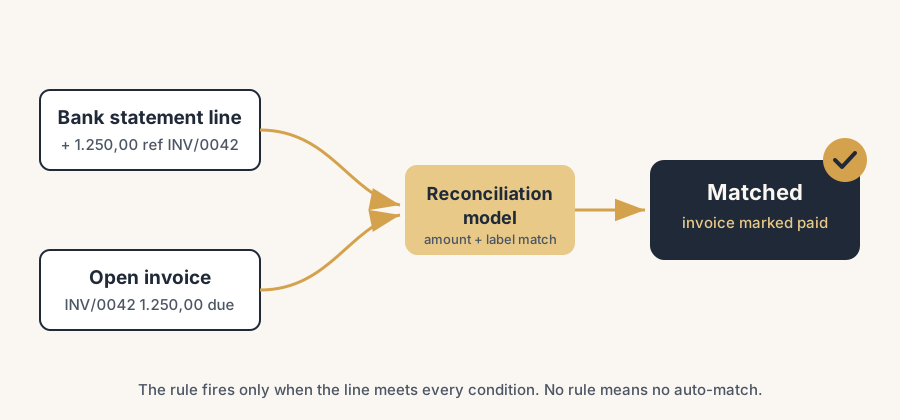
Bank reconciliation in Odoo is matching one thing against another. On one side you have bank statement lines (what your bank says happened). On the other you have open entries in Odoo (unpaid customer invoices, unpaid vendor bills, existing journal items). Reconciliation links a statement line to the right entry so the invoice is marked paid and your bank journal balance follows reality.
Auto-match does not "read your mind". It runs reconciliation models: a set of rules you (or the localisation) configured. A model fires only when the statement line meets every condition in that model. If you never set up a model, or the conditions are too narrow, or the line has nothing to match against, Odoo suggests nothing and you do it by hand. That is the number one reason auto-match looks broken: there is no rule that fits.
Opening balances are a separate trap. The first time you reconcile a bank account, Odoo's starting balance for that journal is zero (or whatever you entered as the initial balance). If that does not equal the opening balance on your first statement, every reconciliation after it looks "off" even when each individual match is correct.
The fix, in steps
Get the statement into Odoo
You have two routes. Import a file, or create the statement by hand.
To import: go to Accounting > Dashboard, find your bank journal card, and use the import option to upload a file from your bank. Odoo reads CAMT (.xml), OFX, QIF, and CSV. CAMT is the cleanest because it carries structured data (counterparty, reference) that the matching rules can use. CSV works but you map the columns yourself and you lose some of that structure.
To create by hand: open the bank journal, create a new statement, and add lines with date, label, partner, and amount. Use this for a one-off or a correction, not for daily volume.
Why it matters: the quality of what you import decides how well auto-match works later. A CAMT file with a clear payment reference gives the rules something to grab. A bare CSV with only an amount gives them almost nothing.
Open reconciliation and read the screen
Go to the bank journal and open reconciliation (in Enterprise this is the Reconcile button on the journal card). Each statement line shows on the left. On the right, Odoo proposes a match: an open invoice, a vendor bill, or an existing entry whose amount and reference line up. A green tick means Odoo is confident. No suggestion means you choose the counterpart yourself.
For each line you either accept the suggestion, pick a different open entry, or post it to a general ledger account (for a bank fee, interest, a tax payment). Validate the line and move to the next.
Set up matching rules so auto-match actually fires
This is the step most people skip, then blame Odoo. Go to Accounting > Configuration > Banks > Reconciliation Models (Bank Reconciliation in some versions). A reconciliation model defines what a line should match and what to do with it.
Set the matching conditions:
- Amount: is lower than, greater than, or between a range.
- Label: contains, does not contain, or matches a regex on the transaction text.
- Partner: restrict to a specific partner or partner category.
A line must meet every condition for the model to apply. Two useful patterns:
- A "match existing invoices" model that auto-links a statement line to an open invoice when the reference or amount matches. This is what makes auto-match feel like magic.
- A "write-off" model that books recurring lines (bank charges, payment provider fees) straight to a ledger account, so you never match them by hand.
If you leave all conditions blank, the model applies to every line. That is rarely what you want; it tends to over-match.
Our own habit with clients is to let the models only suggest at first, while a person validates every line. Once the suggestions have been right for a few weeks in a row, we switch on auto-validate for those models. Automating a match you have not learned to trust yet only automates the mistakes faster.
Mind the sequence and the scheduled run
If several models could match one line, Odoo applies the first one in the model sequence. So the order of your models matters. Put the specific ones above the catch-all ones.
Auto-reconciliation runs at three moments: when a statement line is created or imported, during bank synchronisation, and once a day via a scheduled action ("Try to reconcile automatically your statement lines", visible under Settings > Technical > Scheduled Actions in developer mode). If lines were imported before your model existed, they will not retro-match until that run, or until you trigger reconciliation again.
Fix a wrong reconciliation
You matched a line to the wrong invoice. It happens. Do not delete the statement; un-reconcile the entry.
Open the statement line (or the journal entry it created) and use the un-reconcile action. The link is removed, the invoice goes back to unpaid, and the statement line returns to "to reconcile". Then match it correctly. If you only need to fix the partner on a line so the rules pick it up next time, set the partner on the statement line and re-run reconciliation, do not force a manual match every period.
The part that trips people up
A few things catch almost everyone
On Community 17 and 18 the reconciliation screen is not part of the product. We do our work on Enterprise, where it is built in. If you do run Community, the OCA module account_reconcile_oca restores a reconciliation interface, and the rest of this guide applies unchanged.
Opening balance does not match. If your first statement's opening balance differs from the journal's starting balance in Odoo, set the initial balance on the bank journal correctly before you reconcile. Otherwise every period inherits the gap. Fix the start, not the symptom.
Auto-match is quiet because there are no models. A fresh database, or one where the localisation did not ship reconciliation models, has nothing to fire. No models means no suggestions. Build at least one "match invoices" model and one "bank fees write-off" model.
The conditions are too strict. A model that requires an exact label and an exact amount will skip almost everything. Loosen the label to "contains" the reference, or match on amount and partner instead of the full text.
Imported before the model existed. Lines you imported yesterday will not magically match against a model you create today until reconciliation runs again. Re-open reconciliation or wait for the daily scheduled action.
Quick checklist
- Statement imported as CAMT where possible (richer data than CSV).
- Bank journal opening balance matches the first statement's opening balance.
- At least one "match invoices" reconciliation model exists.
- At least one "write-off" model for recurring fees.
- Specific models sit above catch-all models in the sequence.
- On Community 17/18: OCA
account_reconcile_ocainstalled. - Wrong matches are fixed with un-reconcile, not by deleting the statement.
FAQ
Why is auto-match not working in Odoo bank reconciliation?
Auto-match relies on reconciliation models, and it only fires when a statement line meets every condition in a model. The usual cause is that no model exists, the conditions are too strict, or the line was imported before the model was created. Build a "match invoices" model with sensible conditions, check the model sequence, and re-run reconciliation.
Does Odoo Community 17 or 18 have bank reconciliation?
Not natively. Odoo removed the reconciliation widget from Community Edition in versions 17 and 18. To reconcile through the interface you install the OCA module account_reconcile_oca from the account-reconcile repository. Enterprise still includes reconciliation out of the box.
My opening balance does not match. What do I fix?
Set the bank journal's starting balance equal to the opening balance on your first imported statement. The gap is almost always a wrong initial balance on the journal, not a wrong individual match. Fix the start once and the following periods line up.
How do I undo a wrong reconciliation in Odoo?
Open the statement line or its journal entry and use the un-reconcile action. The invoice returns to unpaid and the line goes back to "to reconcile", so you can match it correctly. Do not delete the whole statement to fix one line.
Which file formats can Odoo import for bank statements?
Odoo imports CAMT (.xml), OFX, QIF, and CSV. CAMT is preferred because it carries structured fields (counterparty, reference) that matching rules can use, which makes auto-match work better than a plain CSV.