
Dropshipping in Odoo is one route and four settings: switch Dropshipping on, make the product sellable and buyable, link the vendor, tick the Dropship route. From then on a sales order raises the purchase order and the vendor ships straight to your customer.
You list a product you have never physically touched. A customer orders it, and you want your supplier to box it up and ship it straight to that customer, with your name on the slip and nothing passing through your own warehouse. No receiving, no putaway, no picking. You take the order and the margin, the supplier handles the goods.
That is dropshipping, and Odoo does it natively with a route called Dropship. The mechanism is clean once it is set up: a sales order for a dropship product raises a purchase order to the vendor, the vendor ships to the customer, and Odoo links the whole chain so the paperwork and the numbers stay straight. The trouble starts when people treat a dropship product like a normal stocked product. The stock figures, the margins and the lead times all behave differently, and that is where orders go wrong. Here is the full flow and the parts that catch people.
How the dropship route works
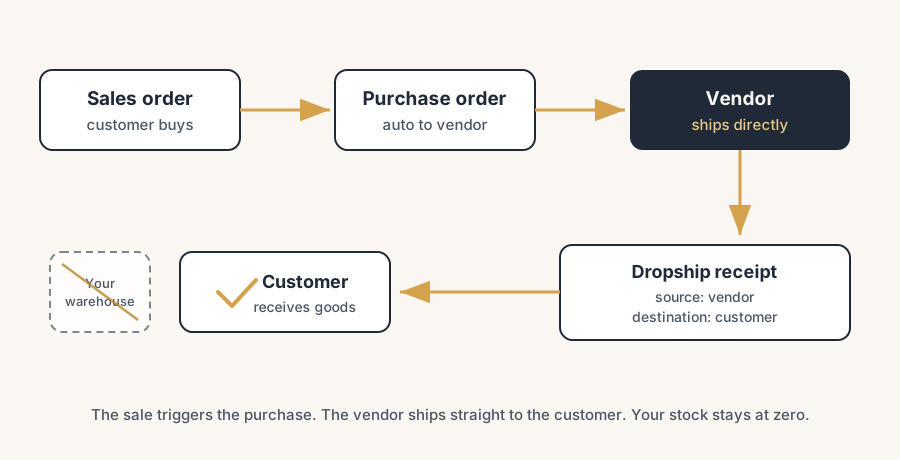
A route in Odoo is a set of rules that tells the system how a product moves. The Dropship route says: when this product is sold, do not pull it from your own stock. Instead, buy it from the vendor and have the vendor deliver it directly to the customer. The goods move from the vendor's location to the customer's location in one step. Your warehouse is never a stop on that path.
That single rule changes three things at once. You never receive the goods, so you never hold stock for them. The purchase is triggered by the sale, not by a reordering rule, so a purchase order only exists because a customer ordered. And the delivery to the customer is a single document, called a dropship receipt, that records the move from supplier to customer. Understand that one path and the rest of the setup makes sense.
The fix, in numbered steps
Turn on Dropshipping.
Go to Purchase > Configuration > Settings, find the Logistics section, tick Dropshipping, and save. This adds the Dropship route to the system. Without it, the route does not exist and the rest of the setup has nowhere to land. It is one checkbox, but it is the one everyone forgets.
Make the product sellable and buyable.
Open the product and tick both Can be Sold and Can be Purchased on the General Information tab. A dropship product has to be both: you sell it to the customer and you buy it from the vendor. If either box is off, Odoo cannot complete the chain. Can be Sold off means it never reaches a quotation, Can be Purchased off means it never reaches an RFQ.
Link the product to a vendor.
Open the Purchase tab on the product and add at least one vendor, with the price they charge you. This is the supplier who will ship the goods. If you list several vendors, the one at the top of the list is the one Odoo puts on the purchase order automatically, so order the list deliberately. No vendor means no purchase order, which means nothing to dropship.
Tick the Dropship route.
On the product, open the Inventory tab, find the Routes section, and tick Dropship. This is what tells Odoo to skip your warehouse for this product. You can leave the other routes alone. A product can be Buy-and-stock for one order and dropshipped for another, but the simplest setup is a product that is dropship only.
Take the sales order and let the chain run.
Create and confirm a sales order for the dropship product. Odoo automatically raises a request for quotation to the vendor for that exact quantity. Open the RFQ, confirm it into a purchase order, and Odoo creates the dropship receipt linked to it. You will see a Dropship smart button on the purchase order. When the vendor confirms the goods are on their way, validate the dropship receipt. That records the move from the vendor straight to the customer and closes the loop. No receipt into your stock, no delivery out of it.
The part that trips people up
A few things catch almost everyone
This is where dropshipping costs people money, so read it twice.
Your stock figures stay at zero, and that is correct. A pure dropship product shows nothing On Hand and nothing Forecasted, because the goods never live in your warehouse. People panic and try to "fix" the zero by receiving stock, which breaks the flow. Leave it at zero. The promise to the customer is backed by the vendor's stock, not yours, so check vendor availability before you promise a date, not your own Odoo on-hand.
Lead times stack, and the customer feels all of them. The delivery date the customer sees is your vendor's lead time plus any handling, not the one-day picking you are used to with stocked goods. Set the vendor lead time on the product's Purchase tab honestly. If the vendor ships in five days, a sales order promising delivery tomorrow is a complaint waiting to happen. Dropshipping trades stock cost for slower, less controllable delivery, and the order date math has to reflect that.
Margin is thinner and easy to misread. Your cost is the vendor price plus any drop fee the vendor charges, and the sale price has to clear both plus your handling, or you are shipping at a loss to look busy. Set the vendor price accurately on the Purchase tab so the margin Odoo reports is real. The convenience of holding no stock is worth something, but only if the per-order margin survives the vendor's surcharge.
The sale triggers the purchase, so quoting is not free. Every confirmed dropship sale raises a purchase commitment to your vendor. If a customer cancels after the RFQ becomes a purchase order, you may be on the hook with the vendor. Know your vendor's cancellation terms before you lean on dropshipping for volatile or made-to-order items.
A backordered or out-of-stock vendor is invisible in your own numbers. Because you hold no stock, Odoo cannot warn you that the vendor cannot supply. You only find out when the vendor tells you, or when the customer chases the order. For dropship lines that matter, confirm vendor stock at the point of sale, not after.
At volume, the return flow of information is the real work. For the occasional dropship order you can confirm shipment and close the loop by hand. Do serious volume and that stops scaling: you want the supplier's track-and-trace flowing back into Odoo automatically, updating the delivery and telling the customer, with no inbox in between. That return flow is integration work, and it is exactly the kind of job a sync layer such as System2System handles: the supplier reports the shipment once, and the order in Odoo completes itself.
Quick checklist
- Dropshipping is enabled in Purchase > Configuration > Settings > Logistics.
- The product has Can be Sold and Can be Purchased both ticked.
- The product has at least one vendor with a price on the Purchase tab.
- The intended vendor is at the top of the vendor list.
- The Dropship route is ticked on the product's Inventory tab.
- You confirm the sales order, then confirm the RFQ into a purchase order.
- You validate the dropship receipt only when the vendor actually ships.
- The vendor lead time on the product is set honestly, and quotes use it.
- The sale price clears the vendor price plus any drop fee plus your handling.
- You check vendor availability before promising a date, not your own zero stock.
FAQ
How does dropshipping work in Odoo?
Odoo has a built-in Dropship route. When you sell a product that has this route, Odoo raises a purchase order to the vendor instead of pulling stock from your warehouse. You confirm that purchase order, the vendor ships directly to the customer, and you validate a dropship receipt that records the move from vendor to customer. The goods never pass through your own stock.
How do I set up the dropship route in Odoo?
Turn on Dropshipping in Purchase > Configuration > Settings under Logistics. Then open the product, tick Can be Sold and Can be Purchased, add a vendor with a price on the Purchase tab, and tick the Dropship route on the Inventory tab. After that, a confirmed sales order for the product automatically creates the request for quotation to the vendor.
Why does my dropship product show zero stock in Odoo?
That is correct behaviour. A dropship product never enters your warehouse, so it shows nothing On Hand and nothing Forecasted. The stock that backs your sale sits with the vendor, not with you. Do not try to receive stock to make the number positive, because that breaks the dropship flow. Check vendor availability instead.
What is the difference between Buy and Dropship in Odoo?
Buy brings the goods into your own warehouse first: you receive them, then you ship them to the customer. Dropship skips your warehouse entirely and has the vendor ship straight to the customer. Buy is for stock you hold and handle; Dropship is for goods you sell but never touch.
Can a product be both stocked and dropshipped in Odoo?
Yes. A product can have both routes, and Odoo decides per order how to supply it. This is more advanced to set up correctly, because the route priority and vendor selection have to be right so the system picks the intended path each time. For mixed flows like this, it is worth having a partner configure and test it.