
An Odoo reordering rule that stays quiet is almost never broken. It is waiting on a forecast, a route, a trigger or the scheduler, and you can check all four in ten minutes.
You set a reordering rule on a product weeks ago. Min 20, max 100. This morning the on-hand dropped to 8 and you expected a purchase request waiting in your inbox. Nothing. No RFQ, no manufacturing order, no internal transfer. The rule is sitting there, green and saved, and doing nothing.
Reordering rules look simple, so when they go quiet people assume the rule is broken. It almost never is. In standard Odoo a rule fires only when four things line up: the forecast actually dips below your minimum, the product has a route that says how to replenish it, the scheduler has run, and the rule lives on the same warehouse and location the stock is moving through. Miss one and the rule stays silent. Here is each cause and how to fix it.
How a reordering rule actually works
A reordering rule is a min/max instruction tied to one product at one location. When the forecasted quantity falls to or below the minimum, Odoo orders enough to bring it back up to the maximum. That is the whole mechanism. The two numbers that trip people up are these. Min is not "reorder when on-hand hits this". It is the floor for the forecast, which is on-hand plus incoming minus outgoing demand. Max is not how much to order. It is the level Odoo tops up to, so the order quantity is max minus current forecast, rounded by any multiple you set. One sizing habit saves a lot of puzzling later: keep your minimum plus the vendor's minimal order quantity at or below your maximum. Odoo rounds the order up to the quantity the vendor demands, so when the gap between min and max is smaller than one order multiple, every replenishment overshoots the maximum and the levels stop meaning what you think they mean.
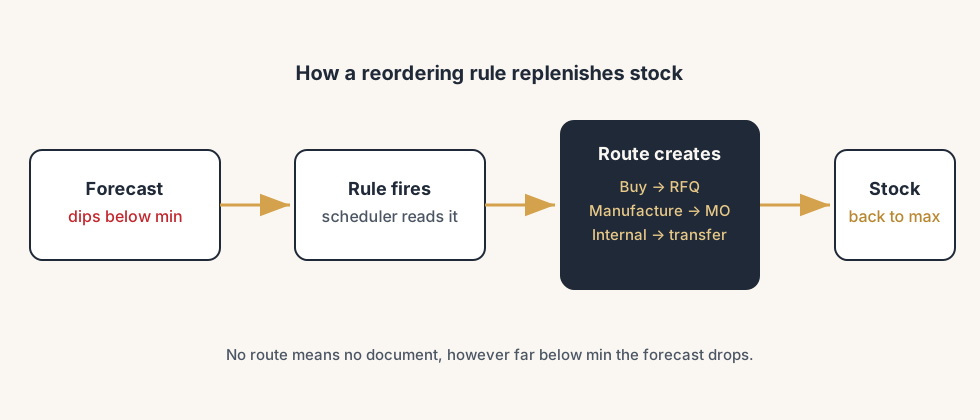
The rule itself does not buy or build anything. It only signals "we are short". What turns that signal into an actual document is the route on the product: Buy creates a request for quotation, Manufacture creates a manufacturing order, and a replenish-from route creates an internal transfer from another warehouse. No route, no document, no matter how far below min you go.
And none of it happens the instant stock drops. The scheduler is the engine that reads the rules and creates the orders, and by default it runs once a day. If you are staring at the screen waiting for an RFQ to appear the second on-hand hits 8, you will wait until the scheduler next runs.
The fix, in order
Check the forecast, not the on-hand.
Open the product and look at Forecasted, not just On Hand. The rule reads forecast. If you already have 30 incoming on a confirmed purchase order, your forecast is 38 even though on-hand is 8, and a min of 20 will not fire because Odoo thinks you are covered. This single misunderstanding explains most "my rule won't trigger" tickets. Decide your min and max against the forecast, then sanity-check the forecast before you blame the rule.
Give the product a route.
Open the product, go to the Inventory tab, and confirm at least one route is ticked under Routes: Buy for bought goods, Manufacture for made goods, or a warehouse-to-warehouse route for internal supply. If no route is set, the rule has no way to act and stays silent. For Buy, the product also needs at least one vendor on the Purchase tab, or Odoo cannot raise an RFQ. Of everything in this list, that missing vendor is the cause we run into most at clients. The route is ticked, the rule looks complete, and one empty field on the Purchase tab keeps the whole chain silent. For Manufacture, the product needs a Bill of Materials, or Odoo has nothing to build from.
Set the Trigger to Auto.
On the reordering rule itself there is a Trigger field. Set it to Auto so the scheduler acts on it automatically. If it is set to Manual, the rule only ever produces a suggestion in Inventory > Operations > Replenishment, and you have to click to order. A Manual rule that nobody clicks looks exactly like a broken rule.
Run the scheduler.
Do not wait a day to test. Go to Inventory > Operations > Run Scheduler and click the green Run Scheduler button. This forces Odoo to read every rule now and create the orders that are due. If the document appears after you run it manually, the rule was always fine and the only issue was timing. For production, confirm the scheduled action "Run scheduler" is active under Settings > Technical > Scheduled Actions.
Match the warehouse and location.
A reordering rule is bound to a specific location. If the rule sits on WH/Stock but your sales ship from a different warehouse or a sub-location, the forecast the rule watches never moves, so it never fires. Confirm the rule's location is the one your stock actually flows through. With multiple warehouses, you usually need a rule per warehouse, not one global rule.
The part that trips people up
A few things catch almost everyone
Odoo replenishes just in time, not as early as possible. If the product is needed in ten days and the vendor lead time is five days, Odoo will not raise the RFQ today. It waits until the latest moment that still meets the need date. So a rule can be "correct" and still show nothing right now, simply because it is not time yet. Check the need date and the lead time before assuming it failed.
Lead time also feeds the min. Odoo's recommended minimum is roughly your average consumption across the lead time, so a min of 20 on a fast mover with a long lead time may be far too low to ever protect you. The rule fires, but too late to matter.
A product with the Manufacture route but no Bill of Materials produces nothing. Odoo has the instruction to build but no recipe, so the scheduler silently skips it. Same story for Buy with no vendor. The rule looks complete on screen and still does nothing.
If you set both a route on the product and a reordering rule, make sure they agree. A product routed to Manufacture with a rule expecting a purchase will not raise an RFQ. The route on the rule's path decides the document type.
Quick checklist
- You set min and max against the Forecasted quantity, not just On Hand.
- The product has at least one route: Buy, Manufacture, or an internal supply route.
- Buy products have a vendor; Manufacture products have a Bill of Materials.
- The reordering rule Trigger is set to Auto, not Manual.
- You ran Inventory > Operations > Run Scheduler to test instead of waiting a day.
- The scheduled action "Run scheduler" is active in Technical settings.
- The rule's warehouse and location match where stock actually moves.
- You checked the need date and lead time before concluding the rule failed.
FAQ
Why is my Odoo reordering rule not creating a purchase order?
The cause is usually one of four things: the forecasted quantity has not actually dropped below your minimum (incoming stock counts toward forecast), the product has no Buy route or no vendor, the rule's Trigger is set to Manual instead of Auto, or the scheduler has not run yet. Run Inventory > Operations > Run Scheduler to test, and check the route and forecast on the product.
What is the difference between min and max in an Odoo reordering rule?
Min is the floor for the forecasted quantity. When the forecast falls to or below it, the rule fires. Max is the level Odoo tops the stock back up to, so the order quantity is max minus current forecast. Min is not "order when on-hand hits this" and max is not "how much to order".
Do I have to run the scheduler manually in Odoo?
No. The scheduler runs automatically once a day through a scheduled action, so rules fire on their own. You only run it manually (Inventory > Operations > Run Scheduler) when you want to test a rule immediately instead of waiting for the next daily run.
Why does my reordering rule need a route?
The rule only signals that stock is low. The route decides what document that signal becomes: Buy creates a request for quotation, Manufacture creates a manufacturing order, and an internal route creates a transfer between warehouses. Without a route, the rule has no way to act and nothing is created.
My reordering rule fires but Odoo creates nothing. Why?
The route is set but its requirement is missing. A Buy route with no vendor cannot raise an RFQ, and a Manufacture route with no Bill of Materials has nothing to build from. Add a vendor on the Purchase tab or a Bill of Materials, then run the scheduler again.