
Make-to-stock with sensible min/max rules is the right default for almost every product; make-to-order belongs only on the items you genuinely should not hold, and only when the chain below them runs to order too. Tick MTO wider than that and your lead times pay for it.
A customer orders ten of your standard product. You have forty on the shelf. You expect Odoo to reserve ten and ship them tomorrow. Instead Odoo raises a new purchase order to your vendor and the delivery date jumps three weeks out. The stock is right there, but the sales order is waiting on a fresh supply run that nobody asked for.
This is almost always make-to-order doing exactly what it was told. Someone ticked the MTO route on a product that should have been make-to-stock, and now every sale triggers a buy or a build regardless of what is on hand. Picking the wrong replenishment method is one of the quietest mistakes in Odoo, because nothing errors out. The orders just behave strangely and the lead times creep. Here is the difference between the two, when each one fits, how to set them up, and why MTO-on-everything is the trap to avoid.
The two methods, in one paragraph each
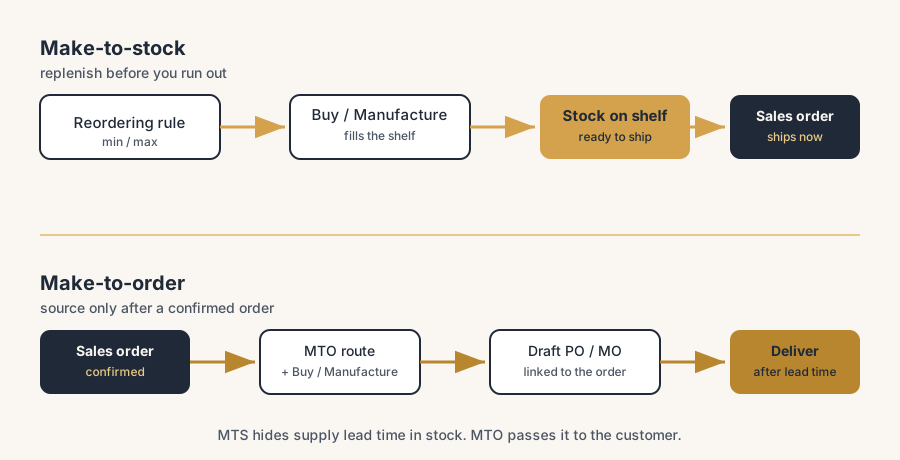
Make-to-stock (MTS) means you keep stock on the shelf and replenish it before it runs out, based on demand you forecast. In Odoo this is reordering rules: a min/max on the product that fires a purchase or manufacturing order when the forecasted quantity drops below your minimum. The sale ships from stock you already have. The replenishment is decoupled from the individual order.
Make-to-order (MTO) means you do not keep stock. Procurement or production is triggered only after a sales order is confirmed. In Odoo this is the Replenish on Order (MTO) route. Confirm a sales order and Odoo immediately raises a draft purchase order or manufacturing order, linked straight to that sale through a smart button. Nothing gets bought or built until there is a real order behind it.
The short version is simple: MTS anticipates demand and ships from stock. MTO waits for the order, then sources it.
When each one fits
Reach for make-to-stock when demand is steady and predictable, the product is standard, lead times from your vendor or your line are longer than the delivery time your customer expects, and holding stock is cheap relative to the value of the goods. Most catalogue products, fast movers, low-value parts and anything a customer expects "from stock, today" belong here. The whole point is to absorb supply lead time in advance so the customer never feels it.
Reach for make-to-order when you cannot or should not hold stock. That means customised or configured products, high-value low-demand items where stock ties up cash, products with a short shelf life, or genuinely unpredictable demand where forecasting is guesswork. If every order is different, or holding one on the shelf is a gamble, MTO is the honest choice. The customer accepts the lead time because the product is made or sourced for them.
One test settles most cases: would you be comfortable holding this on the shelf with no order behind it? If yes, MTS. If that thought makes you wince, MTO.
How to configure make-to-stock
1. Set a route on the product. Open the product, go to the Inventory tab, and tick Buy (for bought goods) or Manufacture (for goods you build). Buy needs at least one vendor on the Purchase tab. Manufacture needs a Bill of Materials. The route tells Odoo how to replenish.
2. Add a reordering rule. From the product, open the Reordering Rules smart button (or Inventory > Operations > Replenishment) and set a Minimum and Maximum. When the forecasted quantity falls to or below the min, Odoo tops it back up to the max using the route. Set Trigger to Auto so the scheduler acts on it.
3. Base the min on lead time and demand. Your minimum should cover average demand across the replenishment lead time, plus a safety buffer. A min that is too low fires too late to protect you. This is the number that makes or breaks make-to-stock.
4. Let the scheduler run. The scheduler reads the rules once a day and raises the orders that are due. To test now instead of waiting, run Inventory > Operations > Run Scheduler.
That is make-to-stock. The sale ships from stock; the rule keeps the shelf full in the background.
How to configure make-to-order
The MTO route is hidden by default in Odoo, on purpose, because it is meant for a minority of products. You have to switch it on first.
1. Turn on Multi-Step Routes. Go to Inventory > Configuration > Settings and enable Multi-Step Routes under the Warehouse section. This exposes routes for editing.
2. Unarchive the MTO route. Go to Inventory > Configuration > Routes, add the Archived filter, find Replenish on Order (MTO), select it, and use Action > Unarchive. Now it can be ticked on products.
3. Tick MTO plus a supply route on the product. On the Inventory tab of the product, tick Replenish on Order (MTO) and either Buy or Manufacture. This is the step people miss. MTO on its own does nothing. It needs a partner route to tell it whether to buy or build. Buy still needs a vendor; Manufacture still needs a Bill of Materials.
4. Confirm a sales order and check the link. Confirm a test order. Odoo raises a draft purchase order or manufacturing order tied to that sale, visible through a smart button on the sales order. That link is how you know MTO is live.
The part that trips people up
A few things catch almost everyone
The classic mistake is putting MTO on everything. It feels safe. "If we only buy what we sell, we never overstock and we never tie up cash." On a slide that logic is clean. In a real warehouse it backfires in three ways.
Every lead time lands on the customer. With MTO there is no buffer. The customer's delivery date is your full supply lead time, every single time, because nothing starts until they order. A five-day vendor lead time that make-to-stock would have hidden completely now shows up as five days added to every quote. On standard products your customers expect from stock, that is how you lose orders to a competitor who ships tomorrow.
MTO ignores the stock you already have. This is the one that surprises people. When the MTO route is enabled, Odoo creates a replenishment order on every confirmed sale, even when there is enough on hand to fulfil it. The forty units on your shelf sit there while a fresh purchase order goes out for ten more. You end up both holding stock and ordering more of it, which is the opposite of what MTO promised.
You lose batching and the scheduler's smarts. Make-to-stock lets the scheduler group demand and order in sensible quantities, respecting minimum order quantities and supplier multiples. MTO fires one procurement per sales order. Ten small orders for the same part become ten small purchase orders instead of one batched one, which annoys vendors, raises your cost per unit, and buries your purchasing team in noise.
The honest rule is that MTO is the exception, not the default. Most products should be make-to-stock with a sensible reordering rule. Reserve MTO for the products that genuinely should not sit on a shelf. If you find MTO ticked on the bulk of your catalogue, that is a configuration to undo, not a strategy. And one bar to clear before you tick it at all: MTO only earns its keep when the chain below it follows. MTO on the finished product while the sub-assemblies and the purchasing still run on stock adds a paper link and a lead time and changes nothing real. The promise of MTO is that the whole chain moves on the customer's order, sub-BOMs planned to order and components bought to order. If you are not prepared to run it through to the bottom, choose make-to-stock with well-sized min/max rules and be done with it.
Quick checklist
- You decided per product: would I hold this on the shelf with no order behind it? Yes means MTS, no means MTO.
- Standard, steady, expected-from-stock products use reordering rules (make-to-stock).
- Custom, high-value, perishable or unpredictable products use the MTO route.
- For MTO you enabled Multi-Step Routes and unarchived the Replenish on Order (MTO) route first.
- Every MTO product also has a Buy or Manufacture route ticked; MTO alone does nothing.
- MTS minimums are based on lead time plus demand, not a round number.
- MTO is on a minority of products, not the whole catalogue.
- You checked that MTO products are not also sitting on stock you keep buying more of.
FAQ
What is the difference between make-to-order and make-to-stock in Odoo?
Make-to-stock keeps products on the shelf and replenishes them with reordering rules before stock runs out, so sales ship from existing stock. Make-to-order keeps no stock and triggers a purchase or manufacturing order only after a sales order is confirmed, using the Replenish on Order (MTO) route. MTS anticipates demand; MTO reacts to a confirmed order.
When should I use the MTO route in Odoo?
Use MTO for products you should not hold in stock: customised or configured items, high-value low-demand goods that tie up cash, products with a short shelf life, and items with genuinely unpredictable demand. For standard products with steady demand that customers expect from stock, use make-to-stock with reordering rules instead.
Why does Odoo create a purchase order even though I have stock?
Because the product has the Replenish on Order (MTO) route enabled. With MTO, Odoo raises a replenishment order on every confirmed sales order regardless of on-hand stock. If you expected the sale to ship from existing stock, the product should be make-to-stock with a reordering rule, not MTO. Remove the MTO route to fix it.
How do I enable the MTO route in Odoo?
The MTO route is hidden by default. Go to Inventory > Configuration > Settings and enable Multi-Step Routes, then go to Inventory > Configuration > Routes, filter on Archived, find Replenish on Order (MTO) and unarchive it. After that you can tick it on a product, together with a Buy or Manufacture route, since MTO does not work on its own.
Is it bad to put MTO on every product?
Yes. MTO on everything adds your full supply lead time to every customer delivery date, ignores stock you already have on hand by ordering more anyway, and stops the scheduler from batching demand into sensible order quantities. Keep MTO for the minority of products that truly should not be stocked, and make everything else make-to-stock.