
When an Odoo pricelist discount is not applied, the fix is almost always about order: set the customer and the pricelist on the quotation first, add the products after. You built a pricelist, gave a customer 15 percent off, and on the line it still shows full price. Or the discount was there a second ago and then jumped back. The rest of this post covers why that happens, how to build proper B2B pricing with volume tiers, and how to hide prices from the public until a buyer logs in.
You add a product to a quotation and the line shows the public price. You then set the right customer, the pricelist field updates, but the line price does not move. You delete the line, add it again, and now the discount shows. Annoying, and easy to miss on a busy order desk.
Or you set a pricelist with "10 percent off everything", expect a clear discount column, and the customer just sees a lower unit price with no discount shown at all. Both are normal Odoo behaviour, not a bug. You are hitting two things: when prices get computed, and which discount display mode the pricelist uses.
Why it happens
Odoo computes the price of an order line at the moment you add it, based on the pricelist on the order at that moment. The pricelist on the order comes from the customer (the Pricelist field on the contact, under the Sales & Purchase tab). If a line already exists before the right pricelist is on the order, that line keeps the price it was created with. Changing the pricelist afterwards does not silently rewrite existing lines.
So the "reverts to full price" feeling is really "this line was created under the wrong pricelist and never recomputed". Set the customer first, confirm the pricelist is correct, then add lines.
The second issue is display. A pricelist rule that gives a discount can either show the public price with a discount column, or just hand the customer a lower unit price. That is a setting, not an accident. If you want buyers to see "you saved 10 percent", you have to switch the discount display on.
The fix, in numbered steps
Set the customer before you add any products.
On a new quotation, pick the customer first. Odoo pulls that customer's pricelist onto the order. Check the Pricelist field in the order's Other Info tab. Only then start adding product lines. They will be priced against the right pricelist from the start.
Assign the pricelist to the customer, not just the order.
Open the customer contact, go to the Sales & Purchase tab, set the Pricelist field. Now every new order for that customer uses it automatically, and nobody on the order desk has to remember. A contact always has a pricelist: if you leave it blank it falls back to the default (Public Pricelist). This is the habit we push hardest with clients. When the pricelist lives on the order instead of the customer, the price depends on who typed the order and in what sequence. The same customer gets the discount one week and not the next, and nothing erodes trust with a B2B buyer faster than a price that moves for no reason.
If a line already shows the wrong price, force a recompute.
The simplest reliable method is to delete the line and add the product again with the correct pricelist on the order. Re-selecting the customer or the pricelist on an order with existing lines does not always reprice them.
Turn on Pricelists in Sales settings.
Go to Sales > Configuration > Settings, find the Pricing section, enable Pricelists. Without this, the customer Pricelist field and the rules engine are not in play.
Choose how the discount is shown.
Decide per pricelist whether the customer sees the public price plus a discount, or only the final lower price. In recent Odoo versions this is the Discounts toggle on the pricelist (older versions call it Discount Policy: "Show public price and discount to the customer" versus "Apply a discount on prices"). If your sales team wants the discount visible on the quote, switch this on.
Build the rules with the right computation type.
Each pricelist holds rules. Per rule you pick Fixed Price, Discount (a percentage off the sales price), or Formula (a margin or markup calculation on cost or on another pricelist). For a flat customer discount, use Discount. For "this customer pays exactly this", use Fixed Price.
The part that trips people up
A few things catch almost everyone
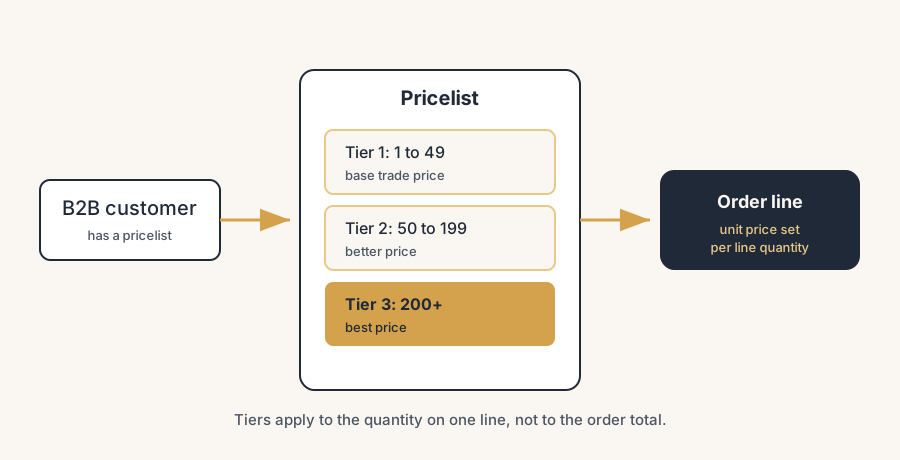
Volume tiers are per line, not per order total. This is the big one for B2B. You set a rule "buy 50 or more, get this price" using the Min. Quantity field on the rule. Odoo applies that to the quantity on a single order line, not to the sum of all lines on the order. So a customer ordering 30 of variant A and 30 of variant B does not hit your "50+" tier, because no single line reaches 50. Native Odoo does not add quantities across lines for pricing. If you genuinely need order-total tiers, that is a third-party module, not a setting. Decide this before you promise a customer "spend X across the order and get the price".
Pricelist order decides ties. If two pricelists match the same situation, Odoo applies the first one in the list. With rules inside one pricelist it is the same: the first matching rule wins. Put your most specific rules (a single product, a high min quantity) above the broad catch-all rules, or the broad rule swallows them.
A blank pricelist is never truly blank. Leaving the customer's Pricelist field empty does not mean "no pricing rules". It means the default pricelist. If that default has rules, they apply.
Validity dates and currency. A rule with a start and end date only applies inside that window. A pricelist tied to a currency only shows for customers in that currency. An "expired" looking discount is often just a date or currency mismatch.
Quick checklist
- Customer set on the quotation before any product lines.
- Customer contact has the correct Pricelist under Sales & Purchase.
- Pricelists enabled in Sales > Configuration > Settings.
- Discount display mode chosen (show discount vs lower price).
- Volume tiers use Min. Quantity, and you have confirmed per-line is acceptable.
- Specific rules sit above broad rules in the list.
- Validity dates and currency on each rule are correct.
- Wrong-priced lines deleted and re-added, not just edited.
Customer-specific B2B pricing with volume tiers
A clean B2B setup looks like this. One pricelist per customer group (for example "Wholesale tier A", "Wholesale tier B"), assigned to each customer's contact. Inside each pricelist, rules with Min. Quantity steps: 1 to 49 at the base trade price, 50 to 199 at a better price, 200 plus at the best price. Computation type Discount or Fixed Price depending on whether you negotiate percentages or hard numbers per product.
For a public webshop where you do not want competitors seeing your trade prices, use Odoo eCommerce with login required. You hide prices for anonymous visitors and only show them once a buyer logs in to their portal account. Each logged-in buyer then sees the prices from the pricelist linked to their company. That gives you a public catalogue for discovery and private, customer-specific pricing behind the login, without running two systems.
FAQ
Why does my Odoo pricelist discount revert to full price?
Because the order line was created before the correct pricelist was on the order. Odoo prices a line when you add it and does not silently reprice existing lines when you change the pricelist later. Set the customer first, check the pricelist, then add products. To fix an existing line, delete it and add it again.
How do I apply a pricelist automatically per customer?
Open the customer contact, go to the Sales & Purchase tab, and set the Pricelist field. Every new order for that customer then uses it. A contact always has a pricelist; leaving it blank falls back to the default Public Pricelist.
Can Odoo give a volume discount based on the total order, not per line?
Not in standard Odoo. Volume tiers use the Min. Quantity field, which looks at the quantity on a single order line, not the sum across all lines. Order-total discounts need a third-party module.
How do I hide prices on my Odoo webshop until a customer logs in?
Use Odoo eCommerce with login required, so anonymous visitors see the catalogue without prices. Logged-in buyers then see the prices from the pricelist attached to their company account. This keeps B2B prices private while the catalogue stays public.
What is the difference between showing the discount and applying a discount?
"Show public price and discount" displays the original price plus a discount column, so the customer sees what they saved. "Apply a discount on prices" shows only the lower final unit price with no discount column. It is a display choice on the pricelist, set per pricelist.