
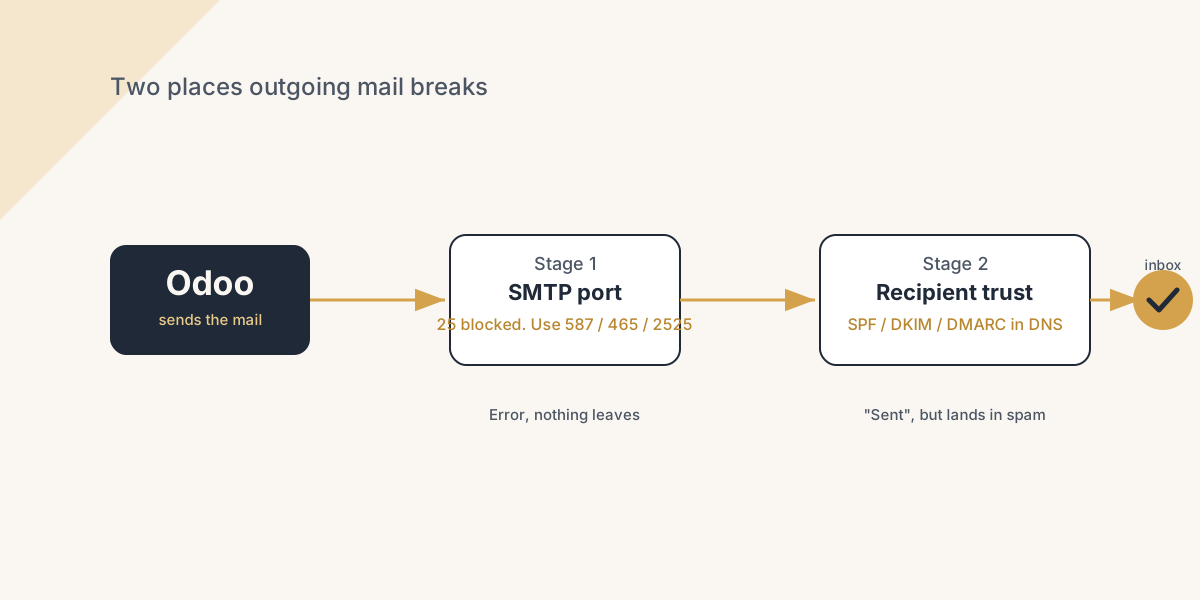
Odoo email that does not arrive has two causes: the SMTP connection is blocked (usually the port) or the receiving side does not trust the mail (SPF, DKIM, DMARC). Fix the port first, then the DNS records, and test both before you rely on either.
You send a quotation from Odoo. The customer says it never arrived. You check the Messages, and there it sits with a red envelope, "Failed". It gets worse when Odoo says "Sent", the customer still has nothing, and three days later you find your invoices in their spam folder. Either way the same thing happens next. The team stops trusting Odoo email and starts copying everything into Outlook by hand, which is the whole point of an ERP gone backwards.
Outgoing email failures in Odoo almost always come down to one of two things. The connection to the mail server is blocked (usually a port problem), or the connection works but the receiving side does not trust the mail (an SPF, DKIM or DMARC problem). They look similar from the user's seat ("email isn't going out") but they are different bugs with different fixes. Here is how to tell which one you have, how to fix each, and how to test that it actually works before you trust it.
Why outgoing email fails
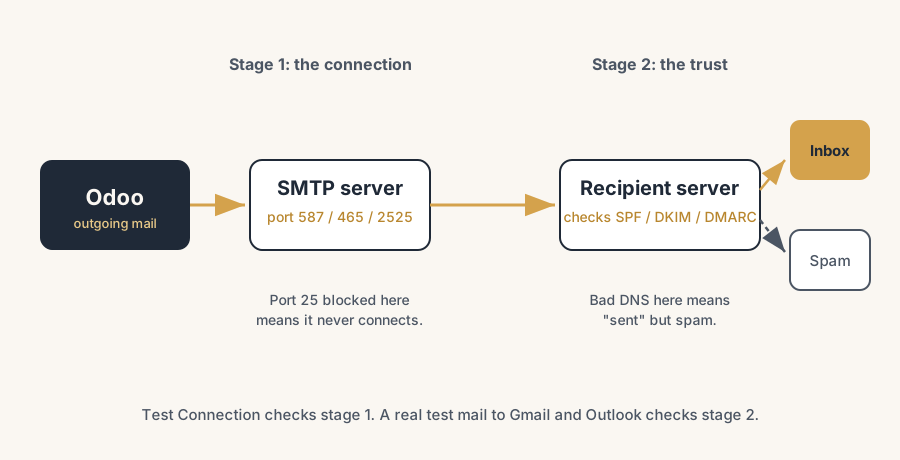
There are two separate stages, and email can break at either one.
Stage one: Odoo cannot hand the message to a mail server. Odoo connects to an SMTP server to send. If that connection is refused or times out, the message never leaves and you get an error in the outgoing mail log. The most common cause on Odoo Online and Odoo.sh is the port. Port 25, the classic SMTP port, is blocked for security reasons on both platforms. If your outgoing mail server is configured for port 25, it will simply never connect.
Stage two: the mail server accepts the message, but the recipient's server distrusts it. Here the connection works and Odoo reports the mail as sent, but the receiving server (Gmail, Outlook, a corporate filter) either bins it as spam or rejects it outright. This is almost always an authentication problem: the DNS records that prove "this server is allowed to send mail for our domain" are missing or wrong. That is SPF, DKIM and DMARC.
There is a useful shortcut: if Odoo shows an error and nothing leaves, it is stage one (connection or port). If Odoo says sent but mail lands in spam or bounces back from the recipient, it is stage two (authentication). Diagnose which stage before you change anything.
The fix, in numbered steps
Decide if you even need a custom mail server
On Odoo Online and Odoo.sh, outgoing email already works out of the box. Odoo runs its own mail servers for your database, so for normal volumes you do not need to configure anything. You only need a custom outgoing server if you want to send through your own provider (Google Workspace, Microsoft 365, SendGrid, Mailgun) or you are sending large batches. If you are self-hosted, you always configure your own. Knowing which situation you are in saves you from solving a problem you do not have.
If you do configure a server, never use port 25
Port 25 is blocked on Odoo Online and Odoo.sh for security reasons, and many cloud and office networks block it too. Use one of the modern ports instead: 465 (SSL/TLS), 587 (STARTTLS, the usual choice for authenticated submission), or 2525 (a common fallback when 587 is also blocked). Match the encryption setting to the port: 465 with SSL/TLS, 587 with STARTTLS. A wrong port is the single most common reason Odoo "cannot connect" to send.
Set up the outgoing mail server in Odoo
Turn on Settings > General Settings > Discuss > Custom Email Servers and save. Then open Outgoing Email Servers and create a record with your provider's SMTP host, the right port (465, 587 or 2525), your username and password, and the matching encryption. Set a Priority if you have more than one server (lower number is tried first). This is where you put the credentials from your mail provider, not invent them. One warning from the field: sending through Microsoft 365 gives more trouble than any other provider we see, with throttling, blocked relay and authentication rules that change under you. If you do not have a solid IT partner watching that setup, route the outgoing mail through a dedicated SMTP service such as SMTP2GO or Amazon SES instead. They exist to deliver mail, the records are simple to set up, and the deliverability is better than a misconfigured 365 tenant will ever be.
Test the connection before you rely on it
On the outgoing mail server form, click Test Connection. This checks the host, port, encryption and credentials in one go, without sending a real email. If it fails here, the problem is the connection (stage one): wrong port, wrong encryption, blocked port, or bad credentials. Fix that until Test Connection passes. A green test means Odoo can reach the server. It does not yet mean your mail will be trusted, which is the next part.
Add the SPF, DKIM and DMARC records to your DNS
This is what stops your mail going to spam. In the DNS zone of your sending domain, add:
- SPF: a TXT record that lists the servers allowed to send for your domain. If you send through Odoo's servers, include Odoo's SPF (
include:_spf.odoo.com) alongside any other senders you use. One SPF record only, with all senders inside it. - DKIM: a CNAME record so receivers can verify the signature Odoo adds to each mail. For Odoo's servers that is
odoo._domainkeypointing toodoo._domainkey.odoo.com. If you send through your own provider, use their DKIM record instead. - DMARC: a TXT record at
_dmarc.yourdomain.comthat tells receivers what to do when SPF or DKIM fail. Start gentle withp=none(monitor only) so you can watch the reports before you tighten to quarantine or reject.
For SPF or DKIM to actually pass, the domain in the From address has to align with the authenticated domain. Sending as you@yourdomain.com while only Odoo's domain is authenticated is what trips DMARC.
Configure the alias domain so replies and bounces work
In the email settings, set your alias domain. Odoo then uses sensible defaults: notifications go from notifications@yourdomain.com, replies are caught at catchall@yourdomain.com, and delivery failures land at bounce@yourdomain.com. The bounce alias is what fills the red envelope on a message when mail fails, so you see the failure instead of guessing. Without an alias domain set, replies and bounces have nowhere to go.
The part that trips people up
A few things catch almost everyone
A few things catch almost everyone.
"Sent" in Odoo does not mean "delivered". Odoo reports a mail as sent the moment the SMTP server accepts it. What the recipient's spam filter does after that is invisible to Odoo. So a clean outgoing log with mail still missing is the classic sign of a stage-two authentication problem, not a server problem. Do not keep poking the SMTP settings when the issue is DNS.
You can only have one SPF record per domain. People add a second TXT record for a new sender and break SPF entirely, because two SPF records is invalid and receivers ignore both. Every sender you use (Odoo, your office mail, your newsletter tool) goes inside the single SPF record with multiple include: entries.
DNS changes are not instant. After you add or edit SPF, DKIM or DMARC, it can take from minutes up to 48 hours to propagate. If a test fails right after you save, wait and check again before you assume it is wrong.
The From domain has to match. The most common DMARC failure is sending as your own domain while only Odoo's domain is authenticated, or the other way round. SPF and DKIM passing is not enough; the visible From domain has to align with the authenticated one.
Odoo Online hides the SMTP layer from you. On the pure SaaS you do not touch ports or servers, Odoo handles that. But the DNS records (SPF, DKIM, DMARC) live in your domain, not in Odoo, so deliverability is still yours to get right even when the sending is managed for you.
Quick checklist
- You know whether you need a custom outgoing server at all, or whether Odoo's built-in sending is enough.
- No outgoing mail server uses port 25. It is 465 (SSL/TLS), 587 (STARTTLS) or 2525.
- The encryption setting matches the port.
- Test Connection on the outgoing server passes green.
- One SPF record exists, with every sender inside it as an
include:. - The DKIM CNAME is in place for whichever server actually sends your mail.
- A DMARC record exists, starting at
p=nonewhile you watch the reports. - The From domain aligns with the authenticated domain.
- The alias domain is set so replies (catchall) and bounces (bounce) have a home.
- You sent a real test mail to a Gmail and an Outlook address and checked the inbox, not just the Odoo log.
FAQ
Why is my outgoing email stuck in Odoo and not sending?
Most often the outgoing mail server is set to port 25, which is blocked on Odoo Online and Odoo.sh and on many networks. Change the port to 465 (SSL/TLS), 587 (STARTTLS) or 2525, match the encryption to the port, and click Test Connection on the outgoing mail server. If the test passes, Odoo can now reach the server and mail will leave.
Which SMTP port should I use in Odoo?
Use 587 with STARTTLS for normal authenticated sending, or 465 with SSL/TLS. Port 2525 is a fallback when 587 is blocked. Do not use port 25: it is blocked for security reasons on Odoo Online and Odoo.sh and is commonly blocked on cloud and office networks too.
Why does Odoo say email was sent but it lands in spam?
Because "sent" only means the mail server accepted it, not that the recipient trusted it. Spam placement is almost always missing or wrong SPF, DKIM and DMARC records in your domain's DNS. Add an SPF TXT record that includes every sender, a DKIM CNAME for the server that sends your mail, and a DMARC record, and make sure the From domain aligns with the authenticated domain.
Do I need to configure an email server on Odoo Online?
No, not for normal use. Odoo Online and Odoo.sh run their own mail servers, so outgoing email works out of the box. You only configure a custom outgoing server to send through your own provider or for large batches. You should still add SPF, DKIM and DMARC records in your domain's DNS for good deliverability, because those live with your domain, not in Odoo.
How do I test that Odoo email actually works?
Two checks. First, click Test Connection on the outgoing mail server: that confirms the host, port, encryption and credentials without sending a real mail. Second, send a real test email to both a Gmail and an Outlook address and open the inbox, because a clean Odoo log does not prove the mail was trusted. Use a tool like a DMARC or mail tester to confirm SPF and DKIM pass on the received message.