
A payment provider is set up without surprises when you do it in this order: read what it supports, enter the credentials, test in Test mode, enable only the methods you want, and wire the accounting before the first real payment, not after.
You flip on Stripe in Odoo, drop your keys in, and a test order goes through on the first try. Two days later a real customer pays on your webshop, the order confirms, and then you open your accounting and the payment is sitting in some account you have never seen, the bank payout does not match any single invoice, and your bookkeeper is asking why the numbers are off. The checkout works. The accounting does not.
That gap is where most payment setups go wrong. Enabling a provider is the easy ten minutes. The part that bites is what happens after the customer clicks pay: which account the money lands in, how the provider's combined payout reconciles to individual invoices, whether you were quietly still in test mode, and which payment methods your customers can actually use in your country. Here is how to set up Stripe, Mollie or PayPal in Odoo properly, test it without touching your live books, and make sure every paid order reconciles cleanly.
Why the checkout works but the accounting does not
The root cause is that "the customer paid" and "the payment is booked correctly" are two different things in Odoo, and the setup wizard only guarantees the first.
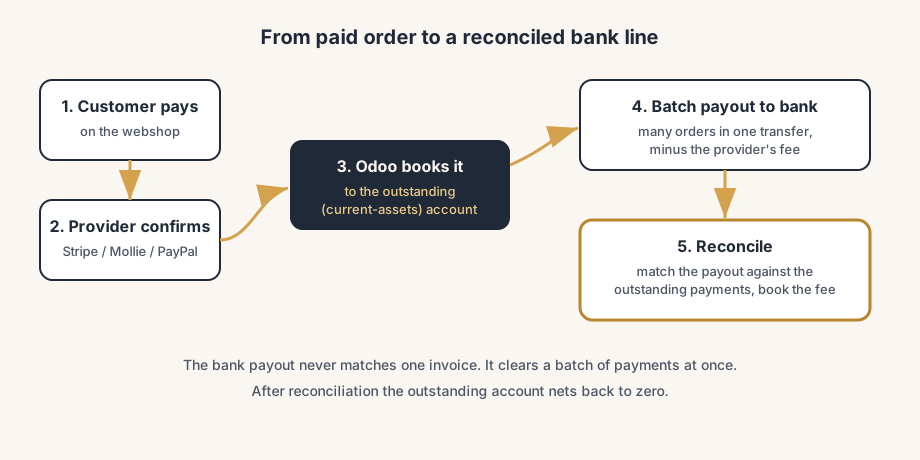
When a payment provider confirms a charge, Odoo does not drop the money straight into your bank account. It posts the payment to an intermediary account first, an outstanding or current-assets account on a dedicated journal, because the money is real but it is not in your bank yet. Stripe, Mollie and PayPal hold the funds and pay you out later, usually in a batch that bundles many orders into one transfer, minus their fees. So the payment exists in your accounting the moment the charge is authenticated, but the actual bank transfer arrives days later as one lump sum. Reconciliation is the step that matches that lump sum back to the individual payments.
People skip past this because the checkout test passed. The provider is green, the order says paid, so they assume the accounting is done too. It is not. If you never configured the outstanding account, the journal, or how payouts get reconciled, the money flows in but never lines up, and you find out at month-end when nothing balances.
How to set up a provider so it works end to end
Five steps, in order. The order matters: test before you publish, and decide the accounting before real money moves.
Open the provider and read what it supports.
Go to Accounting (or Website, or Sales) > Configuration > Payment Providers. You will see the providers Odoo ships with, including Stripe, Mollie, PayPal, Adyen and others. Click the one you want. Before you enter a single key, check that it covers your country, your currency, and the payment methods your customers expect. Not every provider supports every method in every market, and you cannot force a method a provider does not offer. And do not assume the list you see is the whole market. The providers in Odoo's core lean international (Stripe, Mollie, PayPal, Adyen), and a local provider that is not in core, such as Pay.nl in the Netherlands, can beat them on fees, local payment methods or payout speed. Those come as a connector module from the provider or a partner, so weigh them in before you default to whatever was already on the list.
Enter the credentials in the Credentials tab.
Each provider needs its own keys from your account with that provider: Stripe wants its API keys, Mollie wants its API key, PayPal wants its merchant credentials. Copy them from the provider's dashboard. Most providers give you two sets: live keys and test (sandbox) keys. Keep them straight, because mixing them up is the single most common reason a setup silently fails.
Set the State, and start in Test mode.
The State field on the provider form has three positions: Disabled, Test mode, and Enabled. Set it to Test mode first and enter the provider's test or sandbox credentials. In test mode Odoo leaves the provider unpublished by default, so customers never see it, and you can run a fake order end to end without charging anyone. Only switch to Enabled, with the live keys, once the test passes.
Turn on the payment methods you actually want.
A provider is not the same as a payment method. One provider supports a list of methods (card, iDEAL, Bancontact, SEPA, and so on), and you choose which ones to offer. In the Configuration tab, click Enable Payment Methods and toggle the ones you want on. Enabling a method that the provider or your country does not support will not work, so match the method to the provider's real capabilities. If you want customers to save their card for next time (useful for subscriptions and faster repeat checkout), enable Allow Saving Payment Methods here too, but only if the provider supports it.
Set the accounting before you go live.
Open the provider's accounting settings and confirm two things: the Payment Journal the payments post to, and that posting happens at payment validation. Odoo's default is to record the payment on a current-assets (outstanding) account on a dedicated bank journal the moment the provider confirms the charge. That intermediary account is what later gets cleared when the provider's payout lands in your real bank account. Get this right now, while it costs nothing, instead of unwinding posted entries later.
How a paid order reconciles to your accounting
This is the part the wizard never shows you, so here is the full path of one paid order.
A customer pays on your webshop. The provider authenticates the charge and tells Odoo. Odoo posts a payment against the customer's invoice and moves it into the outstanding/current-assets account on the payment journal. The invoice is now marked paid, but the money is not in your bank yet, it is with Stripe, Mollie or PayPal.
A few days later the provider pays out. They bundle many of your orders into one bank transfer and subtract their fees, so the amount that hits your bank is one number that does not match any single invoice. That transfer shows up in your bank statement (imported into Odoo via your bank feed). You then reconcile: in Accounting, you match that one bank line against the batch of outstanding payments it covers, and you book the provider's fee as a cost. After reconciliation the outstanding account nets back to zero for those orders, the bank balance is correct, and every invoice traces to a real bank movement.
The two numbers that must agree are the sum of the payments in the outstanding account and the payout on your bank line, with the difference being exactly the provider's fee. When they do not agree, the cause is almost always one of the pitfalls below.
The part that trips people up
A few things catch almost everyone
This is where the surprises come from. A handful of traps catch nearly everyone.
You were still in test mode (or live by accident). The most common one. People test in Test mode, forget to switch State to Enabled with the live keys, and wonder why real customers cannot pay. Or the reverse: they enter live keys while still in test mode and a "test" turns into a real charge. Check the State field and check which key set is loaded before and after going live.
Live and test keys swapped. A provider in Enabled state with test keys, or in Test mode with live keys, fails in ways that look like a different problem entirely. Match the key set to the state, every time.
You expect the bank payout to match an invoice. It never will. Providers pay out in batches minus fees, so one bank transfer covers many orders. If you try to reconcile a payout against a single invoice, nothing matches. Reconcile the payout against the batch of outstanding payments, and book the fee separately.
The provider's fee is not booked, so margins look wrong. Stripe, Mollie and PayPal each take a cut per transaction. If you do not book that fee during reconciliation, your revenue looks right but your bank is short, and the outstanding account never clears. Decide where the fee posts before you go live.
Enabling a payment method the provider does not support in your country. Toggling on a method does not summon it into existence. If your provider or your market does not offer it, it will not appear at checkout no matter what you toggle. Confirm the method is supported for your provider and country first.
Testing on your live database and breaking invoice numbering. Running test payments on a live database can create draft invoices and journal entries that mess with your sequence numbering. Odoo's own advice is to test on a duplicate or a dedicated test database, then enable the provider on live with clean live keys.
Stripe test mode needs developer mode. With Stripe specifically, to switch a connected account into test mode you have to enable developer mode and enter your own API keys, rather than relying on the quick "Stripe Account" connect. If the Test mode option seems locked, that is why.
Quick checklist
- Provider chosen that supports your country, currency and the payment methods you need.
- Credentials entered in the Credentials tab, with live and test keys kept separate.
- State set to Test mode first, tested end to end on a duplicate or test database, then switched to Enabled with live keys.
- Payment methods turned on via Enable Payment Methods, matched to what the provider actually supports.
- Save-card (tokenization) enabled only if you need it and the provider supports it.
- Payment journal and outstanding/current-assets account confirmed, posting at payment validation.
- Bank feed connected so provider payouts import automatically.
- Reconciliation routine in place: match each batch payout against the outstanding payments and book the provider fee.
FAQ
How do I enable a payment provider like Stripe, Mollie or PayPal in Odoo?
Go to Accounting, Website or Sales > Configuration > Payment Providers, open the provider, enter your credentials from that provider's account in the Credentials tab, and set the State field to Enabled. Start in Test mode with sandbox keys to run a test order without charging anyone, then switch to Enabled with your live keys once it works.
What is the difference between test mode and production for an Odoo payment provider?
Test mode uses the provider's sandbox keys and leaves the provider unpublished by default, so customers do not see it and no real money moves. Enabled (production) uses your live keys and accepts real payments. The State field on the provider form controls which mode you are in. Test on a duplicate or test database so test payments do not affect your live invoice numbering.
Why does my Stripe or Mollie payout not match a single invoice in Odoo?
Because providers pay out in batches minus their fees. One bank transfer bundles many orders, so it never matches one invoice. In Odoo each payment first posts to an outstanding (current-assets) account when the charge is confirmed; the later bank payout is then reconciled against that batch of outstanding payments, with the provider's fee booked separately, after which the account clears.
How do online payments reconcile to accounting in Odoo?
When the provider confirms a charge, Odoo posts the payment to an outstanding/current-assets account on a dedicated payment journal and marks the invoice paid. When the provider's batch payout later arrives in your bank account, you import the bank statement and reconcile that bank line against the outstanding payments it covers, booking the provider fee as a cost. The outstanding account then nets to zero for those orders.
Can Dutch customers pay with iDEAL in Odoo?
Yes. iDEAL is available through both Stripe and Mollie. Enable Stripe or Mollie as the provider, then turn on iDEAL under Enable Payment Methods in the provider's Configuration tab. Customers in the Netherlands will then see iDEAL at checkout. Mollie also supports Bancontact, SEPA and other regional European methods.