
Stock stays right across locations when every warehouse is set up on purpose, every order knows which warehouse it ships from, and every transfer gets both halves validated: the delivery out and the receipt in. Automate the routine moves with routes and reordering rules and the side spreadsheet can go.
You opened a second warehouse this year. Now a sales order ships short, a product shows zero in one place and a pile in another, and the team has started keeping a side spreadsheet to know where things really are. The reports do not match what you see on the shelf.
Multi-warehouse is one of the most useful things Odoo does, and one of the easiest to set up wrong. The numbers are usually right. They are just spread across locations you are not looking at. Here is how the pieces fit, and how to keep stock right across all of them.
Why the numbers stop matching
Most multi-warehouse confusion comes from one mix-up: warehouses are not the same as locations, and people treat them as if they were.
A warehouse is a physical site with its own operations: its own receipts, deliveries and stock figure. A location is a spot inside a warehouse, like a shelf, a quality zone or the main stock area. Every warehouse owns a tree of locations. When you check stock, Odoo gives you the number for the location you are looking at, not your whole company. So a product can read 50 in Warehouse A and 0 in Warehouse B and both are correct. Your total is 50. Your shelf in B is empty.
The second cause is movement. Stock does not jump between warehouses on its own. Moving goods from A to B is a transfer, a real operation Odoo has to record. If nobody runs that transfer, the stock stays where it was, no matter what the order needed.
The fix, step by step
Set up warehouses and locations on purpose.
In Inventory, turn on Storage Locations (Configuration > Settings > Warehouse). Create one warehouse per real site. Inside each, Odoo gives you Stock, Input and Output locations you can extend with shelves or zones. Rule of thumb: a new warehouse is for a separate physical site with its own deliveries. A new location is for a spot inside a site you already have. Most teams create too many warehouses and too few locations.
Decide where each order ships from.
Every sales order has a warehouse, on the Other Info tab under Delivery. That warehouse decides which stock Odoo reserves and where the delivery order is created. Set a sensible default (per salesperson or per company) so orders do not all default to the first warehouse out of habit. On purchase orders, the Deliver To field sets which warehouse receives the goods. Get these two right and most "stock in the wrong place" problems disappear.
Move stock between warehouses with a transfer.
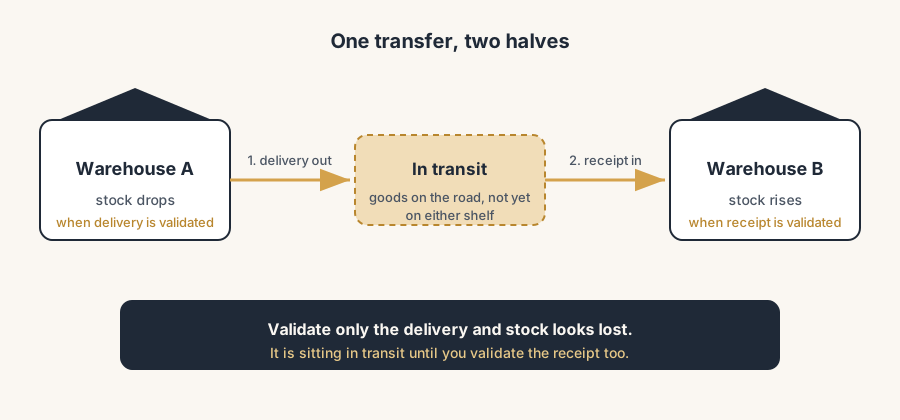
To shift goods from A to B by hand, use Replenishment or create an internal transfer. Odoo records it as two steps: a delivery out of the source warehouse and a receipt into the destination. Stock leaves A only when the delivery is validated, and lands in B only when the receipt is validated. Until both are done, the goods sit in transit and your B shelf is still empty. If your products carry serial numbers only so you know which unit went to which customer, consider capturing them at the outgoing delivery only; internal transfers then move plain quantity with nothing to scan, an approach we covered in tracking by lot or serial number in Odoo.
Automate the supply with routes and rules.
If one central warehouse always resupplies your shops, do not transfer by hand every time. On the shop's warehouse, set the Resupply From field to the central warehouse. Odoo then adds a route on your products, shown as "Shop: Resupply from Central". Add a reordering rule on the shop location so that when stock runs low, Odoo automatically creates the delivery from Central and the receipt at the shop. That is the route-and-rule engine doing the routine moves for you. This is also the upgrade-safe way to divide stock over warehouses: instead of custom allocation logic, we compute the min and max per warehouse and write them onto the standard reordering rules, and Odoo does the allocating itself. Why that habit pays off at every release is the subject of why your Odoo upgrade broke your customizations.
The part that trips people up
A few things catch almost everyone
This is where almost everyone loses a day.
Stock only updates in one warehouse, and people think Odoo is broken. It is not. A transfer has two halves. If you validated the delivery from the source but never validated the receipt at the destination, the source dropped and the destination never rose. The stock is sitting in transit. Open the destination warehouse's receipts and finish the second half.
The stock figure you read is location-specific. If you filter a report by Warehouse B and see zero, that is the truth for B, not for the company. To see everything, look at On Hand by location, or the company total, not a single warehouse view.
Reservations hide stock that is physically there. A sales order can reserve units in Warehouse A, so the available figure drops even though the goods are still on the shelf. Available is not the same as on-hand. Check the reserved quantity before you assume stock vanished.
Routes are evaluated when the rule fires, not retroactively. If you set up a resupply route after the order already needed stock, Odoo will not go back and re-plan the old order. Trigger replenishment again, or adjust the existing transfer.
A reordering rule lives on a location, not on the whole company. A 0/0 or min/max rule on Shop/Stock replenishes the shop. It does nothing for your other sites. Put a rule on each location that needs to refill itself.
Quick checklist
- One warehouse per physical site, locations for spots inside it.
- Every sales order ships from the right warehouse (Other Info > Delivery).
- Purchase orders receive into the right warehouse (Deliver To).
- Inter-warehouse moves are transfers, and both halves are validated.
- Central-to-shop supply runs on Resupply From plus a reordering rule, not by hand.
- When a number looks wrong, check the location, in-transit stock, and reservations before anything else.
FAQ
What is the difference between a warehouse and a location in Odoo?
A warehouse is a physical site with its own receipts, deliveries and stock. A location is a spot inside a warehouse, like a shelf or a zone. Every warehouse contains a tree of locations, and stock figures are reported per location, not per company.
Why does stock only update in one warehouse after a transfer?
Because a transfer has two halves: a delivery from the source and a receipt at the destination. If only the delivery was validated, the source dropped and the goods are sitting in transit. Validate the receipt at the destination to finish the move.
How do I move stock between warehouses in Odoo?
Use Replenishment or create an internal transfer between the two warehouses. Odoo records a delivery out of the source and a receipt into the destination. Stock moves only when both steps are validated.
Can I set which warehouse a sales order ships from?
Yes. On the sales order, open the Other Info tab and set the Warehouse field under Delivery. You can also set a default per salesperson or per company so orders do not all default to the first warehouse.
How does automatic resupply between warehouses work?
Set the Resupply From field on the receiving warehouse to point at the supplying warehouse. Odoo adds a resupply route on your products. Add a reordering rule on the receiving location, and Odoo creates the delivery and receipt automatically when stock runs low.