
Field jobs stop leaking hours and parts when the task is the single place everything lands: the schedule, the timer, the worksheet, the parts off the van, the signature, and the invoice built straight from it.
A technician finishes a job at a customer site, packs the van, and drives to the next one. Three hours were spent, two parts came off the truck, and the customer signed off happy. A week later the invoice goes out. It bills two hours, not three, because the extra hour was scribbled on the back of a worksheet that nobody typed up. It bills one part, not two, because the second one was grabbed from the van and never logged. The job looked profitable on the schedule and lost money on the invoice, and nobody noticed until the parts count at the warehouse came up short at the end of the month.
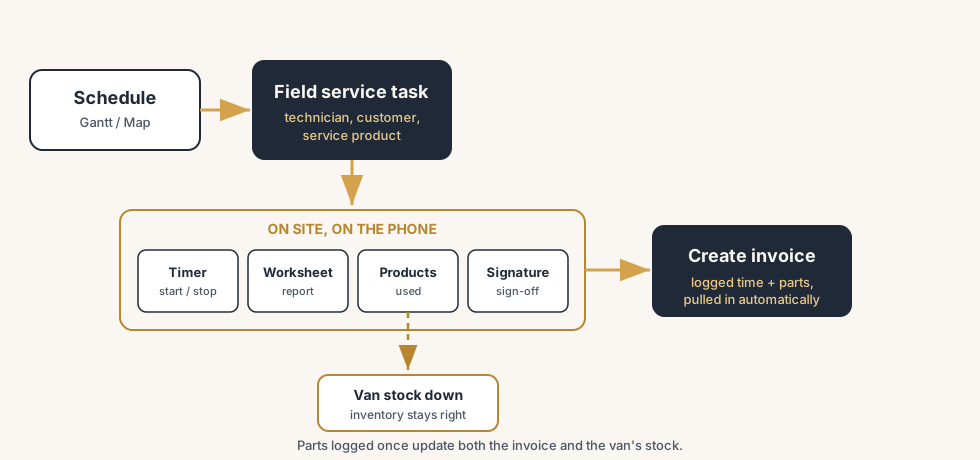
This is the everyday leak in field service work, and it has nothing to do with bad technicians. It is the gap between where the work happens (a customer site, often with no desk and a phone that barely has signal) and where the invoice gets made (the office, days later, from memory and paper). Odoo closes that gap by making the field service task the place where everything lands: the technician schedules to it, logs time on it with a timer, ticks off a worksheet on it, adds the parts used from it, gets a signature on it, and the invoice is built straight from it. The hours and parts that were really spent are the hours and parts that get billed. Here is how to set it up, how the mobile flow runs on site, and the parts of it that quietly cost you money.
Why field jobs leak time and parts
The gap between the work and the invoice in field service is wider than in office work, for reasons that are built into the job.
The work happens away from the system. The technician is at a customer site, not at a desk. If the only way to record an hour or a part is to write it on paper and type it in later, the small things vanish: the extra fifteen minutes, the second cable tie, the part swapped out without a note. By the time anyone reaches a keyboard, the record is already short.
Parts come off the van without a trace. A technician carries stock in the truck and uses what the job needs. If that use is not logged against the job, two things break at once: the customer is not billed for the part, and the van stock no longer matches what Odoo thinks is there. The leak hits revenue and inventory in the same move.
Scheduling lives in someone's head or a whiteboard. Who goes where, when, with what skills, is often planned in a spreadsheet or on a board by the dispatcher. The technician finds out by phone. There is no link between that plan and the job record, so the planned time and the real time never get compared, and a tech who is double-booked or sent across town twice is invisible until the day falls apart.
The invoice is rebuilt from paper, by a different person. The technician does the work; the office bills it, from worksheets and gut feel, days later. Anything unclear gets dropped to avoid an argument with the customer. So the grey hours and the uncounted parts quietly become free, every job.
What it costs you
Field service margin is thin to begin with, so every unbilled hour and untracked part comes straight off the top.
You give away labour and parts you already paid for. The hour that did not make the invoice is an hour of salary and a van you fuelled. The part that was not logged is stock you bought. Both are pure margin, gone, with nothing to soften the hit.
Your van stock drifts out of true. When parts leave the truck without being recorded against a job, the on-hand count in Odoo is wrong, so reorder points fire late or not at all, and a technician arrives at a job without the part because the system thought it was still in the van.
You cannot tell a profitable job type from a loss-making one. If planned time is never compared with real time, you do not know which jobs run long and which run short. You keep quoting the loss-makers at the same price and lose the same money on repeat.
The fix, in numbered steps
You run a field service job end to end in Odoo by turning on the Field Service app, scheduling the task to a technician, letting them run the job from their phone (timer, worksheet, parts, signature), and invoicing the task directly. The steps build on each other.
Turn on Field Service and the features the job needs.
Install the Field Service app. In Field Service ‣ Configuration ‣ Settings, switch on the features you use: Worksheets (so technicians fill a structured report on site), Time Billing and Product Billing (so logged time and used parts feed an invoice), and signature if you want the customer to sign off. Field Service tasks are project tasks under the hood, so Project and Timesheets come along with it.
Create the task and schedule it to a technician.
Make a field service task for the job, set the customer, and assign it to a technician with a Planned Date. Plan from the view that fits: the Gantt view to drag jobs onto a technician's day and see who is over- or under-booked, or the Map view, which sorts your tasks by Planned Date and shows the route from one site to the next so a technician is not sent back and forth across town. Reassigning a job is a drag and drop, not a phone call.
Run the job from the phone: start the timer.
On site, the technician opens the task on their phone and clicks Start to run the integrated timer while they work, then Stop when the job is done to confirm the time spent and add a note. The time logs against the task automatically, so the hour is captured the moment it is worked, not reconstructed days later. No timer-watching needed: it is one tap at the start and one at the end.
Fill the worksheet and add the parts used.
The technician opens the Worksheet (a smart button on the task) and fills the report you designed: readings, checks, photos, whatever the job needs. Then they add the products used from the catalog, straight off the van. Logging a part here does two jobs at once: it lowers the van stock in Odoo so inventory stays right, and it adds the part to the eventual invoice. Lot- or serial-tracked parts can be scanned, so traceability stays intact with no extra typing.
Get the customer signature on site.
With the work done, the technician has the customer sign the worksheet on the phone or tablet. The signature is stored on the task and on the worksheet report, so there is a clear, dated record that the customer accepted the work before anything is billed. This is the moment that stops "I never agreed to that" arguments later.
Invoice the task directly.
Back the job is ready to bill. From the task, create the invoice: Odoo pulls in the time that was logged with the timer and the products that were added on the worksheet, priced from the service product and the part prices, so the invoice reflects the hours and parts that were really spent. Review it, post it, send it. The job that started as a scheduled task ends as an invoice built from the same record, with no retyping in between.
The part that trips people up
A few things catch almost everyone
A few things catch almost everyone setting up field service for the first time.
The service product and its invoicing policy decide whether time turns into money. A field service task only bills time automatically if there is a service product behind it set to invoice on the logged time, the same way timesheet billing works. Leave the product on "ordered quantities" or forget to link one, and the timer runs, the hours log, and the invoice still shows nothing. Get this field right first; everything downstream depends on it.
Parts only update stock and the invoice if they are logged on the worksheet, not used off the books. The whole point of adding products on the task is that it touches inventory and the invoice in one move. A part grabbed from the van and used without logging it is invisible to both: the customer is not billed and the stock count is wrong. The discipline is to add the part on the phone before it goes in, not to remember it later.
A worksheet template that asks for too much gets filled in badly. If the worksheet has thirty fields and a technician is standing in the rain, they will tap through it to make it go away, and the report is worthless. Design the template for the job: the few readings and checks that actually matter, the photos you need, and the signature. A short worksheet that gets filled honestly beats a long one that gets faked.
Van stock is its own warehouse, and most people forget to set it up. If you want the on-hand count to be right, each van or technician needs its own stock location, replenished from the main warehouse, so parts used on a job draw down the right van and not some abstract pile. Skip this and the inventory side of field service tells you nothing useful, even though the billing side works.
This is standard Odoo, and the payoff is in running it whole. Field Service, with Project, Timesheets, Inventory and Sales behind it, is all standard. It earns its keep when every job is a scheduled task, every hour runs through the timer, every part is logged on the worksheet, and the invoice is built from the task and not from paper. A half-wired setup, where some jobs are tracked and some are done on the side, gives you a false sense that the work is covered while the leaks carry on under it.
Quick checklist
- The Field Service app is on, with Worksheets, Time Billing, Product Billing and signature switched on for the jobs that need them.
- Each billable job runs as a field service task with a customer and a service product set to invoice on logged time.
- Technicians are scheduled in the Gantt or Map view, so over-booking and back-and-forth routing are visible before the day starts.
- On site the technician uses the integrated timer (Start and Stop), so the hour is captured as it is worked.
- Parts used are added on the worksheet from the catalog, so van stock draws down and the part lands on the invoice in one move.
- The customer signs off on the worksheet before billing, and the invoice is created from the task with the time and parts pulled in automatically.
FAQ
How do I invoice a field service job in Odoo?
Run the job as a field service task linked to a customer and a service product set to invoice on logged time. The technician logs hours with the task's integrated timer and adds the products used on the worksheet. When the work is done, create the invoice from the task: Odoo pulls in the logged time and the used products automatically and prices them, so the invoice reflects the hours and parts actually spent. Review and post it.
How does the Odoo Field Service mobile flow work on site?
On the task, the technician clicks Start to run the integrated timer while working and Stop when done to confirm the time and add a note. They open the Worksheet smart button to fill the structured report, add the products used from the catalog, and have the customer sign off on the phone or tablet. The time logs to the task, the parts draw down van stock and feed the invoice, and the signature is stored on the worksheet, all from one screen.
How do I track products used on a field service job?
On the field service task, add the products used from the product catalog (via the worksheet when Product Billing is on). Logging a part there lowers the stock at the technician's van location and adds the part to the invoice in one step. Lot- or serial-tracked parts can be scanned so traceability stays intact. For the stock side to be accurate, set each van up as its own stock location, replenished from the main warehouse.
How do I schedule field service tasks to technicians in Odoo?
Assign each task to a technician with a Planned Date, then plan from the Gantt view or the Map view. The Gantt view lets you drag jobs onto a technician's day and see who is over- or under-booked, and reassigning is a drag and drop. The Map view sorts tasks by their Planned Date and shows the route from one site to the next, so a technician is not sent back and forth across town.
Why does the timer run but nothing shows up on the invoice?
The usual cause is the service product behind the task not being set to invoice on the logged time (or no service product being linked at all), so the hours log against the task but never become a billable line. Field service time bills the same way timesheet billing does: it needs a service product with the right invoicing policy. Check that first, then check that the task is linked to a customer and that Time Billing is switched on in the Field Service settings.