
One discount on the whole Odoo order takes two things: switch on Discounts in the Sales settings, then use the Discount button at the bottom of the order, which spreads one percentage across all lines or adds it as its own line. Typing the discount per line is the slow way, and on a fresh database the discount field is not even there.
A customer asks for "10 percent off the total". You open the quotation and start typing 10 in the discount field on the first line, then the second, then the third. Five lines later you have made a typo on one of them and the total is off by a few euros. Worse, on a fresh database there is no discount field at all, just unit price and quantity, so you cannot even do that.
What you actually want is one number applied once to the whole order, and then for that discount to show up correctly when you invoice. Odoo can do this, but the feature is off by default and the button you need is easy to miss.
Why it happens
Out of the box, Odoo hides discounts on sales orders to keep quotations clean. The per-line discount column and the order-level Discount button both live behind one setting. Until you switch it on, there is no place to enter a discount at all.
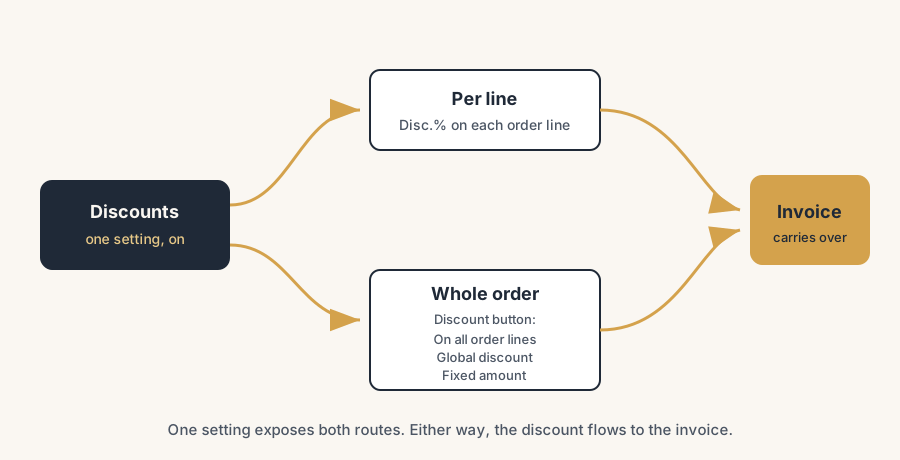
Once it is on, Odoo gives you two routes. A per-line discount edits the Disc.% on each order line, which is right when different products get different discounts. An order-level discount, reached through the Discount button, is right when you want one rule for the whole order. They are not separate features fighting each other; they are the same setting exposing both a column and a button.
The fix, in numbered steps
Turn on Discounts in Sales settings.
Go to Sales > Configuration > Settings, find the Pricing section, tick Discounts, and Save. This single setting does two things: it adds a Disc.% column to every order line, and it adds a Discount button at the bottom of the order.
For a one-off per-line discount, use the Disc.% column.
Open the quotation, go to the Order Lines tab, and type a percentage in the Disc.% column on the line you want. Odoo recalculates that line's total immediately. Use this when only some products get a discount, or each product gets a different one.
For one discount on the whole order, click the Discount button.
At the bottom of the order, next to the totals, click Discount. A popup opens where you set the percentage or amount and pick how it applies. This is the answer to "I want 10 percent off everything without touching each line".
Choose how the order discount applies.
The popup gives you three options. On All Order Lines spreads your percentage across every existing line, so each line shows its own Disc.%. Global Discount adds one extra line to the order with a value equal to the total discount, leaving your product lines untouched. Fixed Amount lets you knock off a set sum (for example 50 euro) by adding a discount line for that amount.
Pick the option that matches how you want it to read.
If you want each product to show its discounted price, use On All Order Lines. If you want the products to stay at full price and a single "Discount" line at the bottom, use Global Discount or Fixed Amount. The order total is the same either way; the difference is purely what the customer sees on the document.
Confirm and invoice.
Confirm the order and create the invoice as usual. The discount carries over: per-line discounts keep their Disc.%, and a global or fixed discount comes across as the same discount line. You do not re-enter it on the invoice.
Coupons and promotions versus a manual discount
A manual discount is you deciding, on this order, to drop the price. It is fast and it needs no rules. Use it for a negotiated deal or a one-time goodwill gesture.
When the discount should follow a rule rather than your judgement, use the Discount & Loyalty programs instead (Sales > Products > Discount & Loyalty, the feature is enabled in Sales settings). There are a few program types:
- Promotions apply automatically when conditions are met, for example "spend over 500 euro and get 10 percent off". The customer enters nothing.
- Discount codes give a discount only when the buyer types a specific code at checkout.
- Coupons are unique codes tied to a customer or a campaign.
For these programs you also choose what the reward hits: the whole order, only the cheapest product, or specific products. So "10 percent off the whole order when you spend over 500" is a promotion with the reward set to the entire order, applied automatically. That is the structured version of the manual whole-order discount, and it is the right tool when the same offer runs again and again or on the webshop.
The part that trips people up
A few things catch almost everyone
The Discount button is missing until you enable the setting. If you see no Discount button and no Disc.% column, you have not ticked Discounts in Sales > Configuration > Settings. Almost every "Odoo can't discount the whole order" question is this.
Global Discount adds a product line. When you pick Global Discount or Fixed Amount, Odoo does not apply an invisible reduction. It adds a real line to the order with a negative value. That line needs a product behind it, which Odoo handles with a discount product. If your accountant wants discounts booked to a specific account, that discount product's income account is where to set it, so the discount lands in the right place on the invoice and in the books.
Order-total discount is a one-time calculation, not a live rule. The Discount button calculates the amount at the moment you click it, based on the current order. If you add a product afterwards, the global discount does not grow to match. Apply the order discount last, after all the lines are on the order, or redo it if the order changes.
Per-line and order-level can stack by accident. If a line already has a Disc.% and you then run On All Order Lines, you are discounting on top of a discount. Check the lines before applying an order-wide percentage.
This is the manual discount, not the pricelist. A discount you type on the order is separate from a pricelist discount, which is automatic and tied to the customer. If you need the same discount for a customer on every order, a pricelist is the cleaner home for it than typing it each time.
Quick checklist
- Discounts enabled in Sales > Configuration > Settings (Pricing section).
- Per-line discount: type in the Disc.% column on the order line.
- Whole-order discount: use the Discount button at the bottom of the order.
- Picked the right mode: On All Order Lines, Global Discount, or Fixed Amount.
- Applied the order discount after all lines are on the order.
- Checked you are not stacking a line discount and an order discount unintentionally.
- For repeat or conditional offers, used a promotion or coupon instead of a manual discount.
- Confirmed the discount shows correctly on the invoice before sending.
FAQ
How do I give a discount on the whole order in Odoo instead of per line?
Enable Discounts under Sales > Configuration > Settings, then open the order and click the Discount button at the bottom near the totals. In the popup, set your percentage or amount. Pick On All Order Lines to spread it across every line, or Global Discount to add one discount line for the whole order. You do not edit each line by hand.
Why is there no discount field on my Odoo sales order?
Discounts are off by default. Go to Sales > Configuration > Settings, tick Discounts in the Pricing section, and Save. This adds both the Disc.% column on each line and the Discount button for the whole order.
What is the difference between a global discount and a per-line discount in Odoo?
A per-line discount edits the Disc.% on a single order line, so each product can have its own discount. A global discount, applied through the Discount button, covers the whole order: it either spreads one percentage across all lines or adds a single discount line for the total. Use per-line for product-specific deals and global for one discount on everything.
Should I use a coupon or a manual discount in Odoo?
Use a manual discount for a one-off negotiated price you decide on the spot. Use a coupon or promotion when the discount follows a rule that should repeat, such as a code customers enter at checkout or an automatic "spend over X, get Y percent off". Promotions apply automatically; codes and coupons need the buyer to enter a code.
Does the discount on a sales order carry over to the invoice?
Yes. When you invoice a confirmed order, the discount comes with it: per-line discounts keep their Disc.%, and a global or fixed discount appears as the same discount line. You do not re-enter it. A global or fixed discount uses a discount product, so set its income account if you want discounts booked to a specific account.