
Receipts and picks get faster and cleaner when the scan replaces the keyboard: the Odoo Barcode app books each box at the dock and each pick at the shelf, in real time. The setup is a morning of work; the discipline of scanning everything is the real change.
A delivery van pulls up at the dock with thirty boxes. Someone opens each one, finds the matching line on a printed receipt, ticks it off, and at the end keys the quantities into Odoo from a desk an hour later. By then two lines are wrong, one product went to the wrong shelf, and a sales order that needed that stock got picked short. The same thing happens on the way out: a picker walks the warehouse with a paper list, grabs what looks right, and the customer gets the wrong variant.
Every one of those mistakes started the same way: a person reading a list and typing a number. The fix is to stop typing and start scanning. The Odoo Barcode app lets your team process receipts, deliveries and internal transfers on the warehouse floor in real time, by scanning the product and the location instead of reading them off paper. It is faster, the stock is right the moment the work happens, and the wrong-product errors mostly disappear. The catch is the setup. Get the barcodes and the configuration right and scanning runs itself. Get them wrong and the scanner beeps at nothing.
Why typing beats nobody and scanning beats typing
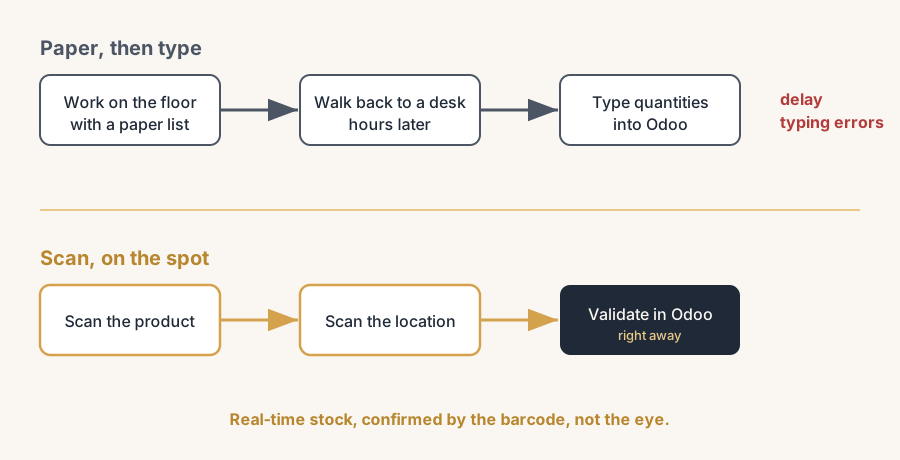
Manual stock handling fails in two places. First, the gap between doing the work and recording it. The boxes arrive at nine, the quantities get keyed in at noon, and for three hours Odoo shows stock that does not exist or hides stock that does. Anything that reads availability in that window (a webshop, a sales rep, a reordering rule) reads a wrong number. Second, the act of matching by eye. A human reading "FURN_0269 desk, black" off a list and finding it among forty similar boxes will sometimes pick the grey one. A scanner reading the barcode does not.
The Barcode app closes both gaps. The work and the record happen at the same moment, on the floor, with a phone or a dedicated scanner. And the match is done by the barcode, not the eye, so the product, the quantity and the location are confirmed by the data on the label rather than someone's best guess.
Set it up, in numbered steps
The app does nothing useful until two things are true: scanning is switched on, and your products and locations actually carry barcodes Odoo can read. These steps get you there.
Install the Barcode app and turn on scanning.
Install Barcode from the Apps list. Then in Inventory > Configuration > Settings, under the Barcode section, tick Barcode Scanner. This is the master switch. Without it, the smart barcode commands and the scan-driven screens stay off, even with the app installed.
Choose your barcode nomenclature.
In the same Settings section, set Barcode Nomenclature. Default Nomenclature is right for most companies that print their own internal labels. Choose Default GS1 Nomenclature only if you handle supplier barcodes that follow the GS1 standard (the 14-digit GTIN you find on retail goods, often with batch and expiry encoded in the same barcode). Pick this deliberately, because the two read barcodes differently and switching later means re-checking your labels.
Give your products barcodes.
Open a product in Inventory > Products > Products, go to the General Information tab, and fill the Barcode field. Use the manufacturer's barcode (the EAN/UPC on the box) where one exists, so the scanner reads the label that is already there. For products without one, assign your own unique code and print labels from the product list (select products, then Print > Barcode). One product, one barcode, no duplicates.
Give your locations barcodes.
This is the step most people skip, and it is half the value. In Inventory > Configuration > Locations, each location (a shelf, a bin, a zone) has a Barcode field. Fill it, then print location labels and stick them on the racks. Scanning a location barcode tells Odoo where stock came from or went to, which is what makes putaway and picking accurate instead of approximate. To see and edit locations you need Storage Locations switched on in Inventory Settings.
Process a receipt by scanning.
Open the Barcode app, tap Operations, then the Receipts card to see what is inbound. Pick the receipt, then scan each product as you unpack it. Odoo ticks the line and counts the quantity for you. Scan a destination location barcode to say where it went, then Validate. The stock is in Odoo the moment the last box is scanned, not hours later.
Process a delivery the same way.
Tap Operations, then Delivery Orders, and select the order to pick. Scan the source location, then scan each product as you take it off the shelf. The scanner confirms you grabbed the right item and the right quantity against the order, so the customer gets what they ordered. Validate, and the delivery is done.
Use internal transfers for moves between locations.
To move stock from one location to another (replenishing a pick face, moving between zones), scan the source location, scan the products, scan the destination location. You can also scan a product or a location directly in Barcode to start a transfer from scratch. This keeps every internal move recorded instead of stock quietly walking from shelf to shelf off the books.
The part that trips people up
A few things catch almost everyone
The app is simple once it works. Almost every "the scanner does nothing" complaint comes from one of these, not from the app itself.
No barcode on the product means no scan. If the Barcode field on the product is empty, scanning the box does nothing, because Odoo has no code to match. Before you roll out, check that every product you actually move has a barcode. A scanner is only as good as the labels it reads.
Skipping location barcodes throws away half the benefit. Without location barcodes you can confirm what moved but not reliably where it went or came from. Putaway and multi-location picking then fall back on the operator typing or choosing the location, which is exactly the manual step you were trying to remove. Label the locations.
The wrong nomenclature reads the wrong thing. If you set GS1 nomenclature but your labels are plain internal codes (or the reverse), Odoo tries to interpret the barcode against the wrong rules and the scan misfires or reads garbage. Match the nomenclature to the labels you actually use, and decide it once at the start.
Duplicate barcodes confuse the match. Two products with the same barcode, or a product barcode that collides with a location barcode, makes the scanner ambiguous. Keep codes unique across products and locations.
A scanner that "types" without scanning isn't a scanner. Most warehouse scanners act as a keyboard wedge: they type the barcode and press Enter. That works, but if the cursor is not in the right field the input lands nowhere. The Barcode app's scan screens are built for this and put the focus where it belongs, which is the reason to process scanning work in the Barcode app rather than the normal Inventory form.
Operation command barcodes save real time, once you print them. Odoo lets you print command barcodes (Pick, Pack, Validate, and so on) and the operation-type barcodes for Receipts, Deliveries and Internal Transfers. Stick them on racks and workstations so staff scan a command instead of tapping the screen. Most teams forget these exist and tap through every step by hand.
Test whether scanning actually wins in your warehouse. Picking is where the gain can be biggest, and where we have also seen it disappoint. An experienced crew that knows every shelf can beat the scanner on speed, and the scan only adds steps; a new or rotating crew loses most of its errors overnight. The product range weighs just as heavily as the people: thousands of SKUs or items that look alike gain a lot, a small range of visually distinct products may not. Run a week of picking both ways, measure speed and error rate, and let that number decide the rollout.
Quick checklist
- Is Barcode Scanner ticked in Inventory Settings, with the Barcode app installed?
- Does every product you move have a unique barcode in the Barcode field?
- Do your shelves, bins and zones have location barcodes printed and stuck on?
- Did you choose Default vs GS1 nomenclature on purpose, matching your real labels?
- Are there any duplicate barcodes across products or locations?
- Have you printed the command and operation-type barcodes for the floor?
- Does your scanner put the cursor in the right field, or does the input land nowhere?
FAQ
Do I need a special scanner to use Odoo Barcode?
No. Any USB or Bluetooth barcode scanner that acts as a keyboard works, and so does the camera on a phone or tablet through the Odoo mobile app. Dedicated rugged scanners are worth it for high volume because they are faster and survive the warehouse, but you can start with a phone to prove the workflow before you buy hardware.
Can I scan receipts, deliveries and internal transfers all in the app?
Yes. The Barcode app handles receipts (inbound), delivery orders (outbound) and internal transfers (moves between locations) from the Operations screen. Each one follows the same pattern: open the operation, scan the products, scan the source and destination locations, and validate. You can also start a transfer from scratch by scanning directly.
What is barcode nomenclature and which one should I pick?
Nomenclature is the rule set Odoo uses to interpret a scanned barcode. Default Nomenclature suits companies that print their own internal labels. Default GS1 Nomenclature suits companies handling GS1 supplier barcodes, where one barcode encodes the product (a 14-digit GTIN), and often the batch and expiry too. Match it to the labels you actually scan, and choose it once at setup.
Why do I need barcodes on locations and not just products?
Because scanning a product only confirms what moved, not where. The location barcode tells Odoo the source and destination, which is what makes putaway and picking accurate in a warehouse with more than one shelf. Without location barcodes the operator still has to choose the location by hand, which is the manual step scanning is meant to remove.
Will the Barcode app fix my stock accuracy on its own?
It removes the typing errors and the delay between doing and recording, which is most of the problem. But accuracy also depends on the setup underneath: a location structure that matches reality, unique barcodes, the right nomenclature, and disciplined use. Scanning into a badly designed warehouse just records the wrong moves faster.