
Odoo buys at the right price from the right vendor once the Purchase tab tells it the truth: every vendor listed in order of preference, with the real minimum quantities, prices and lead times per line. Reordering follows that list to the letter, which is precisely why a sloppy list buys wrong.
You buy the same product from two or three suppliers. One is cheap but slow. One is fast but pricier. One only gives the good price above 500 units. You know all of this in your head, and when you raise a purchase order by hand you pick the right one.
Then you switch on reordering rules to stop the manual work, and Odoo starts buying from the wrong vendor at the wrong price. It picks the expensive supplier when the cheap one had stock. It orders 40 units from a vendor whose price only applies above 100. The expected delivery date is days off because nobody told Odoo how long that supplier takes. Now you are checking every auto-generated RFQ by hand, which is exactly the work you wanted to remove.
The fix is not a workaround. Odoo already knows how to pick the right vendor and the right price, but only if you fill in the vendor pricelist properly. The rules it follows are strict and a little surprising. Here is how vendor selection actually works, and how to set it up so reordering buys correctly without you watching it.
Why it happens
Every product in Odoo has a Purchase tab, and on that tab is a vendor pricelist: a list of suppliers, each with a price, a minimum quantity, a validity period and a delivery lead time. This is the data reordering reads. If the list is empty, half-filled, or in the wrong order, reordering makes the wrong call.
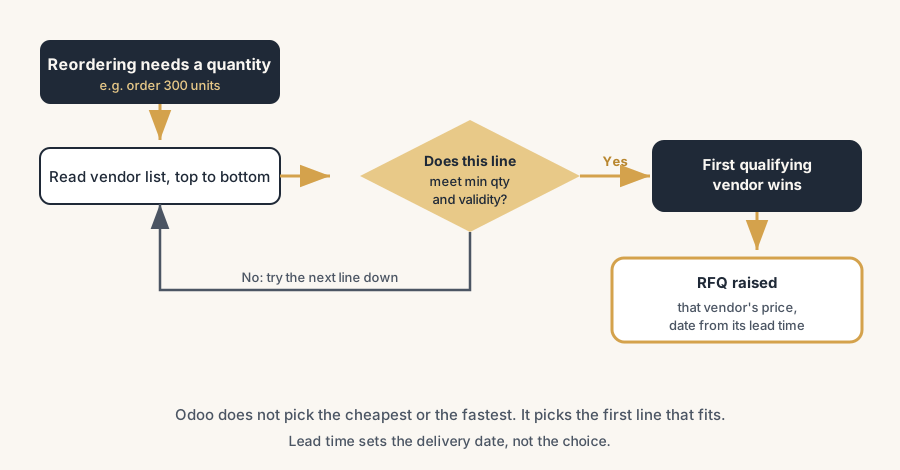
The part that catches people is how Odoo picks from that list. It does not compare all your vendors and choose the cheapest or the fastest. It reads the list top to bottom and takes the first line that qualifies. A line qualifies when the quantity being ordered meets that line's minimum quantity, and the order date falls inside that line's validity dates. The first line that passes both tests wins. Order matters more than price.
Lead time is the other surprise. The delivery lead time you set per vendor does not influence which vendor Odoo chooses. It only sets the expected arrival date once the vendor is already picked: confirmation date plus lead time. So a faster supplier lower down the list will not be chosen just because it is faster. If you want fast to win, fast has to be near the top.
Put together, it works like this: reordering buys from the first vendor line that fits the quantity and the date, tops the price from that line, and promises delivery based on that line's lead time. Get the list and its order right and the whole thing runs itself.
The fix, in steps
Add every vendor to the product's Purchase tab
Open the product, go to the Purchase tab, and under Vendor click Add a line for each supplier you buy this product from. Per line, fill in the vendor, the Price, the Quantity (the minimum quantity that unlocks this price), the Delivery Lead Time in days, and the Validity dates if the price is seasonal or quoted for a period.
This list matters because it is the only thing reordering looks at. A product with no vendor on the Purchase tab cannot be auto-purchased at all. The reordering rule fires, finds no vendor, and creates nothing. Empty Purchase tab is the single most common reason a Buy rule produces no RFQ.
Put the vendors in the order you want them chosen
Drag the vendor lines into priority order using the handle on the left of each line. The top line is your preferred supplier. Odoo works down from there and stops at the first line that qualifies for the order.
The order matters because Odoo does not rank by price or speed. It ranks by your list order. If your cheapest or fastest supplier should normally win, drag it to the top. If a supplier is a fallback for when the first one cannot cover the quantity, put it below. The order on screen is the decision logic.
Set the minimum quantity on each line correctly
The Quantity field on a vendor line is the minimum order quantity at which that price applies. If a supplier only gives the discount above 500 units, set 500 on that line. If they sell at the listed price from a single unit, set 1.
This field carries more weight than it looks: it is how Odoo handles tiered pricing and per-vendor minimums in one mechanism. When reordering needs 300 units, it skips any line whose minimum is above 300 and takes the first line at or below it. You can even add two lines for the same vendor, a higher price at low quantity and a lower price at high quantity, and Odoo picks the right one based on how much it needs to order.
Set the delivery lead time per vendor
On each vendor line, fill the Delivery Lead Time in days. This is how long that specific supplier takes from order to delivery.
Lead time deserves the attention because it does not pick the vendor, but it does set the promised arrival date and it feeds replenishment timing. Odoo plans backwards from when you need the stock. With a five-day lead time it raises the RFQ five days before the need date, not today. Wrong or missing lead times make Odoo order too late (stockout) or too early (cash tied up). Get the number right per supplier, because Odoo trusts it completely.
Give the product a Buy route and turn the reordering rule on
On the product's Inventory tab, tick the Buy route under Routes. Then set a reordering rule (Min and Max) with the Trigger set to Auto. Now when the forecast drops to the minimum, the scheduler reads the rule, reads the vendor pricelist, picks the first qualifying vendor, and raises an RFQ at that vendor's price for the quantity that brings stock back to Max.
The route is the hinge here, because it is what turns "we are short" into an actual RFQ. No Buy route, no purchase, no matter how good your vendor list is. Auto trigger lets the daily scheduler act without you clicking. This is the step that connects the vendor data to the automatic buying.
Test with the scheduler instead of waiting
Go to Inventory > Operations > Run Scheduler and run it manually. Check the RFQ that appears: right vendor, right price, right quantity, sensible expected date. If it picked the wrong vendor, the cause is almost always the list order or a minimum quantity, not a bug.
Testing this way matters because the scheduler runs once a day by default, so without a manual run you wait until tomorrow to see if your setup is right. Running it now closes the loop in seconds and shows you exactly what reordering will do.
The part that trips people up
A few things catch almost everyone
Odoo picks the first qualifying vendor, not the cheapest or the fastest. This is the core misunderstanding. It reads the Purchase tab top to bottom and stops at the first line whose minimum quantity and validity date fit the order. If the expensive supplier sits above the cheap one, the expensive one wins. Order your vendor list deliberately.
Lead time never chooses the vendor. A faster supplier further down the list will not be promoted for being faster. Lead time only sets the expected arrival date after the vendor is already chosen. If speed should decide, put the fast vendor higher.
An empty Purchase tab produces no RFQ, silently. A Buy reordering rule with no vendor on the product fires and creates nothing. The rule looks fine, saved and green, and nothing happens. Always confirm at least one vendor line exists.
Minimum quantity is a gate, not a suggestion. If reordering needs 50 units and your only vendor line has a minimum of 100, that line does not qualify and Odoo skips it. With no other line, you get no RFQ. Check that at least one line's minimum is at or below the quantities you actually reorder.
Expired validity dates take a line out of play. A vendor price quoted with a validity window stops qualifying the day after it expires. A line that worked last quarter can quietly drop out, and reordering falls through to the next vendor or to nothing. Keep validity dates current or leave them open.
The first qualifying line wins even with a cheaper line below for a different vendor. Odoo only compares prices between lines for the same vendor. Across different vendors it does not shop for the lowest price; it respects your list order. If you want price-based selection across vendors, that is a customisation, not standard behaviour.
Quick checklist
- Every supplier for the product is on the Purchase tab with price, minimum quantity and lead time.
- Vendor lines are dragged into the priority order you want them chosen.
- Minimum quantity on each line matches the real reorder quantities, so at least one line always qualifies.
- Delivery lead time is filled per vendor and reflects reality.
- Validity dates are current, or left open if the price is permanent.
- The product has the Buy route ticked on the Inventory tab.
- The reordering rule has Min, Max and Trigger set to Auto.
- You ran the scheduler manually and checked the RFQ picked the right vendor, price and date.
FAQ
How does Odoo choose which vendor to buy from when reordering?
Odoo reads the vendor pricelist on the product's Purchase tab from top to bottom and picks the first line that qualifies. A line qualifies when the quantity being ordered meets that line's minimum quantity and the order date falls within its validity dates. It does not automatically choose the cheapest or the fastest vendor, so the order of the list is the decision logic. Drag your preferred supplier to the top.
Does vendor lead time affect which supplier Odoo picks?
No. The delivery lead time set per vendor does not influence vendor selection. Odoo uses it only to calculate the expected arrival date once the vendor is already chosen, as the confirmation date plus the lead time. If you want a faster supplier to be chosen, move it higher in the vendor list, because lead time alone will not promote it.
Why is my Odoo reordering rule not creating a purchase order?
The most common reason is no vendor on the product's Purchase tab, so the Buy route has no supplier to order from. Other causes: no minimum-quantity line qualifies for the amount being ordered, the vendor price validity dates have expired, the product has no Buy route, or the scheduler has not run yet. Add a vendor line and run Inventory > Operations > Run Scheduler to test.
How do I set different prices for different order quantities in Odoo?
Add more than one line for the same vendor on the Purchase tab, each with a different minimum Quantity and Price. For example a higher price at a minimum of 1 and a lower price at a minimum of 500. When reordering needs a quantity, Odoo picks the line whose minimum it meets, and between lines for the same vendor it takes the lower price. This is how tiered or volume pricing works.
Can Odoo automatically pick the cheapest vendor across all suppliers?
Not in standard Odoo. Across different vendors, Odoo respects the order of the vendor list rather than shopping for the lowest price. It only compares prices between multiple lines for the same vendor. Selecting the cheapest or fastest supplier across all vendors automatically is a customisation, so weigh the upgrade cost against simply ordering your vendor list correctly.