
Nest a level in the BOM only when the sub-assembly is a real, stocked product with its own production; flatten it into a kit when the grouping only exists on paper. That one rule decides most of the planning overhead and confusion this post covers.
You build a product out of smaller parts, and some of those parts are themselves built out of parts. So you create a bill of materials, then a bill of materials inside it, and you launch a manufacturing order for the top product. Now you have a pile of separate manufacturing orders to plan, components reserved you did not expect, and a stock report showing sub-assemblies on hand that you never meant to keep. Or you went the other way, made everything one flat kit, and now the shop floor has no production order to work against and no record of what was actually built.
Both problems come from one choice you made early and probably did not think of as a choice: nest or flatten. A multi-level BOM nests a real, stocked sub-assembly with its own manufacturing order. A kit (a phantom BOM) flattens the structure so the components drop straight into the parent and no separate order is created. They look almost identical on the screen. They behave the opposite way for your stock and your manufacturing orders. Pick the wrong one and you either drown in orders you do not need or lose the production step you do need. Here is how each works, the rule for choosing, and the mistakes that send people back and forth between the two.
Why the two structures behave so differently
A bill of materials in Odoo has a BoM Type. The two that matter here are "Manufacture this product" and "Kit". That single radio button decides everything downstream.
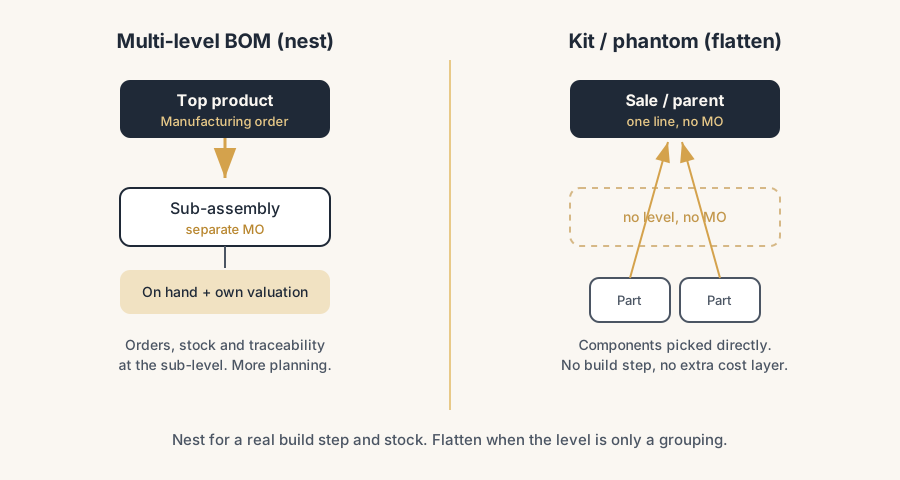
When a BOM is set to Manufacture this product and the product appears as a component on a bigger BOM, you have a multi-level (nested) BOM. The sub-assembly is a real product. It has its own stock, its own cost, and its own manufacturing order. Producing the top product means producing the sub-assembly first, as a separate step, and Odoo tracks it as such. The sub-assembly exists on hand between the two steps.
When a BOM is set to Kit, it is a phantom. The product is never built and never stored as a thing in its own right. The moment it lands on a sale order or on a parent BOM, Odoo replaces it with its components. There is no manufacturing order for a kit and no work order. On a sale, the kit shows as one line on the quotation but the delivery picks the individual components. On a parent BOM, the kit's components are pulled up and consumed as if they were direct components of the parent. The structure is flattened away.
So the real question is never "how do I model this product". It is "do I want a stockable, manufacturable step here, or do I just want a tidy grouping that disappears at the moment of truth". Nest when you want the step. Flatten when you want the grouping.
The rule for when to nest and when to flatten
Nest a sub-assembly (multi-level, Manufacture BOM) when any of these is true.
- The sub-assembly is used on more than one finished product. Build it once, define it once, reuse it everywhere. Change it in one place.
- You want to hold the sub-assembly in stock, build it ahead of demand, or sell it on its own as a spare part.
- The sub-assembly needs its own production step, its own work centre, its own quality check, or its own routing. A manufacturing order is the only place that lives.
- You need to know what you actually built at the sub-level, with its own cost and traceability, not just what went out the door.
Flatten into a kit (phantom BOM) when all of these are true.
- The "assembly" is really just a grouping of parts that are put together at the last moment, with no meaningful production step worth tracking.
- You never want to stock the assembly itself, only its components.
- You want a sale of the kit to reserve and pick the components directly, with no manufacturing order in between.
- The grouping is for convenience on a quotation or a parent BOM, not a real build stage.
The gut check is quick: if your shop floor needs an order to work against for that level, nest it. If the level only exists to make a sale or a parent BOM read cleanly, flatten it. We hold clients to one discipline on top of that: a BOM level exists only when the sub-product is genuinely made to stock as its own item. Ten sub-productions for something the floor assembles in one run give you ten orders to plan, ten sets of moves, and no extra control. The structure should mirror how you actually build and stock, not how the engineering drawing is layered.
What each choice does to stock and manufacturing orders
This is where the choice shows its teeth, so it is worth being precise.
Multi-level BOM (nested sub-assembly). Launching the top manufacturing order does not automatically build the sub-assemblies in the same order. Odoo plans the top product and the sub-assembly as separate manufacturing orders. To get them created and linked, you either set the sub-assembly to replenish on demand (the Replenish on Order / MTO route, which ties the sub-MO to the confirmed top MO and reserves for it), or you keep the sub-assembly in stock with a reordering rule and let the replenishment report propose the sub-MOs. The recommended low-overhead setup for pure made-to-order sub-levels is a 0/0/1 reordering rule on each sub-assembly: minimum zero, maximum zero, multiple one. Either way, the sub-assembly is a real product that appears on hand between steps and carries its own valuation. The top product's cost rolls up from the sub-assembly's cost plus its own components and operations.
Kit (phantom BOM). There is no manufacturing order for the kit and none for its level inside a parent. On a sale order the kit is one line; on the delivery, Odoo lists and picks the components. Stock availability of the kit is derived from its components: Odoo will let you confirm the sale, but it can only deliver when every component is available, so a "sellable" kit can still be stuck waiting on one missing part. The kit itself is never valued as stock because it is never in stock. Its value is simply the sum of its components at the moment they move. Nothing is built, so there is no production record, no work order, and no separate cost layer for the kit.
Put bluntly, nesting gives you orders, stock and traceability at the sub-level and the planning overhead that comes with them. Flattening removes all of that, the overhead and the visibility both.
The part that trips people up
A few things catch almost everyone
Almost every multi-level mess is one of these.
Expecting one manufacturing order to build everything. People nest a sub-assembly, launch the top MO, and wait for the sub-assembly to appear. It does not build itself. Without an MTO route or a reordering rule on the sub-assembly, no sub-MO is created and the top MO sits short of components. Decide up front how the sub-level replenishes, then test it on one product before rolling it out.
Using a kit when you needed a sub-assembly, and losing the production step. Switching a level to Kit so that sale availability derives from components is tempting, but it deletes the manufacturing order for that level. No work order, no shop-floor traceability, no record of what was built, weaker repair history. If a level needs to be built and tracked, a kit is the wrong tool, however convenient it looks on the quotation.
Stocking phantom sub-assemblies by accident, or trying to. A kit cannot be held in stock; it has no on-hand life. If you find yourself wanting an on-hand quantity for a phantom, that is Odoo telling you the level should have been a Manufacture BOM, not a kit. Do not fight it with manual stock adjustments.
Nesting too deep. A sub-assembly inside a sub-assembly inside a sub-assembly is valid, but every real level is another manufacturing order to plan, reserve and close. Three real levels can mean three orders per top build. Nest only the levels that earn it with reuse, a stock need, or a genuine production step. Flatten the rest.
Mixing the types without checking the cost roll-up. When some levels are nested and some are flattened, the finished cost is a mix of rolled-up sub-assembly costs and summed kit-component costs. If a sub-assembly's cost is stale, the top product's cost is wrong and you will not see why. Check Inventory > Reporting > Valuation after a build and confirm the numbers roll the way you expect.
Quick checklist
- For each level, you decided nest or flatten on purpose, using the rule (a real build step and stock need versus a convenience grouping).
- Sub-assemblies that need their own production are set to BoM Type "Manufacture this product", not Kit.
- Pure groupings with no build step and no stock need are set to BoM Type "Kit".
- Each nested sub-assembly has a replenishment plan: MTO to link it to the top order, or a 0/0/1 reordering rule for made-to-order, or normal stock for build-ahead.
- You tested one full top-level build and confirmed the right sub-MOs were created (or correctly none, for kits).
- For kits sold on a sale order, you checked that the single sale line picks the components on delivery and that availability comes from the components.
- You verified the rolled-up cost on Inventory > Reporting > Valuation after a build, with no stale sub-assembly cost.
- You are not nesting levels deeper than the reuse, stock or production step justifies.
FAQ
What is the difference between a multi-level BOM and a kit in Odoo?
A multi-level BOM nests a sub-assembly that is a real, stocked product with its own manufacturing order, set to BoM Type "Manufacture this product". A kit is a phantom BOM, set to BoM Type "Kit": it is never built or stored, and its components are pulled straight into the parent BOM or the sale order with no manufacturing order. Nest when you want a real build step and stock at that level. Flatten into a kit when the level is just a grouping of components.
Does a kit (phantom BOM) create a manufacturing order in Odoo?
No. A kit has no manufacturing order and no work order. On a sale order it shows as one line, and the delivery picks the individual components. Inside a parent BOM, the kit's components are consumed as if they were direct components of the parent. If you need a production order and shop-floor traceability for that level, use a Manufacture BOM, not a kit.
Why does launching my top manufacturing order not build the sub-assemblies?
Because Odoo plans the sub-assembly as its own manufacturing order, not as part of the top one. To get the sub-MO created and linked, give the sub-assembly the Replenish on Order (MTO) route so it reserves against the confirmed top order, or keep it in stock with a reordering rule (a 0/0/1 rule works well for made-to-order sub-levels). Without one of these, no sub-MO is created and the top order is short of components.
Can a kit be out of stock in Odoo even though I can still sell it?
Yes. A kit's availability is derived from its components, so Odoo lets you confirm the sale, but it can only deliver when every component is available. A kit that looks sellable can still be stuck waiting on a single missing part. The kit itself is never held in stock or valued as stock, because it is never built as a product in its own right.