
Renting works in Odoo because the Rental app answers the question a sales setup cannot: is this item free between these dates. Set up rentable products with per-hour, day or week pricing, reserve on the order, and run pickup, return and late fees from the same record.
You rent out equipment, and the same machine just got promised to two customers for the same weekend. One booking came in by phone, the other through the webshop, and nobody saw the clash until pickup day. Now one customer is standing at your counter and the unit is already gone.
That is the core problem with renting: the same item leaves and comes back over and over, so "do we have it" depends on a date range, not a number in stock. A normal sales setup cannot answer that. The Odoo Rental app can, if you set up the products, the pricing and the pickup/return flow correctly. This guide walks the whole path, from reservation to return, and points out where people get it wrong.
Why renting is different from selling
When you sell a product, stock goes down once and stays down. When you rent, the item moves out, sits with the customer, then comes back and is available again. Availability is a timeline, not a single quantity.
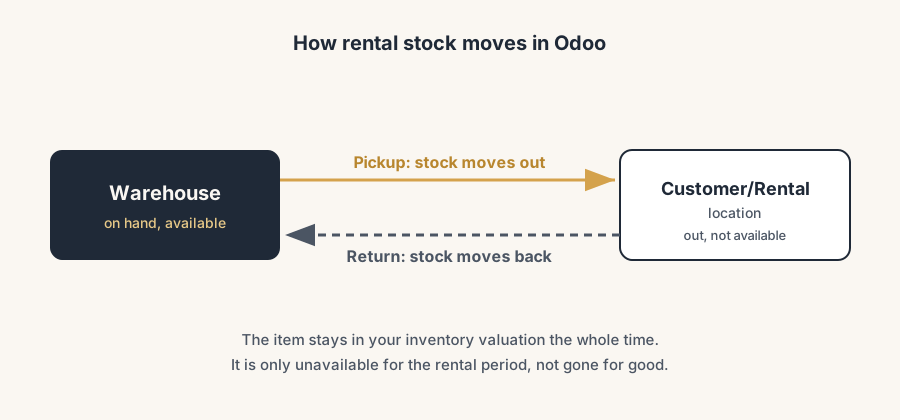
Odoo handles this with a separate Customer/Rental location. When a customer picks up a rental item, Odoo moves it from your stock to the Customer/Rental location. When they return it, Odoo moves it back. So the product never leaves your inventory valuation, but it is correctly shown as unavailable for the rental period. That is why you cannot run rentals on plain Sales and Inventory alone: those track a quantity, not a booking window.
The fix, step by step
Install Rental and set the defaults
Install the Rental app. Then go to Rental app > Configuration > Settings. Set the company-wide defaults here so you do not have to repeat them per product:
- Default Delay Costs: the standard fee for a late return (more on this below).
- Default Padding Time and Security Time: buffer time, in hours, that makes an item unavailable between two rentals. Use this for cleaning, inspection or maintenance between customers.
- Minimal Rental Duration and Unavailability days: for online rentals, the shortest booking you accept and the days on which pickup or return is not possible.
Setting these once at company level saves you from configuring the same fields on every product.
Mark a product as rentable
Open or create the product. For a physical item you rent out, tick Rental, set the Product Type to Goods, and tick Track Inventory. Tracking inventory is what lets Odoo know how many units you own and therefore how many it can promise per date range.
A product can be both rentable and sellable. If you sell the item new and also rent it, you keep one product and tick both Sales and Rental.
Set the rental pricing per hour, day or week
On the rental product, open the Rental Pricing section and click Add a price. For each line you choose:
- a Unit of time: hours, days, weeks or months
- a Duration
- a Price
Add as many lines as you need. The usual pattern is to reward longer rentals: 25 per day, 120 per week, 400 per month. Add a separate line for each.
Two rules decide what the customer pays, and they trip people up, so read them carefully:
1. Only one price line is used. Odoo does not stack lines. It does not charge "5 days at the daily rate plus the weekly rate". 2. The cheapest matching line wins. For a 6-day rental, if the weekly price (covering 7 days) is cheaper than 6 daily prices, Odoo charges the week.
So your price lines are not a tariff table that adds up. They are options, and Odoo picks the lowest one that covers the period.
Create the rental order and reserve the item
Create a rental order (a sale order with rental dates) and add the rental product with its rental period. Odoo now reserves that unit for that window. If you try to book the same unit for an overlapping period, Odoo warns you that it is not available. This is the clash check you do not get from plain Sales.
Pickup
When the customer collects the item, open the rental order and click Pickup, then Validate in the pop-up. The order gets a Picked-up banner, and Odoo moves the stock from your warehouse to the Customer/Rental location. Your on-hand count for that product drops by the picked-up quantity, which is exactly what you want: it is physically gone.
Return
When the customer brings it back, open the order and click Return, then Validate. The order gets a Returned banner and Odoo moves the stock back to your warehouse, so the unit is available again. If the customer returns only part of the quantity, enter the amount actually returned, and the rest stays open as still out.
Late fees
If the return date passes and the item is not back, Odoo can charge a late fee automatically. Set the penalty on the product (or use the company default Delay Cost) as an hourly or daily fine. When you process a late return, Odoo adds the penalty based on how late it is. Configure this before the season starts, not after the first dispute.
The part that trips people up
A few things catch almost everyone
The cheapest-line rule, not a tariff stack. The single biggest surprise. People build a daily and a weekly price expecting Odoo to add them up for a 9-day rental. It does not. It picks one line, the cheapest that covers the duration. If your weekly rate is cheaper than seven daily rates, a customer renting for 8 days may pay close to one week, not eight days. Test your price lines with a few real durations before you go live.
Stock only drops at pickup, not at order. Reserving on a rental order blocks the date range, but your physical on-hand quantity only changes when you click Pickup. If you read on-hand stock to decide availability, you will misread it. Trust the rental availability check and the calendar, not the raw on-hand number.
Forgetting the buffer between rentals. Without Security or Padding Time, Odoo will let one customer return at 17:00 and another pick up the same unit at 17:01. If the item needs cleaning, testing or charging, set the buffer in hours so the calendar leaves room.
Partial returns left open. If a customer rented five and returns four, you must enter four on the return. The fifth stays out, keeps counting toward late fees if configured, and stays unavailable. People validate the full quantity by reflex and lose track of the missing unit.
Renting non-tracked or service products by accident. If Track Inventory is off, Odoo cannot stop you overbooking, because it does not know how many you own. For real equipment, always track inventory. Service-type rentals (a room, a slot) behave differently and do not move warehouse stock.
Quick checklist
- Rental app installed, company defaults set (Delay Costs, Padding/Security Time, minimal duration)
- Product has Rental ticked, Product Type Goods, Track Inventory on
- Rental Pricing lines added per unit of time (hour/day/week/month)
- Price lines tested against real durations (remember: cheapest single line wins)
- Late fee set as hourly or daily fine
- Buffer time set if items need cleaning or checking between rentals
- Team knows the flow: Pickup validates out, Return validates back, partial returns entered exactly
FAQ
Can I rent products by the hour, day and week in Odoo?
Yes. On the rental product, under Rental Pricing, add a price line for each unit of time you offer (hours, days, weeks or months) with a duration and a price. Odoo charges the cheapest single line that covers the rental period.
How does Odoo handle availability for rentals?
Odoo reserves the item for the booked date range and warns you if you try to book the same unit for an overlapping period. At pickup it moves the stock to a Customer/Rental location, and at return it moves it back, so availability follows the booking window, not just a stock number.
Can Odoo charge late return fees automatically?
Yes. Set a Delay Cost as an hourly or daily fine on the product, or set a company-wide default in the Rental settings. When a return is processed late, Odoo adds the penalty based on how late the item is.
How is rental stock different from normal stock in Odoo?
Sold stock leaves once and stays gone. Rental stock moves out at pickup to a Customer/Rental location and comes back at return, so it stays in your inventory valuation but shows as unavailable only for the rental period. That is why availability is a timeline, not a single quantity.
Does the on-hand quantity drop when I create a rental order?
No. Creating the order reserves the date range, but the physical on-hand quantity only drops when you click Pickup. Use the rental availability check, not the raw on-hand number, to judge whether an item is free.