
The problem
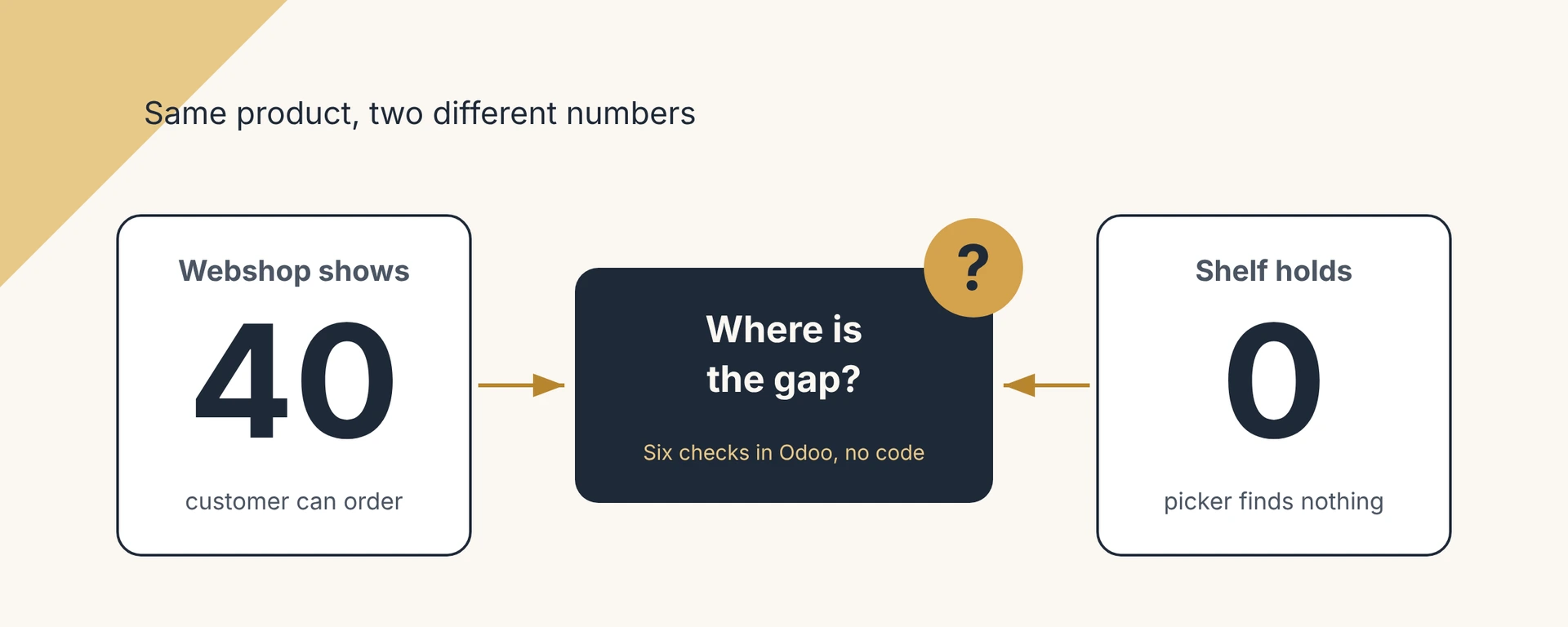
It is Monday, 9:40. Your webshop shows 40 units of your best seller. A customer orders three. Your picker walks to the shelf, finds nothing, and writes "out of stock" on the pick list. The system said 40. The shelf said 0.
Now you have a customer to apologise to, a refund to book, and a question you cannot answer yet: which number is right? Usually both are right, about different things. Or one of them was never told that something moved. The good news is that you can find the gap yourself, and the fix is mostly settings and routines, not code.
Why it happens
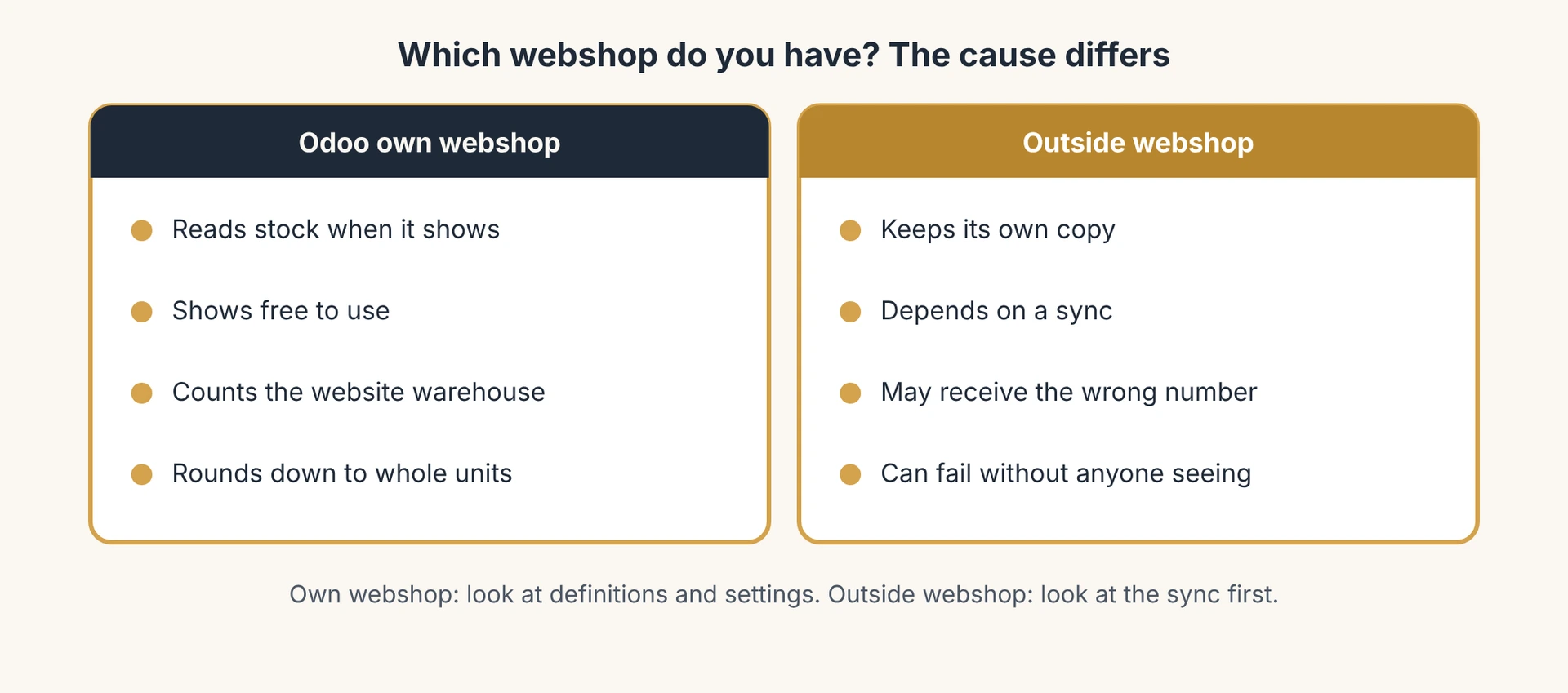
First, which webshop do you have? If it is Odoo's own webshop, it reads stock live from Odoo when it shows a product. A gap there is almost always a definition or a setting. If your webshop is something else, such as Shopify, WooCommerce, Magento or a marketplace, it keeps its own copy of the number and only knows what it was last told. A gap there starts with the sync.
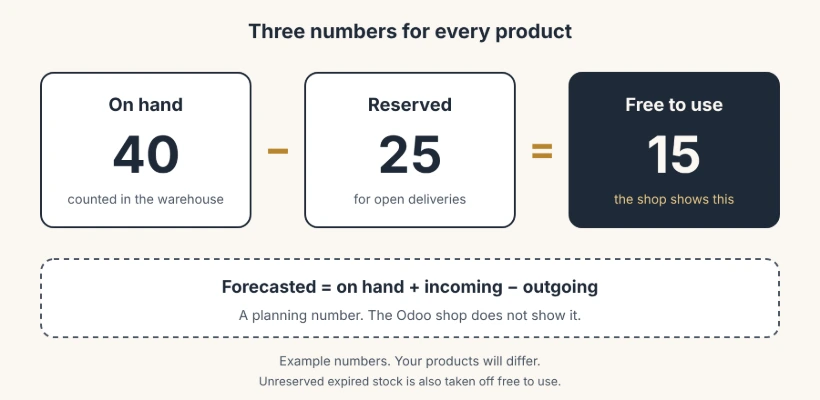
Second, Odoo works out three quantities for every product you track. On hand is what the system believes is physically in the warehouse. Free to use is on hand minus what is reserved for open deliveries. Forecasted is on hand plus incoming minus outgoing. Odoo's own webshop shows free to use, for the warehouse set on your website, rounded down to whole units. It does not show on hand and it does not show forecasted. So your inventory screen and your shop can both be correct and still show different numbers.
Third, six things cause most gaps: stock reserved for open deliveries, a website warehouse that counts the wrong locations, books that are behind the shelf, a till that posts its sales late, expired lots, and an outside webshop with its own copy of the number. The steps below go through them in that order.
The fix, in six steps
- Compare the right numbers. Pick one product that is wrong. Look at its on hand, free to use and forecasted quantities in Odoo. If the shop matches free to use, Odoo is doing what it is designed to do, and your gap sits between free to use and on hand: reservations. If the shop matches none of the three, go to step 2.
- Set the website warehouse. If you run more than one warehouse, open Settings, go to the Website section and set Warehouse to the one that ships your webshop orders. When the field is empty it shows "All warehouses", and then every warehouse counts, including stock that cannot ship to your customers. The field only appears when multiple warehouses are enabled.
- Clear the open loops in your warehouse. Validate deliveries that already left the building. A delivery nobody validated keeps its stock reserved, so the shop number drops while on hand still looks fine. Apply your physical counts, because a count that is not applied changes nothing. Book returns and scrap. If you also run stores on Odoo's point of sale, check the setting "Update quantities in stock". It is on "In real time" by default. On "At the session closing", store sales only reach your shared stock when the session is closed, so your webshop keeps selling items that left the store hours ago.
- Decide what the shop does at zero. Open the product, go to the eCommerce tab and look at the Inventory group. You only see it for products with Track Inventory switched on. "Sell when Out-of-Stock" is on by default. Untick it for every product you cannot backorder. The shop then blocks the order once free to use minus what the shopper already has in the cart drops below 1. Add an out-of-stock message. With "Show Available Qty" you can also tell shoppers how many are left once stock drops below a threshold (5 by default).
- Watch your expiry dates. If you track expiry dates, stock that has expired and is not reserved is taken off free to use. Your shelf may still hold the item, but the shop will not sell it. Move or scrap expired lots.
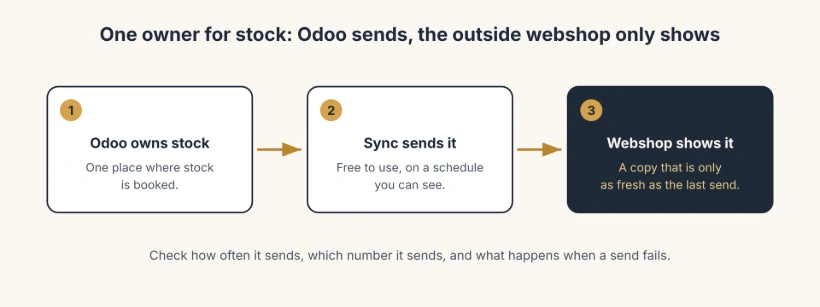
- Give stock one owner if your webshop is outside Odoo. Odoo books the stock. The webshop reads it and never writes it. Then check three things: which Odoo number is sent (free to use, not forecasted), how often it is sent, and what happens when a send fails. If marketplaces sell the same stock, keep a small safety buffer per channel. Test with one product: sell one unit in the webshop, then time how long it takes before Odoo shows the order and before the shop shows the new number.
The part that trips people up
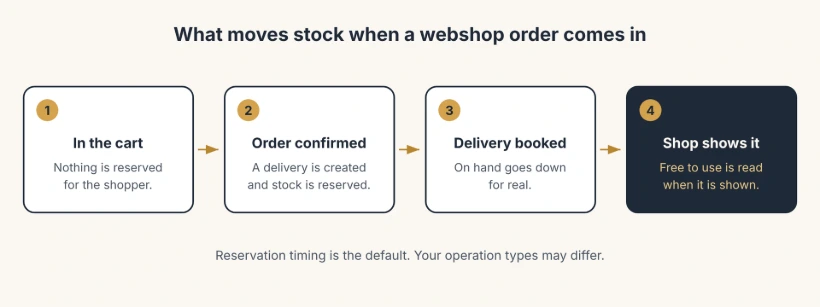
Putting products in a shopping cart does not hold stock. By default, stock is reserved when the order is confirmed and its delivery is created, not while the item sits in a shopping cart. Odoo does count your own cart against you when "Sell when Out-of-Stock" is off, but it does not count other shoppers' carts. So two customers can still buy the last unit.
Rounding hides stock. The shop rounds down to whole units. If you sell by the kilo and 0.9 kg is free, the shop shows 0.
The forecasted quantity is not real stock. If a connector or a report sends the forecasted number, your shop promises goods that have not arrived yet.
Time is part of your stock. Until someone validates an incoming delivery, it does not exist for the shop. The faster your warehouse books, the smaller the gap.
Last, these rules come from Odoo's open code and are the same in Odoo 19 and 20. Connectors for outside webshops differ per provider, so test yours on a copy of your own database.
Quick checklist
- Pick one product that is wrong and write down on hand, free to use and forecasted.
- Check the website warehouse setting.
- Validate old deliveries and apply pending counts.
- Check when your till updates stock.
- Set "Sell when Out-of-Stock" per product.
- Look for expired lots.
- If your webshop is outside Odoo: confirm which number is sent, how often, and what happens when a send fails.
- Run one test order and time it.
When to get a partner
Native Odoo takes you a long way when you have one warehouse and Odoo's own webshop. It gets harder with several warehouses, stores that share stock with a webshop, marketplaces, or an outside webshop whose connector sends the wrong number at the wrong time. That is where a partner earns the fee: they know your setup, you keep one point of contact, and the fix is built once instead of patched every month.
dooPartners is a worldwide network of independent, certified Odoo partners. You work with a partner local to you, with one point of contact. Want help with your own stock numbers?
FAQ
- Why does my Odoo webshop show different stock than my inventory?
- The webshop shows the free to use quantity (on hand minus reserved) for the website warehouse, rounded down, while your inventory screen usually shows on hand. Open deliveries, a website warehouse with the wrong scope, unapplied counts and expired lots all widen the gap.
- Does the Odoo webshop show on hand or forecasted quantity?
- Neither. It shows free to use, which is on hand minus stock reserved for open deliveries and minus unreserved expired stock. The forecasted quantity is not shown.
- How do I stop Odoo selling a product that is out of stock?
- Open the product, go to the eCommerce tab and untick "Sell when Out-of-Stock" in the Inventory group. The option is on by default, and you only see the group for products with Track Inventory switched on.
- How do I show only one warehouse's stock in the webshop?
- Enable multiple warehouses, then set Warehouse in the Website settings to the one that ships your orders. If you leave it empty, all warehouses count.
- How often does Odoo update the stock shown on the webshop?
- Odoo's own webshop works out the number when it shows the product, so it follows your bookings. It only changes when someone validates a stock movement, so late booking is the usual delay. An outside webshop depends on how often its sync sends the number.
- Why does my Shopify or WooCommerce stock differ from Odoo?
- An outside webshop keeps its own copy of the stock number and only knows what the sync last sent. Check which Odoo number is sent, how often, and what happens when a send fails.