
The VAT return stops being a scramble when the tax grids are right, the lock date closes the period before you file, and the closing entry is posted as part of a fixed routine. Odoo has the whole workflow built in; the panic comes from skipping the locks.
It is the third working day of the month and you need the VAT figures. You open the tax report in Odoo, the numbers do not match last month's bookkeeping, and you cannot tell why. Someone posted a supplier bill late, dated to the period you already filed. A credit note shows up with a tax you did not expect. You start exporting to a spreadsheet to reconcile by hand, and the deadline is getting closer.
Every period it is the same scramble. The report should be the easy part: post the invoices and bills, read the figures, file them. Instead the closing feels like detective work. The good news is that Odoo has a real tax-return workflow built in, and most of the panic comes from not using the lock and the closing entry. Here is how the tax report actually works and how to close a period without the month-end chase.
Why it happens
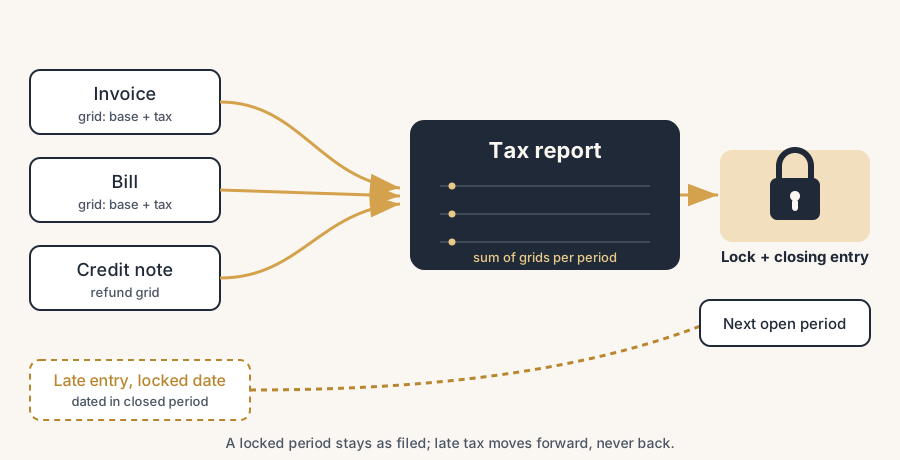
The tax on an Odoo invoice does not just sit on the line. Every tax carries tax grids (also called tax tags) that decide which line of the tax report each amount lands on. When a tax is applied, Odoo stamps those grids on the journal items: one grid for the base amount (the net), another for the tax amount itself. The tax report is nothing more than the sum of those grids over a date range.
So the report is only ever as right as two things: the grids on your taxes, and which transactions fall inside the period. The scramble starts when the second one drifts. By default an open period stays open. Nothing stops a colleague from posting a bill dated to a month you already declared, and the moment they do, that month's figures change after you filed them. Now your filed return and your live report disagree, and you have no clean line between "done" and "still moving".
That line is the Lock Tax Return date. Set it and the period is frozen for tax. Skip it and every period bleeds into the last. The closing panic is almost always a missing lock, not a broken report.
The fix, in steps
Check the tax grids on your taxes first
Before you trust any report, confirm the taxes are tagged. Go to Accounting > Configuration > Taxes and open one. Under the tax you will see a Distribution for Invoices and a Distribution for Refunds section. Each row sends a part of the amount (100% base, 100% tax) to a tax grid.
This is what fills the report. If a tax has no grids, its amounts never appear on the tax return, even though the invoice looks fine. Refunds use the separate Distribution for Refunds, so a credit note can carry different grids than the invoice it reverses. Get this right once per tax and the report takes care of itself.
Open the Tax Return report and pick the period
Go to Accounting > Reporting > Tax Return. Use the date filter at the top to select the period you are declaring, a month or a quarter. The report shows each tax line with its base and tax amount, summed from the grids over that range.
Read it against your own expectation before you do anything else. If a figure looks off, drill into the line: Odoo lets you open the underlying journal items so you can see exactly which invoices and bills feed each number. This is the moment to catch a wrong tax or a missing grid, while the period is still open.
Set the lock date before you close
This is the step that ends the panic. Once the figures are right, lock the period for tax. Go to Accounting > Accounting > Lock Dates and set the Lock Tax Return date to the last day of the period.
From that point, any new transaction dated on or before the lock date cannot change the tax figures of that period. Odoo does not reject the entry. It moves its tax values to the next open tax period instead. So a supplier bill that arrives late, dated to the closed month, still gets booked, but its VAT lands in the period you are still working on. Your filed return stays exactly as you filed it.
Post the closing entry
Back in the Tax Return report with the period selected, click Closing Entry. Odoo creates a tax closing journal entry in the dedicated Tax Returns journal. It moves the balances of the tax payable and tax receivable accounts to a single VAT payable (or receivable) line, so your balance sheet shows one amount owed to or due from the tax office, not a scatter of tax accounts.
If you forgot to set the lock date in Step 3, Odoo locks the period for you automatically, on the accounting date of the closing entry. The closing entry and the lock go together: after this, the period is settled.
File the figures and reconcile the payment
Take the numbers from the report and file them with your tax authority, through their portal or your accountant. When you pay (or receive) the VAT, book the payment against the VAT payable line that the closing entry created. That clears the balance and ties the filing, the ledger and the bank together for the period.
Make it a fixed monthly or quarterly routine
The workflow only saves you if it is a habit. Each period: post everything, read the report, lock the date, post the closing entry, file, reconcile the payment. Same order every time. Once the lock is part of the routine, late entries can no longer rewrite a filed period, and the third-of-the-month detective work disappears.
The part that trips people up
A few things catch almost everyone
A tax with no grids is invisible on the report. The invoice still charges the tax and the ledger still balances, but the amount never reaches the tax return. If a line you expect is missing or low, check the Distribution sections on that tax before anything else.
The lock moves tax values, it does not block the entry. People expect Odoo to refuse a late bill dated to a closed period. It does not. It posts the bill and quietly carries its VAT into the next open period. That is correct behaviour, but it surprises anyone who never sees an error and assumes nothing happened.
Invoice date versus accounting date decides the period. Which date drives the tax report depends on your configuration. In some setups the accounting date leads; with the Dutch invoice-basis setting the invoice date leads. If a transaction lands in the wrong period, the date that drives the report is usually the reason.
The closing entry is reversible, but treat it as final. You can reset and redo it before you file, but once you have filed the figures with the tax office, redoing the closing entry means your ledger and your filed return drift apart. Close after the figures are confirmed, not before.
Manual journal entries can skip the grids. If someone posts a tax-relevant amount through a manual journal entry without the right tax grids, it will not show on the report. Use taxes on invoices and bills so the grids are applied automatically, rather than hand-keying tax lines.
Selling B2C across the EU brings the One Stop Shop into play. Above 10,000 euros of EU-wide distance sales a year you charge the VAT of the customer's country, and the OSS lets you file all of it in one return at home instead of registering in every member state. Odoo handles this with one setting: switch on EU Intra-community Distance Selling in the Accounting settings and it generates the fiscal positions and taxes for every EU country, and the OSS report then groups those sales per country for the filing. Switch it on before the webshop crosses the threshold, not after the letter from a foreign tax office arrives.
Quick checklist
- Every tax has tax grids set under Distribution for Invoices and Distribution for Refunds.
- All invoices and bills for the period are posted before you read the report.
- You read the Tax Return report and drilled into anything that looked off.
- The Lock Tax Return date is set to the last day of the period.
- The Closing Entry is posted to the Tax Returns journal.
- The filed figures match the report exactly.
- The VAT payment is reconciled against the VAT payable line.
How to test it before you rely on it
Run one full period end to end on a copy of your data. Post a few invoices and bills, read the report, set the lock, post the closing entry. Then post one extra bill dated inside the locked period and reopen the report: that bill's VAT should appear in the next period, not the locked one. If it does, your lock works and late entries can no longer rewrite a filed return. If it changes the locked period, the lock date is not set or the wrong date is driving the report.
The Dutch VAT return (BTW-aangifte)
If you run the Dutch localization, the tax report comes set up for the Dutch return. Two reports matter:
- Aangifte omzetbelasting (the VAT return) with the official rubrics: 1a/1b for domestic sales at the high and reduced rate, 2a for reverse-charge received, 3b for supplies to other EU countries, 4a/4b for purchases from inside and outside the EU, 5b for input VAT (voorbelasting). The tags are prescribed by the Belastingdienst, so the grids on the Dutch taxes already map to these rubrics. Read the report figures straight onto your filing.
- ICP (intracommunautaire prestaties) is the EU sales listing. It is driven by the same period as the BTW return and is based on rubric 3b, the supplies to other EU countries, split into goods and services. If you report an amount in 3b, you must file the ICP for the same period.
A few Dutch specifics deserve attention:
- Factuurstelsel versus kasstelsel. The invoice-basis setting (Factuurstelsel) makes the invoice date lead the period for the return, which is what most businesses on the invoice basis need. Confirm yours matches how you are registered with the Belastingdienst.
- Filing rhythm and deadline. Most companies file monthly or quarterly, and the return is due within two months after the period. The ICP follows the same rhythm. Lock and close each period in Odoo on that cadence so the figures are frozen when you file.
- Reverse charge (verlegde btw). Intra-EU B2B and certain domestic categories use reverse charge. The grids carry these to 2a and 4a/4b. If those rubrics look empty when they should not, the fiscal position or the tax on the transaction is the place to look.
FAQ
How do I do my VAT return in Odoo?
Go to Accounting > Reporting > Tax Return, select the period with the date filter, and check the figures. Set the Lock Tax Return date for that period under Accounting > Lock Dates, then click Closing Entry to post the tax closing journal entry. File the figures with your tax authority and reconcile the VAT payment against the VAT payable line the closing entry creates.
What are tax grids (tax tags) in Odoo?
Tax grids are tags Odoo stamps on journal items when a tax is applied: one for the base amount, one for the tax amount. The tax report sums these grids over a period to fill each report line. You set them per tax under Accounting > Configuration > Taxes, in the Distribution for Invoices and Distribution for Refunds sections. A tax without grids never appears on the report.
What does the tax lock date do in Odoo?
The Lock Tax Return date freezes a period for tax. Any new transaction dated on or before the lock date has its tax values moved to the next open tax period instead of changing the closed one. This keeps a filed return from being rewritten by late entries. Odoo sets the lock automatically when you post the closing entry if you have not set it yourself.
Why is a late supplier bill not showing in the period I expected?
If the period is locked for tax, Odoo carries the bill's VAT into the next open period rather than the closed one, even though the bill is dated to the closed month. The bill posts normally; only its tax values move. This is the lock working as intended, not a bug.
Does Odoo support the Dutch BTW-aangifte and ICP?
Yes. With the Dutch localization installed you get the Aangifte omzetbelasting report with the official rubrics (1a, 1b, 2a, 3b, 4a, 4b, 5b) and an ICP statement for EU supplies, both driven by the same period. The Dutch taxes ship with grids mapped to these rubrics, so you read the figures straight onto your filing.