
Ship what you have by setting the Done quantity to the real count, validate, and choose Create Backorder. Odoo then tracks the remainder as its own open delivery until the stock arrives, and the customer never has to call about the missing units.
A customer ordered ten units. You have seven on the shelf and three on the way. The customer wants the seven now, not next week when the rest arrives. The warehouse team picks the seven, hits Validate, and a popup appears asking about something called a backorder. Half the time someone clicks the wrong button and the missing three quietly vanish from the system.
A backorder is just the unfinished part of a delivery. You ship what you have, Odoo keeps a record of what you still owe, and that record stays open until you ship the rest. Done right, it is one of the cleanest things Odoo does. Done wrong, the remainder disappears and the customer calls a week later asking where their last three units are. Here is how to handle it.
What a backorder is, and when Odoo asks for one
A backorder is a second delivery order that Odoo creates for the quantity you did not ship. It carries the leftover lines, links back to the original order, and waits until the stock is there to fulfil it.
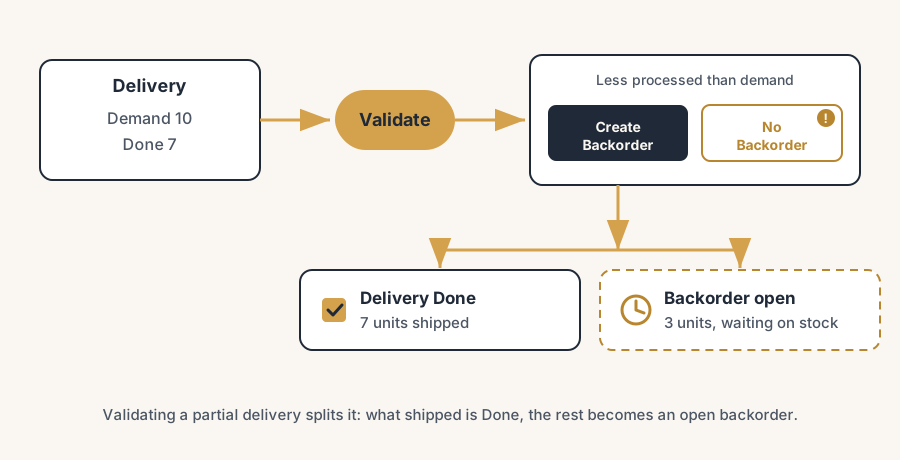
Odoo offers it at one specific moment: when you validate a delivery and the quantity you actually moved is less than the quantity demanded. The popup says you processed fewer products than the initial demand, and it gives you two choices. Create Backorder keeps the remainder as a new open delivery. No Backorder closes the delivery and treats the missing quantity as not coming. That second option is where orders go to die, so the choice matters.
The trigger is the quantity comparison, nothing else. If the Done quantity equals the demand, Odoo validates silently and never asks. If Done is lower, you get the popup. So the whole thing comes down to setting the right Done quantity before you validate.
The fix, step by step
Set the Done quantity to what you are actually shipping.
Open the delivery order. Each line shows a Demand and a Done quantity. Type the real picked quantity into Done. If the order was for ten and you have seven, the line reads Demand 10, Done 7. This is the single most important step. Everything after it follows from this number.
Validate, and choose Create Backorder.
Click Validate. Because Done (7) is less than Demand (10), Odoo shows the backorder popup. Click Create Backorder. Odoo marks the current delivery as Done for the seven units, and creates a new delivery order for the remaining three, linked to the same sales order.
Find the backorder when stock arrives.
The new delivery is a normal transfer, waiting for stock. You find it on the original sales order under the Delivery smart button (it now shows more than one delivery), or in Inventory under the Delivery Orders that are waiting. When the three units land, reserve and validate that delivery the normal way and the order is complete.
Tell the customer before they ask.
Send a short note when you ship the partial: what went out today, what is still coming, and roughly when. Odoo can help here. The delivery confirmation email goes out per delivery, so the customer gets one for the seven now and one for the three later. You can also leave a line in the order chatter so anyone who picks up the phone sees the full story.
The part that trips people up
A few things catch almost everyone
This is where the remainder quietly disappears.
The dangerous button is No Backorder. If someone clicks it, Odoo closes the delivery and the missing quantity is gone from the picking. The sales order still shows what was ordered, but there is no open delivery chasing the rest. Nobody is wrong on purpose. They just clicked the wrong button under time pressure. Train the team: if more is coming, it is always Create Backorder. Our rule goes one step further: even when you suspect the remainder will never ship, create the backorder first and decide its fate afterwards. The open backorder is your record of what was not delivered, and it keeps the quantity on the delivery paperwork. Click No Backorder and the remainder also drops off the packing slip, so nothing in the customer's documents shows anything is still owed. Cancelling a backorder later is one click; reconstructing what silently vanished is not.
Setting Done to the full demand by accident skips the popup entirely. If a picker leaves Done at 10 because that is what auto-filled, Odoo thinks all ten shipped and asks nothing. Now your stock shows three units that left the building but are still on the shelf. Always set Done to the physical count before validating.
Reserved stock can confuse the picture. If the sales order reserved ten and only seven exist, the delivery may show a shortage warning. That is Odoo telling you it cannot fully reserve, not a reason to cancel. Ship the seven, backorder the three, and the reservation sorts itself out when stock arrives.
A backorder is a delivery, not a new sales order. The price, the invoice and the order total all stay on the original sales order. The backorder only moves goods. So invoicing rules still apply to the sales order, and you can invoice on delivered quantity if you bill what actually shipped.
Backorders stack. If the three units arrive in two batches, you can backorder again from the backorder. Each partial validation can spawn the next remainder. That is fine, it just means you check the Delivery smart button for more than one open transfer.
Quick checklist
- Set the Done quantity to what you physically shipped, not the demand.
- On the popup, choose Create Backorder when more is coming.
- Never click No Backorder unless the remainder is truly cancelled.
- Find the open backorder via the sales order's Delivery smart button.
- Send the customer one note: shipped today, coming later, expected date.
- Validate the backorder normally when the rest of the stock arrives.
FAQ
What is a backorder in Odoo?
A backorder is a second delivery order that Odoo creates for the quantity you did not ship on the first delivery. It carries the remaining lines, links back to the original sales order, and stays open until you fulfil it when stock arrives.
When does Odoo ask to create a backorder?
Odoo asks when you validate a delivery and the Done quantity is less than the demanded quantity. A popup says you processed fewer products than the initial demand and offers Create Backorder or No Backorder.
How do I ship a partial delivery in Odoo?
Open the delivery order, set the Done quantity on each line to what you are actually shipping, then click Validate. When Odoo shows the backorder popup, choose Create Backorder to keep the rest as an open delivery.
What happens if I click No Backorder?
Odoo closes the delivery and treats the unshipped quantity as not coming. There is no open delivery left for the remainder. Only choose No Backorder if you genuinely will not ship the rest.
Where do I find the backorder after I create it?
On the original sales order, the Delivery smart button now shows more than one delivery. Open the new one, or find it in Inventory under Delivery Orders waiting for stock. Validate it normally when the goods arrive.
Does a backorder create a new invoice?
No. The backorder only moves goods. The price, total and invoicing stay on the original sales order. If you invoice on delivered quantity, you bill what actually shipped each time.